- Nov 13
The Phish That Uses Microsoft's Real Login Page: Shut Down Device Code Phishing Before Microsoft Does It for You
- IAMPathway Trainer
- Microsoft Entra ID
A finance user gets an email about an overdue invoice. The link opens a blurred document preview with a "Verify identity" button, which takes them to microsoft.com/devicelogin, Microsoft's real site. A short code is already on their clipboard. They paste it, approve the Authenticator prompt, and get bounced to something that looks like DocuSign.
They checked the URL. They used MFA. They never typed a password into a fake page. And the attacker now has a working access token and refresh token for their mailbox.
That's device code phishing. It abuses a legitimate OAuth sign-in flow built for TVs, meeting room devices and command-line tools, and Microsoft has documented large campaigns using it in February 2025 and April 2026.
The fix is a Conditional Access policy that blocks device code flow, and Microsoft now ships one as a Microsoft-managed policy. It lands in report-only mode, and Microsoft turns it on if you leave it there. This post shows you how to get ahead of that: find who really uses the flow, carve out the few things that need it, and switch the block on yourself.
Everything here was checked against Microsoft Learn, RFC 8628 and Microsoft's threat intelligence write-ups on November 10, 2026. The KQL follows Microsoft's published schemas but hasn't been tested in a live tenant, so try it in a test workspace first.
The plan at a glance
Understand the attack and why your usual defenses miss it.
Find the managed policy and check its state.
Inventory real device code use (no extra license needed for a basic check).
Build tight exclusions for Teams devices, break-glass accounts and the Device Registration Service.
Run it in report-only, review, then turn it on.
Know the response if someone has already fallen for it.
How device code flow is supposed to work
Device code flow is the OAuth 2.0 Device Authorization Grant, standardized in RFC 8628. It's for devices that can't show a normal sign-in page: a smart TV, a printer, a Teams Rooms console, or a terminal running a CLI tool.
The device asks Microsoft's
/devicecodeendpoint for a code.Microsoft returns a long
device_code(kept by the device), a shortuser_code(shown to the person) and averification_uri.The person opens that page on their phone or laptop, types the code, and signs in, MFA included.
The device keeps polling Microsoft's
/tokenendpoint and receives the access and refresh tokens as soon as the person finishes.
By default, the user has 15 minutes from the code request to finish, per Microsoft's documented expires_in default.
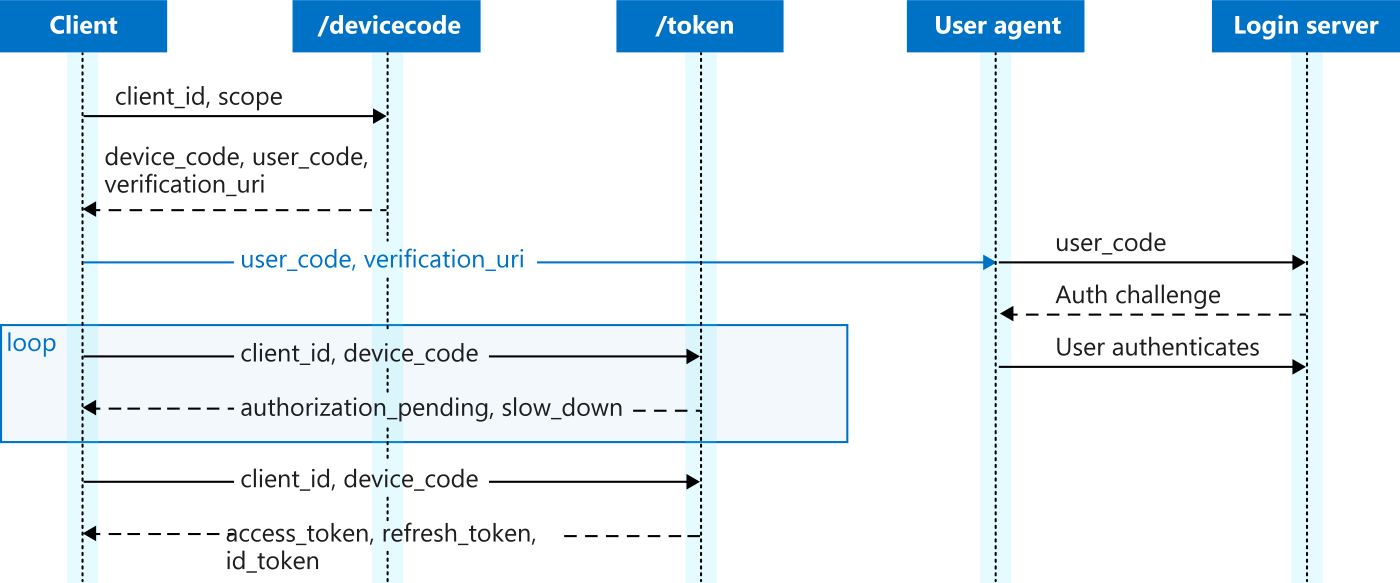
Source: Microsoft Learn, OAuth 2.0 device authorization grant
The weakness is right there in the diagram: the tokens go to whoever started the flow, not to the browser where the person signed in. RFC 8628 says so itself in Section 5.4, "Remote Phishing," warning that the flow "can be initiated on a device in an attacker's possession."
The attack in plain English
In device code phishing, the attacker plays the part of the TV. They request a code from Microsoft, send it to the victim with a link to the real sign-in page (dressed up as a Teams invite, shared document, e-signature or voicemail), and poll until the victim signs in. Then the attacker's script receives the user's tokens.
Storm-2372 (February 2025). Microsoft Threat Intelligence reported a campaign active since August 2024 against governments, NGOs, IT services, defense, telecom, health, higher education and energy. The lures were fake Teams meeting invites, often after the attacker built rapport over WhatsApp, Signal or Teams. The actor then searched mailboxes through Microsoft Graph for words like "password," "admin" and "credentials," and exfiltrated what it found. Microsoft has since assessed Storm-2372 as an initial access sub-cluster of Midnight Blizzard.
Microsoft's February 14, 2025 update matters most for defenders. The actor switched to the Microsoft Authentication Broker client ID, which gave it a refresh token it could use to register an attacker-controlled device and then obtain a Primary Refresh Token (PRT). A phished session became a "trusted" device.
The April 2026 campaign. Microsoft Defender Security Research described a large, automated campaign linked to the EvilTokens phishing-as-a-service kit:
It beat the 15-minute timer by requesting a fresh code only when the victim landed on the page.
It copied the code to the victim's clipboard and polled every 3 to 5 seconds.
It hid behind reputable hosting such as Vercel, Cloudflare Workers, AWS Lambda and Railway.
It used AI-written, role-specific lures such as RFPs and invoices.
It moved fast. Some victims had a new device registered within about 10 minutes. For others, the attackers waited hours, then ran Graph reconnaissance, created inbox rules and searched mail for wire transfer details, focusing on finance and executive staff.
Why MFA, passkeys and "check the URL" don't stop it
MFA works exactly as designed. The victim really is the one signing in. Microsoft's April write-up says the attacker gets a live token, "bypassing MFA by design."
Passkeys don't help at this step either. A passkey is bound to the website's origin, which is what defeats adversary-in-the-middle phishing. Here the origin is Microsoft's genuine sign-in service, so the passkey works as intended. The problem is who receives the tokens afterwards. Keep rolling out passkeys, but don't count on them for this.
URL checks pass, because
microsoft.com/deviceloginis real.No password reaches a fake site, so "credentials entered on an unknown page" detections see nothing. The Ridgeline Cyber guide on this attack makes the same point.
One human cue is left: the page names the app being authorized and asks you to confirm. Tell users: if you didn't start a sign-in on a TV, meeting room or command-line tool, never enter a code someone gave you. But training is the backup. The real control is blocking the flow for everyone who doesn't need it.
Step 1: Know what Microsoft is going to do in your tenant
Microsoft's managed policies page lists Block device code flow as a managed policy, noting the flow "is rarely used by customers, but is frequently used by attackers." Here's what Microsoft says about how managed policies behave:
They're created in report-only mode in eligible tenants, "based on licensing and feature eligibility."
They switch on automatically "no less than 30 days after they're introduced in your tenant" if left in report-only.
You get two weeks' warning by email and Message center post.
Sometimes it's faster than 30 days. If so, the emails, Message center posts and the policy details in the admin center will say so.
You can turn it on sooner, or opt out by setting it to Off.
Edits are limited to the state and excluded identities. You can't rename or delete it. For anything more, Microsoft suggests Duplicate and editing the copy.
Microsoft keeps the scope current, adding new eligible users and groups while preserving your exclusions.
The page doesn't say exactly which tenants get Block device code flow or what it excludes out of the box, so open the policy and read its assignments yourself. If it's sitting in report-only, Microsoft will decide when your meeting rooms stop signing in, unless you decide first.
Step 2: Find the Microsoft-managed policy and check its state
Sign in to the Microsoft Entra admin center as at least a Conditional Access Administrator.
Go to Entra ID > Conditional Access > Policies.
Find Block device code flow with Microsoft in the Created by column.
Note its State, included and excluded identities, target resources, and any date or recommended actions shown.
Check the Message center for the managed-policy notice.
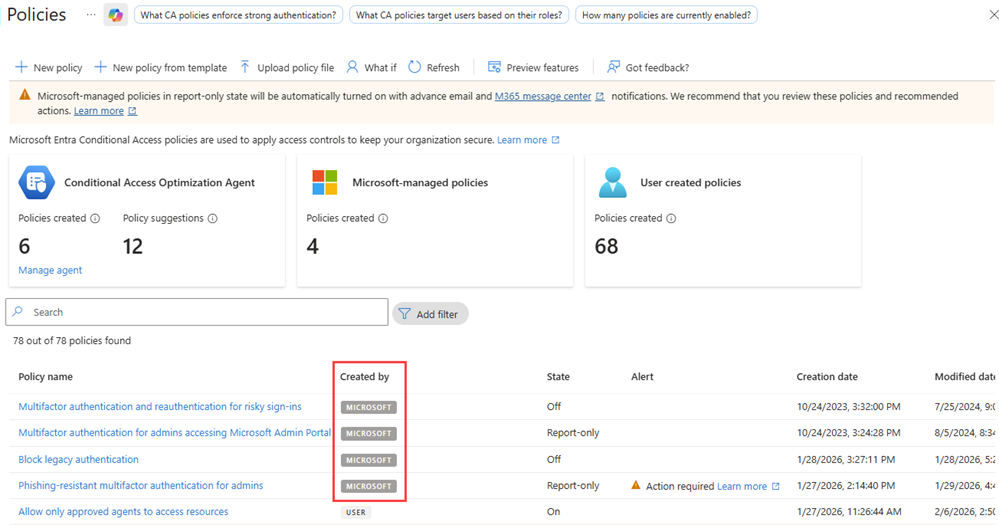
Source: Microsoft Learn, Microsoft-managed policies
No policy there? That doesn't mean you're protected. You may be on security defaults or a license that doesn't get it. You can build the same policy yourself (Step 5). To track changes Microsoft makes later, filter the audit logs by Service Conditional Access; managed policy names start with "Microsoft-managed:".
Step 3: Find out who really uses device code flow
On most tenants the honest answer is "very little." Ridgeline's guide says the typical list is Teams Rooms and Android meeting devices, a few admins with CLI tools, and maybe signage. Only your logs can tell you for sure.
The no-extra-license way
Every tenant has sign-in logs. Entra ID Free keeps them 7 days; P1 and P2 keep 30 days.
Go to Entra ID > Monitoring & health > Sign-in logs and set the longest date range.
Select Add filters > Authentication protocol and choose Device code.
Check both the interactive and non-interactive user sign-in tabs.
Download the results and give every user and app an owner and a reason. Anything nobody can explain goes to investigation, not the exception list.
On a Free tenant, repeat weekly for a month. A Teams Room that only reauthenticates after a password change may not show up in one week.
Two fields, and why you need both
Authentication protocol (
AuthenticationProtocol) records the grant for that event,deviceCodefor the device code sign-in itself.Original transfer method (
OriginalTransferMethod) records how the session started, carried through later requests.
This matters because of protocol tracking. Microsoft says a session that started with device code stays tracked through later token refreshes, which show up as non-interactive sign-ins and may not show device code as their protocol. Microsoft's Teams guidance says to inventory with the protocol field but not to rely on it alone when investigating.
The KQL way
If Entra sign-in logs go to Log Analytics or Microsoft Sentinel (the diagnostic setting needs P1 or P2), inventory 30 days:
// Who used device code flow in the last 30 days?
let Interactive = SigninLogs
    | where TimeGenerated > ago(30d)
    | where AuthenticationProtocol == "deviceCode"
        or OriginalTransferMethod =~ "deviceCodeFlow"
    | extend OS = tostring(DeviceDetail.operatingSystem);
// DeviceDetail is a string in the non-interactive table
let NonInteractive = AADNonInteractiveUserSignInLogs
    | where TimeGenerated > ago(30d)
    | where AuthenticationProtocol == "deviceCode"
        or OriginalTransferMethod =~ "deviceCodeFlow"
    | extend OS = tostring(
        parse_json(DeviceDetail).operatingSystem);
union Interactive, NonInteractive
| summarize SignIns = count(),
    Users = make_set(UserPrincipalName, 25),
    LastSeen = max(TimeGenerated)
    by AppDisplayName, ResourceDisplayName, OS
| sort by SignIns desc
Microsoft lists deviceCode as an AuthenticationProtocol value in both tables. The deviceCodeFlow value for the original transfer method follows Ridgeline's guide; Microsoft's table reference describes the field without listing values, so confirm it against a known sign-in. A test account running az login --use-device-code gives you one safely.
To catch a phish, flag a user's first device code sign-in in a month, a simplified version of Ridgeline's detection:
// Device code successes in the last hour by users
// with no device code use in the previous 30 days
let Known = union SigninLogs,
        AADNonInteractiveUserSignInLogs
    | where TimeGenerated between (ago(31d) .. ago(1h))
    | where AuthenticationProtocol == "deviceCode"
        or OriginalTransferMethod =~ "deviceCodeFlow"
    | distinct UserId;
SigninLogs
| where TimeGenerated > ago(1h)
| where AuthenticationProtocol == "deviceCode"
| where ResultType == "0"
| where UserId !in (Known)
| project TimeGenerated, UserPrincipalName,
    AppDisplayName, IPAddress, UserAgent,
    Country = tostring(LocationDetails.countryOrRegion)
In a phish, IPAddress is the attacker's poller, often a cloud host. Treat an unfamiliar address as a lead, not proof. This won't catch a phish against someone who already uses the flow, such as an admin with a CLI habit, so cover those accounts with a "new IP or country" rule.
With Defender XDR, Microsoft's April post includes advanced hunting queries, including one for error code 50199 followed by success in the same correlation ID (a pause while someone typed a code), and lists built-in detections such as "User account compromise via OAuth device code phishing."
Step 4: Build tight exclusions
Microsoft's goal is "as close as possible to a unilateral block." Every exclusion is a hole, so keep them small, named and owned.
Break-glass accounts
Exclude your emergency access accounts, as Microsoft advises for managed policies, then alert on any device code sign-in by them.
Teams Rooms and other shared Teams devices
Follow Microsoft's Restrict device code flow for Microsoft Teams devices guide:
Some Teams devices need the flow for first-time registration, reprovisioning and some reauthentication, such as after a password change. Microsoft's Teams Rooms support page adds that blocking it stops remote sign-in of Teams Android devices through
microsoft.com/devicelogin.Exclude only the device resource accounts (the room or shared-device accounts, not the technician's) through a persistent exception group. Microsoft says this exception isn't time-boxed.
Exceptions are account-wide. Microsoft says you can't scope them to one app, so an excluded account can use device code for anything.
Keep a register of owner, device and ticket ID, and remove the account when the device retires.
Avoid broad user exclusions for personal Teams devices. If you must, document the risk and review it.
The Device Registration Service
Since early September 2024, Microsoft enforces authentication flows policies on the Device Registration Service when a policy targets All resources. The Teams guide calls this exclusion required so device registration through device code flow isn't blocked.
Portal: Target resources > Exclude > Select resources > Device Registration Service.
API: exclude client ID
01cb2876-7ebd-4aa4-9cc9-d28bd4d359a9.To check if you need it, filter sign-ins by that Resource ID and Authentication protocol = Device code.
The tradeoff: this exclusion means the policy won't stop registration via device code, which is exactly Storm-2372's persistence step. So restrict registration separately. In Devices > Device settings, "Users may join devices to Microsoft Entra" defaults to All; narrow it if you can. Microsoft's Storm-2372 guidance also recommends enrollment restrictions. And keep the registration alert from the response section running.
For the managed policy, Microsoft doesn't say whether it already excludes the Device Registration Service, and you can only edit excluded identities. Check its target resources. If you need a resource exclusion it won't take, Duplicate it, build the exclusions into your copy, turn the copy on, and set the managed one to Off.
CLI tools and everything else
Microsoft says to move admins to browser-based or brokered sign-in, and automation to managed identities or workload identity federation. Any remaining non-Teams exception is "a documented risk acceptance with an owner and review cadence," in its own group.
Step 5: Report-only, review, then turn it on
The managed policy starts in report-only. To build your own, Microsoft's block authentication flows guide says:
Users: include All users; exclude break-glass accounts and approved exception groups.
Target resources: All resources, excluding Device Registration Service.
Conditions > Authentication flows: Configure Yes, select Device code flow.
Grant: Block access.
Enable policy: Report-only, then Create.
Run it for at least a week, ideally across a Teams device reauthentication. Check the policy's Policy impact tab, which works for report-only policies, and look for Report-only: Failure on individual sign-ins. With Log Analytics:
// Sign-ins the device code block would have stopped
let PolicyId = "<policy-object-id>";
union
    (SigninLogs
    | extend CAP = ConditionalAccessPolicies),
    (AADNonInteractiveUserSignInLogs
    | extend CAP = todynamic(ConditionalAccessPolicies))
| where TimeGenerated > ago(7d)
| mv-expand Policy = CAP
| where tostring(Policy.id) == PolicyId
| where tostring(Policy.result) == "reportOnlyFailure"
| summarize WouldBlock = count(),
    Users = make_set(UserPrincipalName, 50)
    by AppDisplayName, Type
Give every row an approved exception with an owner or accept the block. Then tell the help desk and switch the policy On before Microsoft's date.
After it's on, protocol tracking means an existing device-code-derived session can break when its refresh token is next used. Microsoft documents error AADSTS530036 for this and calls the resulting blocks expected. On a meeting room device that can mean a full sign-out, which is why the exception group must come first.
If someone has already fallen for it
Move fast. Microsoft saw device registration within about 10 minutes in some cases.
Disable the account briefly. Microsoft's April guidance says revocation often kills only refresh tokens, leaving access tokens "active for up to an hour," and recommends temporarily disabling the account. Access tokens default to a random 60 to 90 minutes.
Revoke sessions from the user's page in the admin center, or with
Revoke-MgUserSignInSession -UserId <upn>. Microsoft notes "a small delay of a few minutes." For what revocation does and doesn't kill, see Revoke Sessions Didn't Kick Them Out.Hunt for new devices. Check audit logs for Register device, Add registered owner to device and Add registered users to device, and disable or delete anything the user doesn't recognize. A rogue device can lead to a PRT, so session revocation alone isn't enough.
Hunt for new MFA methods. Search for User registered security info and Admin registered security info. If unsure, use Require re-register MFA, which Microsoft says deletes phone numbers, Authenticator apps and software OATH tokens, and deactivates hardware OATH tokens.
Check the mailbox for inbox rules that move, delete or forward mail (Microsoft's queries hunt for rule names made only of punctuation), and follow Responding to a compromised email account.
Scope it. Search the attacker's IP for other users. Storm-2372 also sent fresh lures to colleagues from the victim's mailbox.
Reset the password, re-enable, and watch non-interactive sign-ins for a week. Your Sign-In Hunt Came Back Clean explains why those logs matter.
For step 3, this flags a device registered within an hour of a device code sign-in:
// Device registered within 60 minutes of a
// successful device code sign-in by the same user
let DC = SigninLogs
    | where TimeGenerated > ago(14d)
    | where AuthenticationProtocol == "deviceCode"
    | where ResultType == "0"
    | project SignIn = TimeGenerated, UserId,
        UserPrincipalName, SignInIP = IPAddress;
AuditLogs
| where TimeGenerated > ago(14d)
| where OperationName == "Register device"
| extend UserId = tostring(InitiatedBy.user.id)
| join kind=inner DC on UserId
| extend Mins = datetime_diff(
    "minute", TimeGenerated, SignIn)
| where Mins between (0 .. 60)
| project SignIn, TimeGenerated, Mins,
    UserPrincipalName, SignInIP, TargetResources
It joins on object ID rather than UPN, as Ridgeline recommends, because UPN casing can differ between logs. Confirm your "Register device" events carry the user in InitiatedBy.user.id before trusting an empty result.
Licensing, and what to do without Conditional Access
Conditional Access needs Entra ID P1, and Microsoft says Business Premium customers can use it. The managed-policies page lists "P2 or Business Premium" as its own prerequisite, but the authentication flows condition itself is a Conditional Access feature, so P1 is the floor.
On Entra ID Free, use security defaults. Microsoft's security defaults page now lists blocking device code flow among its controls, and says that starting July 1, 2026, all new Microsoft Entra tenants block device code flow as part of security defaults. Security defaults have no exceptions, so a Teams Room that needs the flow won't sign in. The July 2026 note is worded around new tenants, so on an older tenant, test with
az login --use-device-codefrom a test account.Need exceptions? You need Conditional Access, which Microsoft recommends for "granular control and exceptions."
A small-business checklist
Find Block device code flow (Created by: Microsoft) and note its state and date.
Filter sign-in logs by Authentication protocol = Device code, interactive and non-interactive.
Put any meeting room resource accounts into one exception group.
Exclude that group and your break-glass account, and confirm the Device Registration Service is excluded, duplicating the policy if needed.
Leave it in report-only for a week, check Policy impact, then turn it On.
Add one line to your next staff email: "Never enter a code someone sends you."
On Entra ID Free, make sure security defaults are on, and test.
If your policy list is already messy, read Conditional Access Policy Plans before adding a duplicate. And the urgent passkey migration call scam shows the same "urgent sign-in step" social engineering with a different payload.
Key takeaways
Device code phishing uses Microsoft's real sign-in page. The victim passes MFA; the attacker gets the tokens because the attacker started the flow.
MFA, passkeys and URL checks don't stop it. Blocking the flow does.
Microsoft's managed "Block device code flow" policy starts in report-only and is enabled no less than 30 days after it's introduced, with two weeks' notice (sometimes faster, as the notices will say).
Inventory first with Authentication protocol = Device code, and follow sessions with Original transfer method.
Keep exclusions tight: break-glass accounts, Teams device resource accounts and the Device Registration Service, then lock down device registration separately.
If someone fell for it, disable briefly, revoke sessions, and hunt for new devices, MFA methods and inbox rules.
No P1? Security defaults block device code flow, with no exceptions.
Official sources
Microsoft Learn: Authentication flows as a condition in Conditional Access policy
Microsoft Learn: Block authentication flows with Conditional Access policy
Microsoft Learn: Restrict device code flow for Microsoft Teams devices with Conditional Access
Microsoft Learn: SigninLogs table and AADNonInteractiveUserSignInLogs table
Microsoft Learn: Microsoft Entra audit log activity reference
Microsoft Learn: Access tokens in the Microsoft identity platform
Microsoft Learn: Manage user authentication methods for Microsoft Entra multifactor authentication
Microsoft Threat Intelligence: Storm-2372 conducts device code phishing campaign (February 13, 2025, updated July 31, 2026)
Microsoft Defender Security Research: Inside an AI-enabled device code phishing campaign (April 6, 2026)
Also referenced: Ridgeline Cyber Defence, Device Code Phishing Uses Microsoft's Real Sign-In Page. Here's What Your Logs Still Show. (November 10, 2026).
About IAMPathway
IAMPathway publishes practical guides on Identity & Access Management: Microsoft Entra ID, governance, identity threats, Application Governance and AI Governance. Browse all topics or read the glossary.