- Oct 30
The 'Urgent Passkey Migration' Call Is a Scam: How to Protect Your Help Desk and Your Staff
- IAMPathway
- Microsoft Entra ID, Identity Threats & Zero Trust
The phone rings. It's "IT," and the caller says you must finish an urgent passkey migration today. They'll walk you through it. All you have to do is open a link.
That call is the lure in an active campaign. On October 28, the Canadian Centre for Cyber Security published alert AL26-028 about help desk voice phishing (vishing) aimed at Canadian organizations, including legal and financial firms. Attackers are using the push toward passkeys as the pretext for taking accounts over.
You don't have to be in Canada, or in law, for this to matter. The technique is a phone call and a fake web page. Here's what the alert says, mapped to Entra controls you can check today.
What the Cyber Centre says is happening
Getting in. Callers impersonate internal IT or help desk staff and claim that an urgent passkey migration, MFA enrolment or password change is required. Calls may reach personal mobiles, office phones or Microsoft Teams, and may spoof a real help desk number. Callers may cite internal IT staff or missed deadlines, and "may end the call if the employee attempts independent verification."
The employee is sent to an organization-branded page on a generic domain, made to look like an enrolment portal. The alert's defanged examples include onetimesso[.]com and registermymfa[.]com, with the organization's name as a subdomain. The page relays credentials and MFA responses to the real identity provider, giving the attacker an authenticated session. The campaign "bypasses conventional multi-factor authentication (MFA) through real-time relay" and rotates lure domains often, so blocklists help little.
After the session. The actor has been reported to register attacker-controlled MFA methods or devices, delete password-reset, MFA-change and security notifications, use scripts and Microsoft Graph to pull data from Microsoft 365 (including SharePoint and OneDrive) and connected SaaS apps, and then send extortion demands.
The alert calls the operator only "a financially motivated threat actor," so this post names no group. The post-compromise steps are "reported," so treat them as a pattern to hunt for.
Why a code or a push approval doesn't stop a relay
The page in the middle just passes along whatever the user types or approves. NIST's SP 800-63B is direct: authenticators that involve manual entry of an output, such as one-time codes, "SHALL NOT be considered phishing-resistant," because "an impostor verifier could relay an authenticator output to the verifier and successfully authenticate." WebAuthn-based authenticators (FIDO2) resist this because the credential is bound to the real site's domain, so a lookalike domain gets nothing usable.
CISA agrees: when someone is tricked into logging in to a fake website, the FIDO protocol will block the attempt. Its fact sheet suggests starting with high-value users and names attorneys and HR staff as examples, which fits who this campaign has been calling.
What the alert asks you to do
The Cyber Centre recommends that organizations:
deploy phishing-resistant MFA (FIDO2 keys, device-bound passkeys or platform authenticators), especially for privileged and high-risk users
require managed devices through conditional access and restrict sign-ins from commercial VPNs, hosting providers and residential proxies
strengthen verification for MFA resets, account recovery and new device enrolments, and reduce session lifetimes
monitor for suspicious MFA registrations, high-volume file access, security-email deletion and lookalike domains
tell employees to verify unexpected IT calls independently, "regardless of caller ID or urgency," and give them a way to report them
if compromise is suspected, revoke sessions and tokens, reset credentials, remove unauthorized MFA methods or devices, review mailbox and file activity, and preserve logs
limit external communications in Teams and similar tools to trusted usersThe alert doesn't mention Temporary Access Pass, the "Register security information" action or Verified ID. Those are my mapping onto Entra. Also, Conditional Access and authentication strengths need Microsoft Entra ID P1, so check your licenses before assuming you already own the fix.
Make the sign-in itself unrelayable
Conditional Access can require a class of sign-in method with an authentication strength. The built-in Phishing-resistant MFA strength allows Windows Hello for Business or a platform credential, a FIDO2 security key, and certificate-based authentication (multifactor). Password plus a text message, voice call, push notification or one-time code only qualifies for the plain MFA strength.
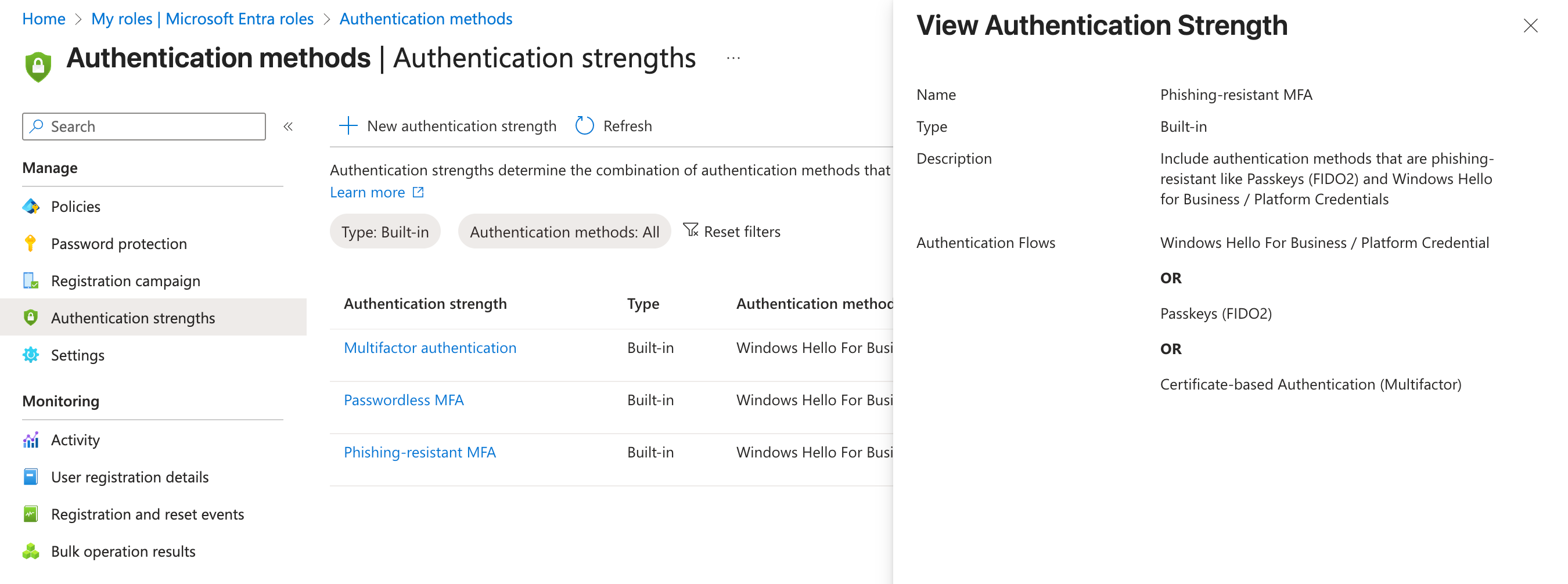
Image: Microsoft Learn, Overview of Conditional Access Authentication Strengths
Two catches from Learn. A strength doesn't restrict the first sign-in step: a user can still type a password but must then complete a phishing-resistant method to continue. And you can't combine "Require multifactor authentication" and "Require authentication strength" in one policy. Start with admins and high-value groups, in report-only mode, and keep emergency access accounts excluded.
Lock down who can register a new method
The attacker's follow-up is registering their own MFA methods. Conditional Access can govern that moment with the Register security information user action. Learn's example policy targets all users, excludes break-glass accounts and guests, and requires an authentication strength when the user isn't on a trusted network. Start in report-only mode.
There's a trap. Learn's table shows a Temporary Access Pass satisfies only the plain MFA strength, not the phishing-resistant one. Demand phishing-resistant for registration and a new hire or locked-out user with a TAP can't register. Learn's page on how authentication strengths work describes the fix: a custom "Bootstrap and recovery" strength that includes TAP and your allowed MFA methods for the registration action, plus a separate sign-in strength without TAP for everything else.
Fix the help desk process first
Set rules that don't bend:
Never act on caller ID, a name or a story. Learn's Verified ID help desk guide says personal information and knowledge-based checks are "no match" for modern attackers, who even use AI voice cloning.
Call back on a number you already hold, from the directory, never one the caller offers.
Treat a Temporary Access Pass like a password. It lets someone register new sign-in methods, so issue it only after verification. Authentication Administrators create one under Entra ID > Users > select the user > Authentication methods > Add authentication method. Keep lifetimes short and consider enforcing one-time use in the TAP policy.
Require a second person for resets on admin accounts and anyone with broad data access.
Never ask users to read out codes or approve a prompt you didn't start.
For stronger proof, Microsoft documents two options. The verified help desk pattern puts a Verified ID VerifiedEmployee check with Face Check inside your service desk, and assumes your system has API support. Entra account recovery removes the call entirely: users prove identity with a government ID and a biometric check through a third-party provider, then receive a TAP. Learn says it needs Entra ID P1 plus a Face Check license, and Microsoft's Verified ID release notes list it as generally available since May 2026. Start in Evaluation mode, where no accounts are recovered.
Shrink the blast radius
These limit what a stolen session can do.
Managed devices. Require a compliant or otherwise managed device for sensitive apps. My reading: a relayed sign-in comes from the attacker's machine, which wouldn't qualify.
Session lifetime. Learn says the default sign-in frequency is a rolling 90 days, and warns that prompting too often trains users to type credentials without thinking. Shorten it selectively and don't expect it to stop a live relay.
External Teams contact. In the Teams admin center, go to Users > External access. By default all external domains are allowed. Switch to "Allow only specific external domains" or block specific ones. Letting your security team manage blocked domains in Defender is Public Preview and needs Defender for Office 365.
Check the audit log for recently added methods
If you only do one thing today, look for registrations nobody asked for.
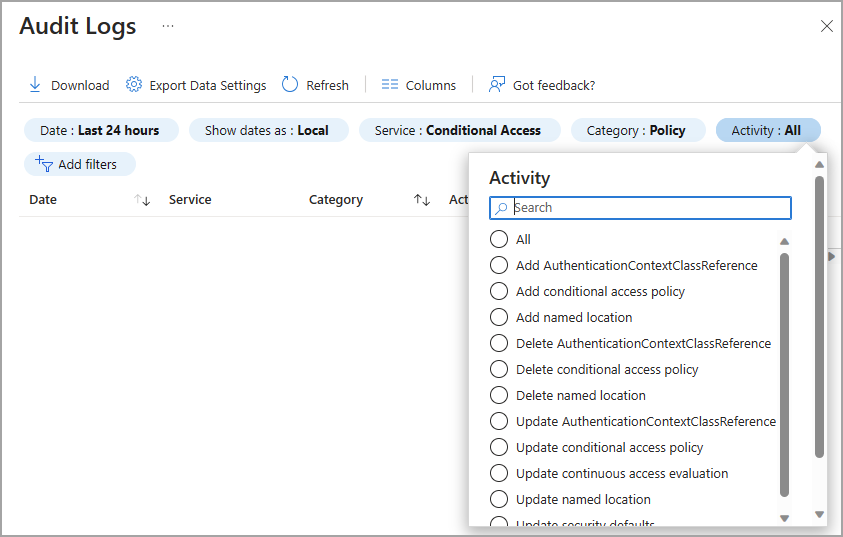
Image: Microsoft Learn, Customize and filter activity logs in Microsoft Entra ID
Microsoft's example filters on Conditional Access. You'll pick registration activities instead.
Sign in to the Microsoft Entra admin center as at least a Reports Reader.
Go to Entra ID > Monitoring & health > Audit logs.
Set the date range. Retention is 7 days on Entra ID Free and 30 days on P1 or P2, so go back as far as you can.
Search the Activity filter for "security info" and "passkey." Learn's activity reference lists User registered security info, Admin registered security info, User deleted security info, User changed default security info, and Add Passkey (device-bound). Names in your tenant can differ, so use what the filter offers.
Open each entry. Check the target user, who initiated it, the time, and any old and new values. Compare against help desk tickets. An "Admin registered" entry with no ticket is as suspicious as a user-initiated one at 2 a.m.
Don't read the IP in an audit entry as the attacker's location. Learn says it reflects the OAuth client's IP. Pivot to Entra ID > Monitoring & health > Sign-in logs and filter by user and time.
For a tenant-wide view, open Entra ID > Authentication methods > Activity and use the Registration tab. It needs P1 or P2 and isn't real time: Learn says data can lag by up to 36 hours.
For one user, open Entra ID > Users > the user > Authentication methods.
Entra audit logs are separate from the Microsoft 365 unified audit log (managed through Microsoft Purview Audit, per Learn). You'll need both to review mailbox and file activity.
Checking by hand won't scale. Learn describes sending Entra logs to a Log Analytics workspace (Entra ID > Monitoring & health > Diagnostic settings, as at least Security Administrator) for querying and alerting, or to Microsoft Sentinel for near-real-time detection. NIST expects an independent notice when a new authenticator is added. I couldn't find Learn documentation of a built-in message to the user when a method is added, so plan on building your own alert.
If someone already fell for it
Move fast, in the alert's order: revoke, reset, remove, review.
Block and revoke. In Entra ID > Users > All users, select the user, clear Account enabled under Account status, then select Revoke sessions on the Overview page (Learn's emergency-revoke steps). Hybrid tenants also need the on-premises account handled; Learn recommends resetting that password twice if compromise is likely.
Remove attacker methods. On the user's Authentication methods page, delete anything unrecognized. Learn says "Require re-register MFA" deletes phone numbers, Authenticator apps and software OATH tokens and deactivates hardware OATH tokens, but it doesn't list passkeys. Check for those by hand.
Disable devices the attacker added, via the user's registered devices. Learn gives a Graph PowerShell example and says Cloud Device Administrator is the minimum role.
Reset the password, and reset non-SSO application passwords too, since the alert says the actor has done that.
Expect delay in apps. Learn says Entra can't directly revoke a session token an application issued. Apps that support continuous access evaluation respond sooner.
Review mailbox rules, deleted security emails and SharePoint or OneDrive access. Preserve logs first.
Re-onboard safely. Only after out-of-band verification, issue a TAP and have the user register a phishing-resistant method.
What to tell your staff
Keep it short enough for a sticky note:
If a call asks for a passkey, MFA or password change, hang up and call IT on the number in the directory. Set a rule that IT never starts these requests by phone.
A caller who resists being verified is a warning sign.
Never read out codes or approve a prompt you didn't start.
Report the call and the link to the security contact, even if you did nothing. That gives you domains to block.
Key takeaways
The lure is a phone call. Fake "passkey migration" calls send staff to branded pages that relay MFA in real time, per AL26-028.
Codes and push approvals can be relayed. FIDO2 and similar methods resist it.
Protect registration with Conditional Access on Register security information, using a custom strength that includes TAP.
Treat TAP like a password. Issue it only after verification.
Fix the help desk process: call back on known numbers, add a second approver for admins, and consider Verified ID with Face Check or Entra account recovery.
Watch the audit log, and export it. Retention is only 7 or 30 days.
Check licensing. Conditional Access and authentication strengths need P1, and account recovery also needs Face Check.
Sources
Canadian Centre for Cyber Security: AL26-028, Ongoing Help Desk Voice Phishing Campaign Targeting Canadian Organizations
Microsoft Learn: Overview of Conditional Access authentication strengths
Microsoft Learn: How authentication strengths work in a Conditional Access policy
Microsoft Learn: Control security information registration with Conditional Access
Microsoft Learn: Configure a Temporary Access Pass
Microsoft Learn: Verified helpdesk with Microsoft Entra Verified ID
Microsoft Learn: Account recovery overview and account recovery FAQ
Microsoft Learn: Conditional Access adaptive session lifetime policies
Microsoft Learn: Manage external meetings and chat with people and organizations using Microsoft identities
Microsoft Learn: Customize and filter activity logs, audit log activity reference, data retention and access activity logs
Microsoft Learn: Authentication methods activity
Microsoft Learn: Manage authentication methods for Microsoft Entra multifactor authentication
Microsoft Learn: Revoke user access in an emergency
NIST: SP 800-63B-4, Authenticator and Verifier Requirements and Authenticator Event Management
CISA: More than a Password and Implementing Phishing-Resistant MFA
About IAMPathway
IAMPathway publishes practical guides on Identity & Access Management: Microsoft Entra ID, governance, identity threats, Application Governance and AI Governance. Browse all topics or read the glossary.