- Nov 3
You Clicked 'Revoke Sessions.' The Attacker Might Still Be In: What Actually Ends Access in Microsoft 365
- IAMPathway Trainer
- Microsoft Entra ID
Here's a story that plays out in small businesses every week. A user's Microsoft 365 account is compromised. Someone resets the password, opens the user in the Microsoft Entra admin center, clicks Revoke sessions, and closes the ticket.
Forty minutes later, the mailbox is still being read.
Nothing malfunctioned. A security practitioner write-up published today by Ridgeline Cyber uses nearly this exact scenario (they describe it as hypothetical) to make a point: each action did what Microsoft documents, and what Microsoft documents is narrower than most incident notes assume. I checked the claims against Microsoft's own documentation, and they hold up. This post separates what Revoke sessions really does from what it doesn't, then gives you a containment order you can follow and a short "contained means..." checklist.
What "Revoke sessions" actually does
The portal button and the PowerShell command Revoke-MgUserSignInSession both call the Microsoft Graph revokeSignInSessions action. Per the Graph documentation, it:
Invalidates all the refresh tokens issued to applications for the user.
Invalidates the user's session cookies in the browser.
Does this by resetting the user's
signInSessionsValidFromDateTimeproperty to the current time.
It also comes with two caveats from the same page: there can be "a small delay of a few minutes" before tokens are revoked, and it doesn't revoke sign-in sessions for external users, because external users sign in through their home tenant.
Think of it as telling Microsoft: "Every sign-in credential you gave out before this moment is no longer good for getting new tokens." That is valuable, because refresh tokens are the long-lived ones. Microsoft's refresh-token documentation gives them a default lifetime of 90 days (24 hours for single-page apps), and each use returns a new refresh token without revoking the old one.
But look at what the description doesn't say:
It doesn't disable the account. If the attacker still has the password and a working second factor, they can sign in again a minute later.
It doesn't touch access tokens that were already issued.
It doesn't end sessions inside apps that issue their own cookies.
It doesn't remove anything the attacker configured: MFA methods, app consents, app credentials, mailbox rules.
What keeps working after you revoke
1. Access tokens already issued
An access token is valid until it expires. Microsoft's access-token documentation says the default lifetime is a random value between 60 and 90 minutes (75 on average). Microsoft's "revoke user access" and Continuous Access Evaluation pages describe the default more loosely as one hour. Tenants that don't use Conditional Access get a two-hour default for clients such as Teams and Microsoft 365. Custom token lifetime policies change it again, and CAE sessions can get long-lived tokens of up to 28 hours (more on that below).
The practical reading: plan on "until each token expires," not on a fixed hour. Microsoft says it plainly: access tokens can pose a risk if they need to be revoked in less than their typical lifespan.
2. An application's own session
Many web apps sign the user in through Entra ID and then issue their own session cookie. Microsoft's revoke-access page states that "Microsoft Entra ID can't directly revoke a session token issued by an application," and that the app might never send the user back to Entra ID while its own token is valid.
For these apps, the revocation has to happen inside the app, or through deprovisioning the user from it. Microsoft's own advice is to deploy automated provisioning and deprovisioning, and to plan a manual process for apps that don't support it. Microsoft Entra app provisioning typically runs every 20 to 40 minutes, so even automatic deprovisioning isn't instant.
3. Guest (B2B) users
The Graph page says revoke doesn't cover external users, and the refresh-token page says the token needs to be revoked in the home tenant. In your tenant, block the guest object's sign-in and remove their access. The CAE documentation also notes that CAE doesn't support guest accounts, so the fast-revocation path described below doesn't apply to them either.
4. Anything the attacker added
A revoke removes sessions. It doesn't remove configuration. This is where compromises quietly survive, and it gets its own section below.
A password reset is not a revoke (and where you reset matters)
Many teams treat "reset the password" and "revoke sessions" as the same thing. Microsoft's refresh-token documentation shows they aren't, and that where an admin resets the password changes what gets revoked. In the documentation's table, the categories are password-based cookies and tokens, non-password-based cookies and tokens, and tokens issued to confidential clients.
User changes their password, runs self-service password reset, or an admin resets it in the Azure portal: password-based cookies and tokens are revoked. Non-password-based cookies and tokens, and confidential-client tokens, stay alive.
Admin resets the password in the Microsoft Entra admin center or the Microsoft 365 admin center: password-based cookies and tokens are revoked, and so are non-password-based tokens and confidential-client tokens. Non-password-based cookies stay alive.
Admin revokes all refresh tokens for the user: everything in the table is revoked.
The takeaway is simple. Reset the password to take the stolen credential out of play. Revoke to take the sessions out of play. Do both, and note in your runbook which portal your team resets from, because the results differ.
Where Continuous Access Evaluation helps (and where it doesn't)
If the revoke can't kill an unexpired access token, how can anything? Through Continuous Access Evaluation (CAE).
Microsoft describes CAE as a two-way conversation between Entra ID and the service holding your data. For critical events, the service can reject a token that hasn't expired. The critical events evaluated today are:
The user account is deleted or disabled.
The user's password is changed or reset.
Multifactor authentication is enabled for the user.
An administrator explicitly revokes all refresh tokens for the user.
High user risk is detected by Microsoft Entra ID Protection.
Microsoft says the goal is "near real time," but that latency of up to 15 minutes might be observed because of event propagation. That is documented latency, not a guaranteed deadline.
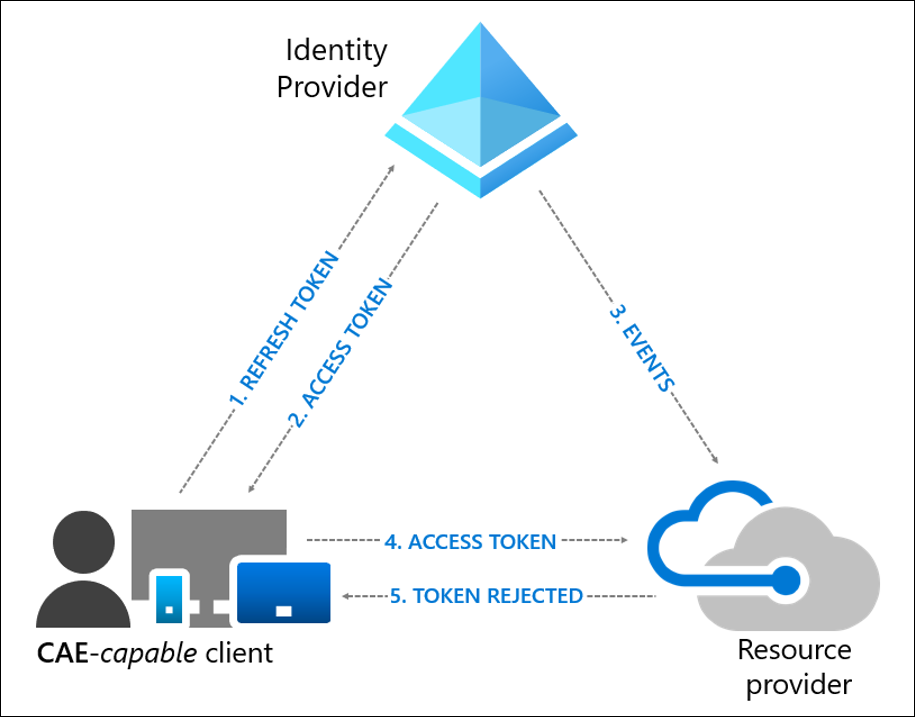
Source: Microsoft Learn, Continuous access evaluation in Microsoft Entra. The numbered flow: the client gets an access token (1 and 2), Entra sends revocation events to the resource (3), and when the client presents the token (4), the resource rejects it (5).
CAE has limits worth knowing before you rely on it:
Covered services: The initial implementation focuses on Exchange Online, SharePoint Online and Teams.
Client support: The client has to understand the claim challenge. Microsoft lists Outlook, Teams and OneDrive as supporting it, and lists Office web apps as not supported for SharePoint and Exchange. A script or custom client that doesn't speak CAE can keep replaying a cached token until it expires.
Guests: Not supported.
Teams: Listed as "partially supported."
Co-authoring: When several people edit a document at once, access might not be cut off immediately. The user may keep access until they close the document or app.
There's a tradeoff hidden in the design, too. In CAE sessions, access tokens can live up to 28 hours, because revocation becomes event-driven rather than clock-driven. Microsoft says it tried the "blunt object" approach of shorter token lifetimes and found it hurt reliability and user experience without removing the risk. The flip side is that your safety now depends on those events arriving. Another reason not to treat Revoke sessions as the finish line.
For a longer-term defense against token theft, Microsoft also offers Token Protection, a Conditional Access session control that tries to ensure only device-bound sign-in session tokens are accepted. It's limited to supported platforms and apps (see the Microsoft Learn page for the current list), so treat it as one layer, not a replacement for the steps below. The OAuth security best-practice RFC from the IETF (RFC 9700) points the same direction: it recommends sender-constrained access tokens to limit the use of stolen tokens, and refresh-token rotation or sender-constraint for public clients.
What survives a revoke, mechanism by mechanism
Each of these needs its own removal step:
A registered MFA method. It doesn't give access by itself. But whoever controls it can pass MFA the next time the account is enabled and the password is known. Remove methods the user doesn't recognize.
A delegated OAuth consent grant. The grant stays authorized after a revoke. Using it still needs a token for the user, so it depends on getting a user token, but it's waiting the moment one is obtained. Microsoft's Graph documentation for deleting a grant adds a detail that matters during an incident: existing access tokens "will continue to be valid for their lifetime," but new tokens won't be granted for the removed permissions.
Application permissions on an app the attacker controls. These don't involve the user's tokens at all. The app signs in with its own secret or certificate. Remove the permissions and the credential, or disable or delete the app. A tenant-wide admin consent is a bigger deal than one user's consent.
A mailbox forwarding setting or inbox rule. It runs server-side. It keeps copying mail with no session behind it.
Two Microsoft Learn playbooks show why these matter. In the app consent playbook, Microsoft Incident Response says attackers use a combination of Mail.*, Contacts.*, MailboxSettings.*, People.*, Files.* and Notes.* delegated permissions in 99% of the consent phishing attacks they've observed. In the compromised-application playbook, Microsoft describes a second pattern: an already-compromised administrator account creates a new, innocently named OAuth app for persistence, which allows long-term data access "without the need for an account."
Step-by-step: contain a compromised Microsoft 365 account
This order follows Microsoft's guidance in the revoke-access page and the compromised-email-account article. Do the steps in order, and don't re-enable the account until step 9.
Step 1: Disable the account
In the Microsoft Entra admin center: Entra ID > Users > All users, select the user, then under Account status select Edit, clear Account enabled, and select Save. You need User Administrator for non-admin users, or Privileged Authentication Administrator for admin accounts.
This stops new sign-ins. It's also a CAE critical event.
# Connect with the scopes needed for this step
Connect-MgGraph -Scopes @(
    "User.Read.All",
    "User.EnableDisableAccount.All"
)

# Look up the user and block sign-in
$upn = "jason@contoso.com"
$user = Get-MgUser -UserId $upn
Update-MgUser -UserId $user.Id -AccountEnabled:$false
Step 2: Revoke sessions
In the admin center, on the user's Overview page, select Revoke sessions. Or use PowerShell with the least-privileged permission, User.RevokeSessions.All.
Connect-MgGraph -Scopes "User.RevokeSessions.All"

# Returns True when the request is accepted
Revoke-MgUserSignInSession -UserId $user.Id

# Confirm the validity time moved forward
(Get-MgUser -UserId $user.Id `
    -Property SignInSessionsValidFromDateTime
).SignInSessionsValidFromDateTime
Remember the portal only confirms a timestamp was reset. It doesn't prove access has stopped.
Step 3: Reset the password (and handle hybrid)
Cloud-only account: Reset it in the Microsoft Entra admin center or Microsoft 365 admin center, which, per the table above, also revokes more token types than the Azure portal does. Use a unique, strong password and don't send it by email, because the attacker may be reading the mailbox.
Synced from Active Directory: Disable the account in on-premises AD too, because AD is the source of authority. Microsoft says to reset the password twice, to reduce pass-the-hash risk during replication delays.
Federated: Change the password in the on-premises environment.
App passwords: They aren't revoked automatically on a password reset. Delete them: in the Microsoft Entra admin center, go to Entra ID > Users > Multifactor authentication, select the user, then Manage user settings and check Delete all existing app passwords generated by the selected users.
Step 4: Decide what to do about devices
Microsoft's guidance includes disabling the user's registered devices, which needs at least the Cloud Device Administrator role.
Connect-MgGraph -Scopes "Directory.AccessAsUser.All"

Get-MgUserRegisteredDevice -UserId $user.Id -All |
    ForEach-Object {
        Update-MgDevice `
            -DeviceId $_.Id `
            -AccountEnabled:$false
    }
Treat this as a decision, not a default. Disabling an Entra device object stops it from authenticating to Entra ID. It does not isolate the endpoint (that's your endpoint detection tool's job) and it will interrupt the user's legitimate devices. Microsoft also notes that for Intune wipes to take effect, the device must be online, and an offline device still has any data stored locally.
Step 5: Remove MFA methods you don't recognize
Admin center: Entra ID > Users, select the user, then Authentication methods. You'll need at least the Authentication Administrator role. There you can remove individual methods, or choose Require re-register MFA.
According to Microsoft Learn, Require re-register MFA deactivates the user's hardware OATH tokens and deletes phone numbers, Microsoft Authenticator apps and software OATH tokens, and prompts the user to set up a new method at next sign-in. It doesn't list every method type (for example, passkeys), so review the list afterward and remove anything else the user doesn't recognize.
Connect-MgGraph -Scopes "UserAuthenticationMethod.Read.All"

# List everything registered for the user
Get-MgUserAuthenticationMethod -UserId $user.Id |
    Select-Object Id, AdditionalProperties
Removing a method uses a per-type cmdlet, such as Remove-MgUserAuthenticationPhoneMethod (which needs UserAuthenticationMethod.ReadWrite.All). Check Microsoft Learn for the cmdlet that matches each method type you find.
Step 6: Review OAuth consent grants
Admin center, per user: Entra ID > Users, select the user, then Applications (Microsoft's consent playbook describes this view; the exact menu label can vary as the portal changes). For one app across the tenant: Entra ID > Enterprise apps > All applications, select the app, then Permissions. The Admin consent tab shows tenant-wide grants and the User consent tab shows per-user grants.
Know the limit: according to Microsoft Learn, you can revoke permissions in the Admin consent tab in the portal, but you can't revoke permissions in the User consent tab. For those, use PowerShell or Graph.
Connect-MgGraph -Scopes @(
    "DelegatedPermissionGrant.ReadWrite.All"
)

# Delegated grants made by this user
Get-MgUserOauth2PermissionGrant -UserId $user.Id |
    Select-Object Id, ClientId, Scope, ConsentType

# After review, remove a specific grant
Remove-MgOauth2PermissionGrant `
    -OAuth2PermissionGrantId "<grant-id>"
Two more notes from Microsoft. A user can have both a personal grant and a tenant-wide AllPrincipals grant for the same app, so check for both. And revoking permissions doesn't stop users from consenting again, so also review your user consent settings and consider requiring admin approval. If you suspect a malicious app, Microsoft's playbook prefers disabling it over deleting it, so it can't come back if someone consents again.
Step 7: Look for app credentials the attacker added
This is the persistence that doesn't depend on the user at all. Check the audit logs first: filter Category for Application Management and the Activity for certificates and secrets management on applications and service principals. Check both the application and the service principal object.
As a quick lead, list credentials that started in the last 30 days:
Connect-MgGraph -Scopes "Application.Read.All"

$since = (Get-Date).AddDays(-30)

Get-MgApplication -All -Property `
    "id,appId,displayName,passwordCredentials,keyCredentials" |
    ForEach-Object {
        $app = $_
        $app.PasswordCredentials |
            Where-Object { $_.StartDateTime -gt $since } |
            ForEach-Object {
                [pscustomobject]@{
                    App     = $app.DisplayName
                    AppId   = $app.AppId
                    Type    = "Secret"
                    Started = $_.StartDateTime
                }
            }
    }
Treat the output as a lead, not proof: it won't show a credential that was added and then removed, and it doesn't cover certificates or service principal credentials. Repeat the idea for KeyCredentials, and rely on the audit logs for the real timeline. Then look at who owns each flagged app, what permissions it holds, and whether it should exist. Removing a credential is done with the Graph removePassword and removeKey actions on the application (or service principal).
Step 8: Check the mailbox for forwarding and rules
Connect to Exchange Online PowerShell and run the checks Microsoft lists.
$upn = "jason@contoso.com"

# Mailbox-level forwarding
Get-Mailbox -Identity $upn |
    Format-List Forwarding*Address, DeliverTo*

# Inbox rules, including hidden ones
Get-InboxRule -Mailbox $upn -IncludeHidden |
    Format-List Name, Enabled, RedirectTo, Forward*, Identity
How to read it, per Microsoft:
ForwardingAddress: not blank means mail goes to an internal recipient.ForwardingSmtpAddress: not blank means mail goes to an external address.DeliverToMailboxAndForward:Truemeans mail is delivered and forwarded.Falsemeans it is only forwarded, so the user never sees it.Rules that redirect, forward or forward as attachment are the classic signs. Microsoft also lists rules that move messages to Notes, Junk Email or RSS Subscriptions as suspicious.
To remove mailbox-level forwarding:
Set-Mailbox -Identity $upn `
    -ForwardingAddress $null `
    -ForwardingSmtpAddress $null `
    -DeliverToMailboxAndForward $false
There's a tradeoff with inbox rules. The Remove-InboxRule documentation warns that changing rules from Exchange PowerShell removes client-side rules created by Outlook. So before you delete, export the full rule list for the incident record, and consider disabling a suspicious rule first with Disable-InboxRule, then removing it once you're sure. Also look at other mailbox-related persistence while you're there: tenant mail flow rules, mailbox delegates and permissions (for example Get-MailboxPermission), and whether the user's contact details in the Global Address List were changed, which Microsoft also lists as a symptom.
Step 9: Check roles, then re-enable carefully
Review the user's administrative roles (Entra roles, Azure roles, and Defender and Purview permissions) and remove any that shouldn't be there. Only after steps 5 through 8 are clean, reset the password again if the account was disabled for the investigation, then re-enable it.
One timing detail from the CAE documentation: if you enable a user right after disabling them, there's some latency before downstream services recognize the account as enabled again. Microsoft cites a typical 15-minute delay for SharePoint Online and Teams, and 35 to 40 minutes for Exchange Online. Don't treat a quick enable as an instant test.
Step 10: End app-specific sessions
List, ahead of time, the apps that keep their own sessions (finance, HR, ticketing, anything with its own login cookie), and who can end a user's session in each. In a compromise, deprovision the user from them or end the session inside the app. This is the step most often forgotten because there is no button for it in Entra.
Check that it worked: what to look for in the logs
If you send Entra sign-in logs to Log Analytics or Microsoft Sentinel, a simple query shows what happened after the revoke. The error code AADSTS50173 ("The provided grant has expired due to it being revoked") appears as ResultType 50173. Microsoft lists causes as a password change or reset, an expired refresh token, or an administrator revoking it, so the code tells you a grant was rejected, not who presented it.
// Replace both values from your incident notes
let RevokedAt = datetime(2026-11-03T08:12:00Z);
let Uid = "<user object ID>";
union SigninLogs, AADNonInteractiveUserSignInLogs
| where TimeGenerated > RevokedAt
| where UserId == Uid
| summarize Attempts = count()
    by ResultType, AppDisplayName, IPAddress
| sort by Attempts desc
How to read it:
ResultType0 (success) in the first few minutes is expected while the revoke propagates. A success well after that needs an explanation.50173 from the user's own devices is normal. Their tokens just died.
50173 from an address you don't recognize is a lead, not a verdict. VPNs, mobile networks and proxies all produce unfamiliar addresses. Check the device, app, user agent and timeline before you conclude anything.
No rows means your collected logs hold no matching sign-in in that window. That's evidence within your log coverage, not proof that nothing anywhere used a token.
Note that sign-in logs record token issuance. An access token issued before the revoke won't show up as a new sign-in when it's used. If you have Entra ID P1 or P2 and have enabled Microsoft Graph activity logs, they show the API requests themselves, which can reveal old tokens still being used. Those logs have to be turned on before an incident, so check this week.
When can you call it "contained"?
Don't close the ticket on "Revoke sessions succeeded." Close it when you can record all four:
Identity actions confirmed: account disabled,
SignInSessionsValidFromDateTimeat or after the revoke, password reset (twice if synced from AD), devices handled as you decided.No unexplained activity on old tokens after the token lifetimes you planned for, using sign-in logs, Graph activity logs or the Microsoft 365 audit log.
App sessions ended in every app that keeps its own, or the user deprovisioned from them.
Persistence checked and removed: MFA methods, consent grants, app credentials, forwarding settings and inbox rules, and unexpected role assignments.
The logs can support items 1 and 2 within what you collect. Items 3 and 4 need a person to look.
Key takeaways
Revoke sessions invalidates refresh tokens and browser session cookies. It doesn't disable the account, and it doesn't touch configuration.
Disable first, then revoke, then reset. Skipping the disable lets a sign-in with a known password and MFA succeed again.
Access tokens live on. Plan for 60 to 90 minutes by default, longer in some configurations, and up to 28 hours in CAE sessions where you rely on events.
CAE helps, with limits. Exchange, SharePoint and Teams can reject tokens within about 15 minutes, but only with CAE-capable clients, and not for guests.
Apps with their own cookies and guest users need separate action. Entra can't revoke an app's own session, and guests are revoked in their home tenant.
Where you reset the password matters. The Azure portal, the Entra admin center and the Microsoft 365 admin center don't revoke the same token types.
Hunt persistence on purpose. Unknown MFA methods, OAuth grants, app secrets and certificates, and forwarding rules all survive a revoke.
Write "contained" down as four checkable criteria and put them in your ticket template.
Official sources
Revoke user access in an emergency in Microsoft Entra ID (Microsoft Learn)
user: revokeSignInSessions (Microsoft Graph)
Access tokens in the Microsoft identity platform (Microsoft Learn)
Refresh tokens in the Microsoft identity platform (Microsoft Learn)
Continuous access evaluation in Microsoft Entra (Microsoft Learn)
How Token Protection enhances Conditional Access policies (Microsoft Learn)
Respond to a compromised email account in Microsoft 365 (Microsoft Learn)
Manage authentication methods for Microsoft Entra multifactor authentication (Microsoft Learn)
List authentication methods (Microsoft Graph)
App consent grant investigation (Microsoft Learn)
Compromised and malicious applications investigation (Microsoft Learn)
Review permissions granted to enterprise applications (Microsoft Learn)
Delete oAuth2PermissionGrant (Microsoft Graph)
Remove-InboxRule (Exchange Online PowerShell)
RFC 9700: Best Current Practice for OAuth 2.0 Security (IETF)
What Revoke Sessions Actually Stops in Microsoft Entra ID (Ridgeline Cyber, practitioner write-up, 3 November 2026)
About IAMPathway
IAMPathway publishes practical guides on Identity & Access Management: Microsoft Entra ID, governance, identity threats, Application Governance and AI Governance. Browse all topics or read the glossary.