- Nov 5
Your Sign-In Hunt Said Clean. The Tokens Were Still Being Used: The Entra Log Table You Might Not Be Collecting
- IAMPathway Trainer
- Microsoft Entra ID
Here's a composite scenario (an illustration, not a specific incident). An employee clicks a phishing link on Monday. On Tuesday the security team notices something odd, resets the password, clicks Revoke sessions, and runs the usual hunt: every sign-in for that user since Monday, from the SigninLogs table in Microsoft Sentinel. The results look boring. A couple of sign-ins from the user's own city, nothing after the reset. Ticket closed.
The problem is the query, not the user. SigninLogs is only one of several sign-in tables. The background activity that keeps apps logged in, such as an app quietly trading a refresh token for a fresh access token, is recorded in a different table: AADNonInteractiveUserSignInLogs. If that table isn't being collected, or the hunt never looks at it, a quiet SigninLogs result tells you very little.
This post explains the split between Microsoft Entra's sign-in logs, why it matters for token theft, what collecting the missing pieces costs, and how to check, fix and hunt across all of it, including the service principal and managed identity tables. It pairs with what "Revoke sessions" actually ends and why MFA doesn't protect app sign-ins.
A note on method: the facts below about tables, columns, tiers and admin paths come from Microsoft Learn. The KQL is checked against Microsoft's published table schemas but hasn't been run in a live tenant, so test it in yours first.
Four sign-in logs, four tables
Microsoft Entra records sign-ins in four types. In the Microsoft Entra admin center, go to Entra ID > Monitoring & health > Sign-in logs and you'll see them as tabs:
User sign-ins (interactive): a user provides an authentication factor, like a password or an MFA approval.
User sign-ins (non-interactive): a client app or operating system component signs in on the user's behalf, without asking for an authentication factor.
Service principal sign-ins: apps and service principals that sign in with their own credential, such as a client secret or certificate. No user is involved.
Managed identity sign-ins: Azure resources whose secrets are managed by Azure.
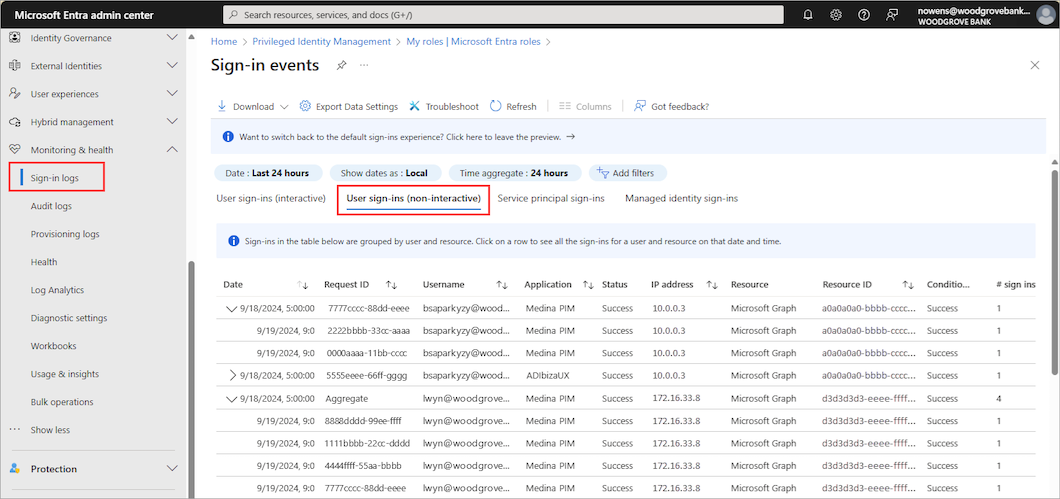
Source: Microsoft Learn, Non-interactive sign-in logs
When you send these logs to a Log Analytics workspace or Microsoft Sentinel, each one becomes its own table. Microsoft's Sentinel connector documentation maps them like this:
Interactive user sign-ins:
SigninLogsNon-interactive user sign-ins:
AADNonInteractiveUserSignInLogsService principal sign-ins:
AADServicePrincipalSignInLogsManaged identity sign-ins:
AADManagedIdentitySignInLogs
Confusingly, the Entra diagnostic setting uses different labels for the same four things: SignInLogs, NonInteractiveUserSignInLogs, ServicePrincipalSignInLogs and ManagedIdentitySignInLogs.
What actually lands in the non-interactive log
Microsoft describes these as delegated sign-ins performed by a client app or OS components on behalf of a user, without the user providing an authentication factor. Entra refreshes the token behind the scenes. Microsoft's own examples:
A client app uses an OAuth 2.0 refresh token to get an access token.
A client uses an authorization code to get an access token and refresh token.
A user gets single sign-on to a web or Windows app on a Microsoft Entra joined PC without being prompted.
A user signs in to a second Microsoft Office app while they have a session on a mobile device, using the Family of Client IDs (FOCI) mechanism.
Two details from that page matter for investigations.
FIDO2 sign-ins show up here too. Microsoft states that as of April 11, 2025, all new sign-ins that obtain a refresh token with FIDO2 keys are logged in the non-interactive logs. Even a phishing-resistant login can leave a trail in this table.
The IP address can mislead you. Microsoft says the IP address of non-interactive sign-ins performed by confidential clients doesn't match the actual source IP of where the refresh token request is coming from. Instead it shows the original IP used for the original token issuance. For those clients, a familiar IP is not proof the request came from a familiar place. That's why "new IP" hunting works better for some clients than others (more in Step 5).
The portal also groups rows: sign-ins matching on application, user, IP address, status and resource ID collapse into one row with a count, so one row can represent many token requests.
Why a clean SigninLogs result proves so little
Tokens are the reason this matters. By default an access token is valid for one hour; when it expires, the client uses a refresh token to get a new one. Microsoft's continuous access evaluation (CAE) documentation says CAE-aware sessions can get access tokens that last up to 28 hours, with revocation driven by events rather than the clock. Either way, much day-to-day access is token renewal, not fresh sign-in.
RFC 9700, the IETF's best current practice for OAuth 2.0 security, explains why refresh tokens are such a prize: they represent the full scope of access granted to a client, and an attacker who exfiltrates and replays one can mint access tokens and reach resources on the user's behalf. It says refresh tokens for public clients must be sender-constrained or use rotation, while RFC 6749 already limits confidential-client refresh tokens to the client they were issued to.
Microsoft's own material points the same way:
Its token theft playbook recommends immediate attention to non-interactive sign-ins, and warns that not every Entra alert has a matching entry in
SigninLogs(anomalous token is the example it gives).ID Protection documentation says the unfamiliar sign-in properties detection can fire on non-interactive sign-ins, where it deserves increased scrutiny because of the risk of token replay.
Token Protection deployment advice says to capture both interactive and non-interactive sign-in logs before enforcing.
Put together: a replayed refresh token produces token requests, token requests are non-interactive sign-ins, and non-interactive sign-ins are in a separate table. A hunt that only reads the interactive table can look clean while the interesting activity sits next door.
One more limit: sign-in logs record token issuance. Using an already-issued access token against Exchange or Graph generally shows up in those services' own logs, not as a sign-in, which is why the Revoke sessions post covers what keeps working after a revoke.
The ingestion trap
Each log category is its own checkbox in Entra's diagnostic settings, so it's entirely possible to have SignInLogs enabled and the others not. Microsoft doesn't publish how many tenants end up that way, and I won't guess. It's just an easy setting to miss. Facts that shape the plan:
Roles. At least Security Administrator in the tenant to create or edit a diagnostic setting. For Sentinel, the connector page also lists Microsoft Sentinel Contributor on the workspace.
Licensing. A Microsoft Entra ID P1 or P2 license is required to ingest sign-in logs into Sentinel, and per-gigabyte charges apply for Azure Monitor and Sentinel.
The connector comes along for the ride. Integrating Entra logs with Azure Monitor automatically enables the Microsoft Entra data connector in Sentinel.
It isn't retroactive. Logs flow only from the moment a category is enabled. Entra's own sign-in retention is 7 days on Free and 30 days on P1 and P2. If you find the gap mid-incident, the Sign-in logs page in the admin center (including the non-interactive tab) is what you have, and Microsoft says expired data can't be recovered unless it was archived.
What it costs, and the tradeoffs
Non-interactive sign-ins record background token activity, so expect volume. Microsoft's own example is a client getting an access token once per hour per user. I don't have a trustworthy number for your tenant, because it depends on users, devices and apps, so measure instead of guessing (Step 1 shows how). Cost facts from Microsoft:
Raw logs for some Microsoft security products, including Microsoft Entra ID data types, are paid in Sentinel. Microsoft's list of free Sentinel data sources covers alerts and some Office 365 audit data, not the Entra sign-in tables.
Log Analytics tables use one of three table plans. Analytics is the standard plan for high-value data used for continuous monitoring and detection. Basic has reduced ingestion cost, but query cost isn't included, and it supports simple log alerts only. Auxiliary / Lake has minimal ingestion cost, slower queries, no alerts, and is meant for auditing and compliance.
All four sign-in tables are listed as supporting the Basic and Auxiliary plans in Microsoft's table reference. Not every Azure table does.
Microsoft warns that moving a Sentinel table from the Analytics tier to the data lake tier stops features that rely on analytics data, including alerting, advanced hunting, analytics rules and custom detection rules.
Sentinel keeps analytics-tier data for 90 days by default, with longer total retention available at lower cost in the data lake.
So the honest tradeoff looks like this:
Keep sign-in tables in the Analytics tier if you want detection rules and fast hunting on them. Most capable, most expensive.
Move them to a cheaper plan to save money, and accept limited or no alerting and rule coverage on that data. Check what your plan supports before moving a table a detection depends on.
Extend total retention rather than the interactive window if the goal is investigating older incidents. Microsoft describes this as the lower-cost way to keep history.
Don't filter at ingestion until you've baselined. These tables support workspace data collection rule transformations, so dropping noisy rows is possible. The risk is dropping the one row you needed later.
NIST SP 800-92 makes the general point: base logging requirements on risk and value, and log the data of greatest importance first. Sign-in records for users, apps and managed identities rank high on that list.
For a small business or MSP client, a reasonable start is to enable all four categories, watch the cost for a couple of weeks, then decide what to tier down. Use Microsoft's Sentinel cost estimator for real numbers; I'm not quoting any.
Step-by-step: close the blind spot
Step 1: Check what you're actually collecting
Start with numbers, not a hunch. In the Logs page of your Log Analytics workspace (or Advanced hunting in the Defender portal, if the Usage table is available there), run this to see which of the four tables received data in the last week:
Usage
| where TimeGenerated > ago(7d)
| where DataType in (
    "SigninLogs",
    "AADNonInteractiveUserSignInLogs",
    "AADServicePrincipalSignInLogs",
    "AADManagedIdentitySignInLogs")
| summarize
    MB = round(sum(Quantity), 1),
    LastData = max(EndTime)
    by DataType, Plan
| order by DataType asc
Microsoft's Usage table reports hourly ingestion per table, with size in megabytes and the table's plan. A table missing from the output received nothing in that window. A healthy SigninLogs next to a missing or tiny AADNonInteractiveUserSignInLogs is the blind spot this post is about. (Managed identity logs can legitimately be empty if you don't use managed identities.)
A direct check also works. If the table doesn't exist in the workspace, the query errors instead of returning zero rows, which is itself an answer:
AADNonInteractiveUserSignInLogs
| where TimeGenerated > ago(1d)
| summarize Events = count()
You can also open Entra ID > Monitoring & health > Diagnostic settings and see which categories are ticked.
Step 2: Turn on the categories you're missing
Microsoft's steps, in the Entra admin center:
Sign in as at least a Security Administrator.
Go to Entra ID > Monitoring & health > Diagnostic settings. (You can also select Export Settings from the Sign-in logs page.)
Select + Add diagnostic setting, or Edit setting on an existing one.
Tick the categories:
SignInLogs,NonInteractiveUserSignInLogs,ServicePrincipalSignInLogsandManagedIdentitySignInLogs.Under Destination details, tick Send to Log Analytics workspace and choose the subscription and workspace.
Select Save.
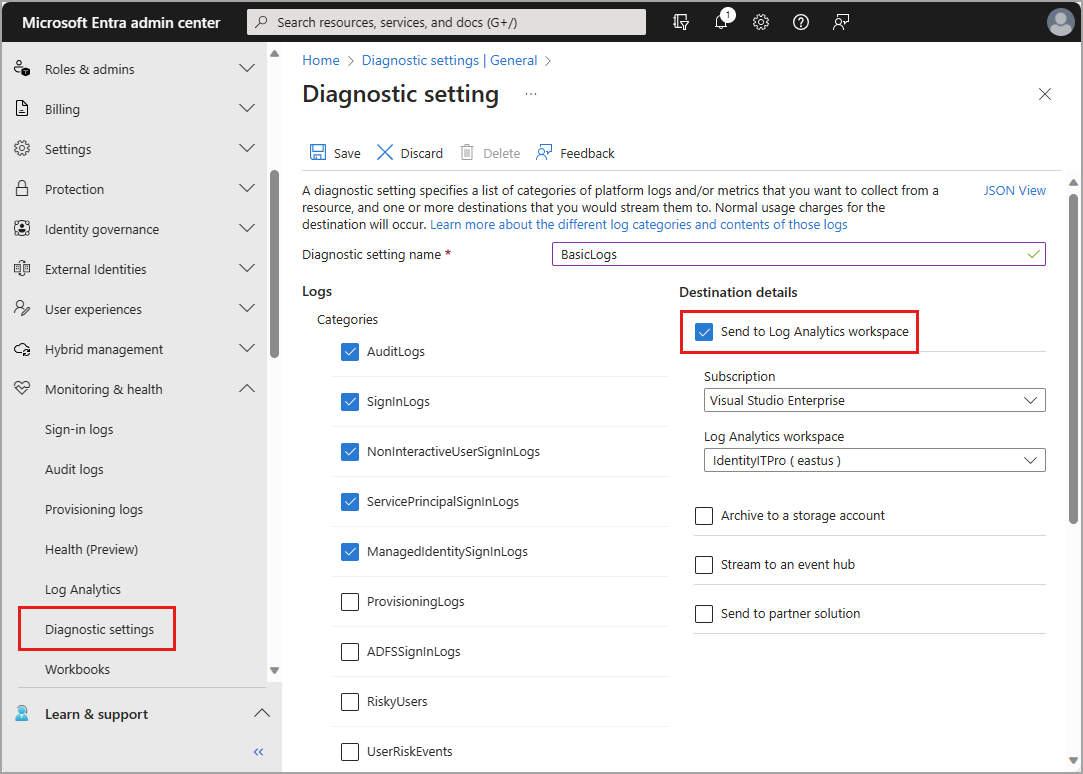
Source: Microsoft Learn, Integrate Microsoft Entra logs with Azure Monitor logs. The portal layout may look slightly different today.
If you use Sentinel, also confirm the connector. In the Defender portal go to Microsoft Sentinel > Configuration > Data connectors, open Microsoft Entra ID, and check which log types show as connected. (In the Azure portal, it's Configuration > Data connectors. Microsoft has announced that after March 31, 2027, Sentinel will be available only in the Defender portal, so it's worth getting used to the newer paths.)
Give it time: Microsoft says data can take a while to arrive (it cites 90 to 120 minutes for the data lake). Re-run the Step 1 query after a few hours.
Step 3: Decide the table plan and retention
Check what you chose, and what it costs, before the first big bill.
In the Defender portal, go to Microsoft Sentinel > Configuration > Tables. Select a table to see its tier and retention, and use Table insights to see average daily ingestion, estimated daily ingestion cost and the last time data arrived.
In the Azure portal, go to your Log Analytics workspace and select Tables, then Manage table from the table's menu.
Table insights is also an early warning for a connector that silently goes quiet: sort by Last data received.
If you decide to move a table to the Basic plan, Microsoft's documented Azure CLI form is:
az monitor log-analytics workspace table update \
  --resource-group "<ResourceGroupName>" \
  --workspace-name "<WorkspaceName>" \
  --name "AADNonInteractiveUserSignInLogs" \
  --plan Basic
Microsoft notes plan changes are limited to one switch per table per week, and Basic means extra billing for queries. Treat it as a deliberate decision, not a default.
Step 4: Build one combined view
Interactive and non-interactive tables have mostly matching columns, but some have different types between tables. For example, LocationDetails is a dynamic value in SigninLogs and a string in the non-interactive table. If you union them naively, KQL splits mismatched columns into separate suffixed columns. A tidy projection avoids that.
This function returns both user sign-in tables in one shape. Paste it at the top of the queries below, or save it as a function in the workspace:
let UserSignIns = (lookback:timespan) {
  union isfuzzy=true
    (SigninLogs
      | where TimeGenerated > ago(lookback)
      | extend Source = "interactive"),
    (AADNonInteractiveUserSignInLogs
      | where TimeGenerated > ago(lookback)
      | extend Source = "non-interactive")
  | project
      TimeGenerated,
      Source,
      UserPrincipalName,
      UserId,
      IPAddress,
      ASN = tostring(AutonomousSystemNumber),
      Country = tostring(
        parse_json(LocationDetails).countryOrRegion),
      AppDisplayName,
      AppId,
      ResourceDisplayName,
      ResultType = tostring(ResultType),
      UserAgent,
      SessionId,
      IncomingTokenType,
      UniqueTokenIdentifier,
      CorrelationId
};
Two notes. Each leg filters by time before the union, the more efficient pattern in Microsoft's union documentation. And isfuzzy=true lets the query run when a table doesn't exist, with only a warning. That's convenient but can hide the exact problem you're hunting, so read the warning text.
Step 5: Hunt for token reuse from new networks
The first hunting query looks for successful non-interactive sign-ins from a network (ASN) a user hasn't used in the previous two weeks:
let baselineDays = 14d;
let recent = 1d;
let signIns = UserSignIns(baselineDays)
  | where ResultType == "0";
let baseline = signIns
  | where TimeGenerated < ago(recent)
  | summarize by UserPrincipalName, ASN;
signIns
| where TimeGenerated >= ago(recent)
| where Source == "non-interactive"
| join kind=leftanti baseline on UserPrincipalName, ASN
| summarize
    Events = count(),
    FirstSeen = min(TimeGenerated),
    LastSeen = max(TimeGenerated),
    Apps = make_set(AppDisplayName, 5),
    IPs = make_set(IPAddress, 5)
    by UserPrincipalName, ASN
| order by Events desc
Remember the IP caveat. For confidential clients, the logged IP is where the token was originally issued, so a stolen token replayed elsewhere may not look like a new network here. My reading of Microsoft's note is that this query is strongest for clients whose logged IP reflects the request. For the rest, pivot on the app, user agent, resource, volume and resource-side logs. Microsoft recommends routing Microsoft Graph activity logs to the same workspace as the sign-in logs so you can cross-reference token requests.
Expect noise from travel, mobile networks and VPNs. Run it as a hunt for a few weeks before turning it into an alert.
The second query is for the scenario at the top of this post. After you revoke a user's sessions, ask what the user's tokens did next. Set the user and the time of the revoke:
let user = "user@contoso.com";
let revokedAt = datetime(2026-11-05T14:00:00Z);
UserSignIns(14d)
| where UserPrincipalName =~ user
| where TimeGenerated > revokedAt
| summarize
    Events = count(),
    FirstSeen = min(TimeGenerated),
    LastSeen = max(TimeGenerated)
    by Source, ResultType, AppDisplayName, IPAddress
| order by LastSeen desc
Refresh tokens issued before the revoke should start failing, so failures are the expected pattern. Successful non-interactive sign-ins after the revoke need an explanation: did the user sign in again legitimately, or is something still renewing? Look up failure codes in Microsoft's error reference at https://login.microsoftonline.com/error.
If you use Defender XDR, its EntraIdSignInEvents advanced hunting table also covers both interactive and non-interactive sign-ins. Microsoft's page says it requires Entra ID P2 and is still labeled preview.
Step 6: Don't forget apps and managed identities
The same blind spot applies to non-human sign-ins. Service principal sign-ins, where an app provides its own credential such as a client secret or certificate, are in AADServicePrincipalSignInLogs. Managed identity sign-ins are in AADManagedIdentitySignInLogs. If you collect only the two user tables, an attacker using a stolen app secret never appears in your hunt, which is the gap behind the app-secret story from November 4.
This query flags service principals signing in successfully from an IP address they haven't used in the previous two weeks:
let lookback = 14d;
let recent = 1d;
let spBase = AADServicePrincipalSignInLogs
  | where TimeGenerated between (ago(lookback) .. ago(recent))
  | where ResultType == "0"
  | summarize by ServicePrincipalId, IPAddress;
AADServicePrincipalSignInLogs
| where TimeGenerated >= ago(recent)
| where ResultType == "0"
| join kind=leftanti spBase on ServicePrincipalId, IPAddress
| summarize
    Events = count(),
    Resources = make_set(ResourceDisplayName, 5),
    CredentialTypes = make_set(ClientCredentialType, 3)
    by ServicePrincipalName, ServicePrincipalId, IPAddress
| order by Events desc
Cloud-hosted apps change IP addresses often, so expect legitimate hits. Read ClientCredentialType (secret, certificate or federated) and ResourceDisplayName (what the app is reaching). An app suddenly touching a resource it never has before is a better lead than a plain IP change.
Step 7: Add alerts, starting with the one that watches your logging
Hunting is manual. Two alerts are worth setting up as Sentinel scheduled analytics rules.
First, an alert for your own blind spot. Microsoft says Table insights is a visualization surface only and suggests a scheduled rule for table health. This one fires if the non-interactive table has been empty for a window. Tune the window to your tenant, because a very small tenant may be legitimately quiet overnight:
AADNonInteractiveUserSignInLogs
| where TimeGenerated > ago(12h)
| summarize Events = count()
| where Events == 0
Second, an alert for risky non-interactive sign-ins. This relies on ID Protection data in the log, and Microsoft says risk details are available only with Microsoft Entra ID P2 (otherwise the values come back hidden):
AADNonInteractiveUserSignInLogs
| where TimeGenerated > ago(1h)
| where ResultType == "0"
| where RiskLevelDuringSignIn in ("medium", "high")
    or RiskEventTypes_V2 has_any (
        "unfamiliarFeatures",
        "anomalousToken")
| project
    TimeGenerated,
    UserPrincipalName,
    IPAddress,
    AppDisplayName,
    ResourceDisplayName,
    RiskLevelDuringSignIn,
    RiskEventTypes_V2
Map the user to the Account entity and the IP address to the IP entity. Microsoft notes anomalous token has historically been noisier than other detections, with a higher chance of false positives at low and medium risk, so review what fires before wiring it to anything automatic.
Step 8: Update the playbook, not just the dashboard
The fix only helps if people use it. Add these to the incident checklist:
"No new interactive sign-ins" is not the same as "nobody is still in." Query both user tables, plus service principals if an app is involved.
After a revoke or password reset, check what happened next in the non-interactive log, and work through the persistence list in the Revoke sessions post.
Remember the confidential-client IP caveat when reading non-interactive rows.
Review ingestion health monthly with Table insights or the Step 1 query.
Layer prevention on top. Microsoft's token theft guidance includes Conditional Access Token Protection (device-bound tokens for supported apps), interactive reauthentication for risky sign-ins, and CAE. Logging tells you what happened; these limit what happens next.
Key takeaways
SigninLogscovers interactive sign-ins only. Background token renewals are inAADNonInteractiveUserSignInLogs, apps are inAADServicePrincipalSignInLogs, and managed identities are inAADManagedIdentitySignInLogs.Each category is a separate checkbox in Entra diagnostic settings (Entra ID > Monitoring & health > Diagnostic settings), so you can have one on and the others off.
A clean
SigninLogshunt after a suspected token compromise is weak evidence. Query both user tables, and remember sign-in logs record token issuance, not every use of an access token.For non-interactive sign-ins by confidential clients, Microsoft says the IP shown is the original token issuance IP, not where the refresh request came from.
Collection isn't retroactive, and Entra's built-in retention is only 7 days (Free) or 30 days (P1/P2) for sign-in logs.
Cost is a real tradeoff. Analytics tier gives you alerts and rules; Basic and Auxiliary/Lake cost less but limit what runs on the data. Measure your own volume with the
Usagetable before deciding.Add a "logging health" alert so the blind spot can't quietly return.
Official sources
Microsoft Entra logs and sign-in types:
Microsoft Learn: Logs available for streaming from Microsoft Entra ID
Microsoft Learn: Integrate Microsoft Entra logs with Azure Monitor logs
Microsoft Sentinel, Log Analytics and KQL:
Microsoft Learn: Send Microsoft Entra ID data to Microsoft Sentinel
Microsoft Learn: Connect data sources to Microsoft Sentinel by using data connectors
Microsoft Learn: Configure table settings in Microsoft Sentinel
Microsoft Learn: Plan costs and understand Microsoft Sentinel pricing and billing
Microsoft Learn: Configure a table plan in a Log Analytics workspace
Microsoft Learn: AADNonInteractiveUserSignInLogs table reference
Microsoft Learn: AADServicePrincipalSignInLogs table reference
Microsoft Learn: AADManagedIdentitySignInLogs table reference
Microsoft Learn: EntraIdSignInEvents table in advanced hunting
Token theft, detections and controls:
Microsoft Learn: What are risk detections? (Microsoft Entra ID Protection)
Microsoft Learn: Continuous access evaluation in Microsoft Entra
Microsoft Learn: How Token Protection enhances Conditional Access policies
Standards and guidance:
About IAMPathway
IAMPathway publishes practical guides on Identity & Access Management: Microsoft Entra ID, governance, identity threats, Application Governance and AI Governance. Browse all topics or read the glossary.