- Nov 4
MFA Can't Save You Here: Attackers Are Logging In as Your Apps, Not Your People
- IAMPathway Trainer
- Microsoft Entra ID
Picture a small accounting firm that pays an IT provider to run its Microsoft 365. Every user has MFA. Conditional Access is on. The owner sleeps fine.
Now picture an attacker who never touches a user account. They sign in as an application that the provider set up years ago to run backups or automation, using that app's own password. No text message. No authenticator prompt. No "was this you?" email. The sign-in looks like the app doing its job.
That is not a thought experiment. In the first days of November 2026, two security vendors published details of an ongoing campaign that works exactly this way. This post covers what they have actually reported, why MFA and normal Conditional Access don't stand in the way, and a practical, step-by-step plan to find and lock down the app credentials in your own tenant.
A quick note on scope: this is an active investigation. Nobody has publicly said who is behind it or how the secrets were stolen. I'll stick to what the vendors published and label everything else as general guidance.
What the vendors have published so far
Todyl (a managed security provider) published a live incident write-up on November 3, 2026, and says it will keep updating it. They call the activity "Key Eater." That name is Todyl's label, not an official industry or Microsoft name. As of their update at 4:36 pm Mountain Time on November 3, they report:
Since November 1, one operator has been signing in to Microsoft 365 and Azure environments, mostly at managed service providers (MSPs), as those organizations' own applications, using stolen credentials that were still valid.
About 45 app registrations at roughly 18 organizations were targeted, and more than 33 of them authenticated successfully.
Through those apps the operator reached 27 organizations, including MSP clients. Todyl says these numbers are a floor, because they only cover organizations that send logs to Todyl.
The operator ran Microsoft Graph searches across about 25 tenants, downloaded 81 files, and accessed about 2,279 mailbox items. Todyl says the files it was after were things like password lists, VPN profiles and other configuration material.
No Microsoft vulnerability is involved, and Todyl has not seen the operator add new consents, credentials, roles or users so far.
How the secrets were obtained is still unknown.
Todyl's own summary of why this slips past common defenses is blunt: "Because these are app sign-ins, there is no MFA prompt, user-scoped Conditional Access doesn't apply, and firewall rules never see the traffic. If the credential is valid, the app is in."
Huntress (another security vendor) published a support advisory, last updated the evening of November 3, describing the same class of activity: a threat actor using valid, pre-existing application credentials, such as a client secret, to sign in directly as a service principal and then request access tokens for cloud resources. Huntress says it is working with other researchers, has notified directly affected partners, and has disabled impacted applications where it could. Their page says the activity spans "multiple organizations and managed service providers." I could not confirm a specific tenant count or a shared indicator from Huntress's own page, so I'm not repeating one here.
Two more details from Todyl are worth knowing because they show how an attacker uses one stolen secret:
For nearly every app credential, the operator first requested a token for Azure Resource Manager, then for Key Vault, often followed within seconds by tokens for Microsoft Graph and Storage. Todyl notes that apps that had never been used before started authenticating within minutes, and suspects Key Vault reads supplied the new material, though they say Key Vault audit logs would be needed to confirm that.
Todyl says Conditional Access blocked every replay of stolen user refresh tokens it saw on November 3. In other words, the user-side controls you already have still did their job against the user-side part of the attack. They just have nothing to say about the app-side part.
Treat the numbers above as a snapshot. Check the vendor pages for the latest before you quote them to anyone.
Why MFA never gets a vote
An application can't tap "Approve" on a phone. Microsoft's Conditional Access documentation lists the reasons workload identities (apps, service principals and managed identities) are harder to protect than people. They:
Can't perform multifactor authentication.
Often have no formal lifecycle process.
Need to store their credentials or secrets somewhere.
The standard OAuth flow apps use for this is called the client credentials grant (RFC 6749, section 4.4). The app proves who it is with its own credential, and no person is involved. RFC 6749 says this grant type must only be used by confidential clients, meaning software that can keep a secret. That is the design working as intended: a client secret is effectively a password for the app. If a copy leaks from a script, a wiki page, a repository, a CI/CD variable or a developer's laptop, whoever holds it is the app.
Microsoft's guidance and general secrets-management practice such as the OWASP Secrets Management Cheat Sheet agree on the direction: keep fewer long-lived secrets, rotate or expire the ones you keep, and log and alert on how they're used. The rest of this post turns that into steps.
Three questions for your MSP or IT provider this week
If someone else runs your Microsoft 365, ask them, in writing:
Have you checked for the app-credential sign-in activity that Todyl and Huntress describe, in our tenant and in any tenant where you hold delegated access?
Where are our app secrets stored? Anything stored in documentation, ticket notes or shared drives counts as exposed.
Which apps in our tenant still use client secrets, and what is your plan to move them to certificates, federated credentials or managed identities?
Good providers will have clear answers. If you get a shrug, that tells you something too.
Step 1: Inventory your apps and their secrets
You can't protect what you haven't listed. Every app registration (the app's definition in your tenant) can hold secrets and certificates. The enterprise application, or service principal, is the app's local identity and can hold credentials too.
In the Microsoft Entra admin center, go to Entra ID > App registrations, open an app and select Certificates & secrets to see what's attached. For a tenant-wide list, use Microsoft Graph PowerShell. This read-only script exports every app secret's name, key ID and expiry:
Connect-MgGraph -Scopes 'Application.Read.All'

$props = @(
    'Id', 'AppId', 'DisplayName',
    'PasswordCredentials', 'KeyCredentials'
)
$apps = Get-MgApplication -All -Property $props
$now = Get-Date

$report = foreach ($app in $apps) {
    foreach ($s in $app.PasswordCredentials) {
        [pscustomobject]@{
            App     = $app.DisplayName
            AppId   = $app.AppId
            KeyId   = $s.KeyId
            Hint    = $s.Hint
            Starts  = $s.StartDateTime
            Expires = $s.EndDateTime
            Expired = $s.EndDateTime -lt $now
        }
    }
}

$report |
    Sort-Object Expires |
    Export-Csv -Path .\app-secrets.csv -NoTypeInformation
Two caveats. The script reads secret metadata, not the secret values (Entra never shows a secret again after it's created). And it only covers app registrations in your tenant. Service principals can hold their own credentials as well, so repeat the idea with Get-MgServicePrincipal if you want a complete picture. I checked these cmdlets and parameters against Microsoft's documentation but did not run the script in a live tenant, so try it on a test tenant or with a small -Top value first.
For each secret in the CSV, write down who owns the app, what it does, and where the secret is stored. Anything with no clear owner goes on the clean-up list.
Step 2: Find the unused and the expired
A secret nobody uses is risk without benefit. Microsoft gives you a report for this: Entra ID > Monitoring & health > Usage & insights, then Application credential activity (preview). Per Microsoft's documentation it shows each application credential's type (certificate or client secret), its last used date and its expiration date. The same page also has a Service principal sign-in activity (preview) report showing the last activity date for every service principal. Reading these needs at least the Reports Reader role and, per the documentation, Entra ID P1 or P2.
Microsoft flags two cautions: both reports are in preview, and "last activity" can include partial or incomplete sign-ins. A recent date doesn't prove a credential is actively used, and an old date is a strong hint, not proof, that it's safe to remove.
A safe approach for suspected-unused apps:
Disable the enterprise app first rather than deleting it. Huntress's own guidance for one earlier incident makes the same point: disabling stops access and can be reversed.
Wait a couple of weeks and see who complains.
Then remove the secrets, and eventually the app.
Apps with expired secrets that still show failed sign-in attempts deserve a closer look. Either someone forgot to update an integration, or someone is trying an old credential.
Step 3: Review service principal sign-ins
Here's where most people get surprised. In Entra ID > Monitoring & health > Sign-in logs, the default tab shows user sign-ins. App sign-ins live on the separate Service principal sign-ins tab. Microsoft's documentation lists four sign-in log types: interactive user, non-interactive user, service principal, and managed identity. If you've only ever looked at the first tab, you have never seen this activity.
Things to look for, based on what Huntress and Todyl say they saw:
Sign-ins from unfamiliar IP addresses or hosting providers.
Application-only sign-ins your workflows wouldn't normally generate.
Apps requesting tokens for Azure Resource Manager, Key Vault or Microsoft Graph when they never did before.
Failed attempts, especially invalid or expired secret errors (AADSTS7000215 and AADSTS7000222), followed by a success for the same app from the same address. Todyl specifically warns that detections written only for successful sign-ins will miss attackers who are still trying credentials.
One IP address signing in as many different apps.
Keep in mind that Entra keeps sign-in logs for only 7 days on the Free tier and 30 days on P1 or P2, according to Microsoft's retention page. If you want to look further back, you need to export logs to a Log Analytics workspace or storage account. Todyl notes that the earliest activity it saw sits at the edge of many organizations' query windows, so search as far back as you can.
If you do send logs to Log Analytics (Entra ID > Monitoring & health > Diagnostic settings), these KQL queries are a starting point. I wrote them against the column names in Microsoft's table reference, but I haven't run them against a live workspace, so test and tune them before relying on them.
Apps with both failures and successes, by source IP:
AADServicePrincipalSignInLogs
| where TimeGenerated > ago(30d)
| summarize
    Failures = countif(ResultType != "0"),
    Successes = countif(ResultType == "0")
    by AppId, ServicePrincipalName, IPAddress
| where Failures > 0 and Successes > 0
| order by Failures desc
Successful sign-ins from an IP that app has never used before:
let baseline = AADServicePrincipalSignInLogs
    | where TimeGenerated between (ago(30d) .. ago(1d))
    | distinct ServicePrincipalId, IPAddress;
AADServicePrincipalSignInLogs
| where TimeGenerated > ago(1d)
| where ResultType == "0"
| join kind=leftanti baseline
    on ServicePrincipalId, IPAddress
| summarize
    FirstSeen = min(TimeGenerated),
    Signins = count()
    by ServicePrincipalName, AppId, IPAddress
One app touching both Azure Resource Manager and Key Vault within ten minutes:
AADServicePrincipalSignInLogs
| where TimeGenerated > ago(7d)
| where ResultType == "0"
| summarize Resources = make_set(ResourceDisplayName)
    by ServicePrincipalName, IPAddress,
       bin(TimeGenerated, 10m)
| where Resources has "Key Vault"
| where Resources has "Service Management"
The resource names are my assumption: Azure Resource Manager often appears as "Windows Azure Service Management API" in the logs. Check how it appears in your own data and adjust.
Many of these will be legitimate in a busy tenant, so baseline first. Your goal is to separate "this app always does this from our known servers" from "this is new."
Step 3b: Check what the app did, not only that it signed in
If you collect Microsoft Graph activity logs, you can see what an app did after it got a token. Per Microsoft, these logs record the HTTP requests Microsoft Graph processes in your tenant, require Entra ID P1 or P2, and must be turned on through diagnostic settings (a Security Administrator can do that). They include ClientAuthMethod, which Microsoft documents as 1 when a client ID and secret were used and 2 when a client certificate was used. That makes it easy to list apps still using secrets:
MicrosoftGraphActivityLogs
| where TimeGenerated > ago(7d)
| where ClientAuthMethod == 1
| summarize Requests = count()
    by AppId, ServicePrincipalId, IPAddress
| order by Requests desc
Todyl describes machine-speed behavior: single-wildcard searches followed by file downloads at roughly one per second. This query surfaces apps making bursts of app-only calls. The threshold is a guess you must tune, and backup or sync apps will trip it legitimately:
MicrosoftGraphActivityLogs
| where TimeGenerated > ago(1d)
| where isempty(UserId)
| summarize Requests = count()
    by AppId, IPAddress, bin(TimeGenerated, 1m)
| where Requests > 300
| order by Requests desc
The tradeoff is cost. Microsoft's own estimate is around 15 GiB per month of Log Analytics data for a tenant of 1,000 users, and you need an Azure subscription and workspace to hold it. Microsoft also says events usually arrive within 30 minutes but can take up to 2 hours, and that the logs show only your own tenant, not what a multitenant app does in someone else's.
Step 4: If anything looks wrong, contain first
Both Huntress and Todyl give similar containment advice. Combined, and in a sensible order:
Disable the affected app (enterprise app, then Properties, then turn off Enabled for users to sign in) and remove all its secrets and certificates. Also check for federated credentials you didn't create. Todyl saw a federated credential abused in at least one case. Note that tokens already issued stay valid until they expire, per Todyl.
Scope the damage. Review the app's API permissions, directory and Azure roles, Key Vault access, and, for MSPs, Partner Center and delegated admin relationships.
Read the logs. Look at Azure Activity logs, Key Vault logs, Entra audit logs and the Microsoft 365 audit log for the app.
Rotate everything downstream. Anything the app could read, such as every secret in a Key Vault it had access to, plus credentials stored in the same code or configuration, should be treated as exposed.
Involve the right people. If you confirm access, follow your incident response plan and ask whether legal or privacy notification applies.
Microsoft's guidance for risky workload identities adds a useful ordering: add a new credential first, then remove the compromised ones. Microsoft recommends certificates for the new credential. If you suspect compromise, it recommends removing all existing credentials rather than just the one you know about.
You can also search the Entra audit log for credential changes made to your apps. Microsoft's audit activity list includes "Update application - Certificates and secrets management", "Add service principal credentials" and "Remove service principal credentials":
AuditLogs
| where TimeGenerated > ago(14d)
| where OperationName in (
    "Update application - Certificates and secrets management",
    "Add service principal credentials",
    "Remove service principal credentials")
| project TimeGenerated, OperationName,
    InitiatedBy, TargetResources
Note that Todyl has not reported persistence in this campaign so far, but the same audit trail is how you'd spot it if an attacker did add a secret to an app.
Step 5: Rotate or remove secrets without breaking things
When you replace a secret in a live integration, the common approach is overlap: create the new secret, update the app that uses it, confirm it works, and only then remove the old one. Huntress's rotation guide follows this pattern.
A useful trick from that guide: each service principal sign-in records which credential was used. In the sign-in log details, the Key ID should match the ID of your new secret under Certificates & secrets. In Log Analytics, the ServicePrincipalCredentialKeyId column holds it. If you see sign-ins with the old key ID after you rotated, something is still using the old secret, and if you've confirmed the integration is yours, that something might be the attacker.
To remove a secret with PowerShell, include -WhatIf first so it only reports what it would do:
Connect-MgGraph -Scopes 'Application.ReadWrite.All'

$removal = @{
    ApplicationId = '<application object ID>'
    KeyId         = '<secret key ID from the CSV>'
}
Remove-MgApplicationPassword @removal -WhatIf
Remove -WhatIf only after you've checked the IDs. The application object ID is not the same as the app (client) ID, so use the Id column from the inventory script.
The tradeoff: aggressive rotation protects you but breaks things when a secret is baked into a script nobody remembers. Expired secrets are one of the most common causes of integration outages. That's why the better long-term answer is to need fewer secrets, not to rotate more of them by hand.
Step 6: Replace secrets with something stronger
Microsoft's workload identity documentation describes a rough order of preference:
Managed identities for anything that runs on Azure. The platform handles the credentials, you can't even see them, and per Microsoft there's no extra cost. Limit: they only work for Azure-hosted compute.
Workload identity federation for workloads outside Azure or in CI/CD, such as GitHub Actions, Kubernetes or other cloud platforms. The app trusts tokens from an external identity provider, so there's no stored secret to leak or expire. Limit: you've moved the trust, not removed it. Todyl saw an Azure DevOps federated credential used in this campaign, so the system issuing the tokens needs the same care as the Entra tenant.
Certificates, ideally with the private key kept in a vault, when the first two don't fit. Limit: you now own certificate lifecycle and renewal, and a certificate file left in a shared folder is just another password. Certificates also use a stronger method: the app proves possession of a key rather than sending a shared secret (the signed-assertion approach in RFC 7523).
None of these is magic, and the ops cost is real. A small business with one app may find a managed identity easy and a certificate rotation schedule a burden. An MSP with hundreds of tenants has a harder problem still, which is why the campaign hit MSPs hardest. Pick the highest option each app can support, and write down the exceptions.
Stop new secrets with an app management policy
App management policies let you set tenant-wide rules about how apps can be configured. According to Microsoft Learn, the relevant restrictions include blocking new passwords (secrets) altogether, capping the lifetime of secrets and certificates, and blocking custom (user-supplied) passwords. In the Entra admin center, go to Entra ID > Enterprise apps > Application policies.
Microsoft's documentation says you need the Security Administrator role and either Cloud Application Administrator or Application Administrator, or Global Administrator alone. Microsoft's licensing FAQ lists application management policies as a free feature, not part of Workload ID Premium.
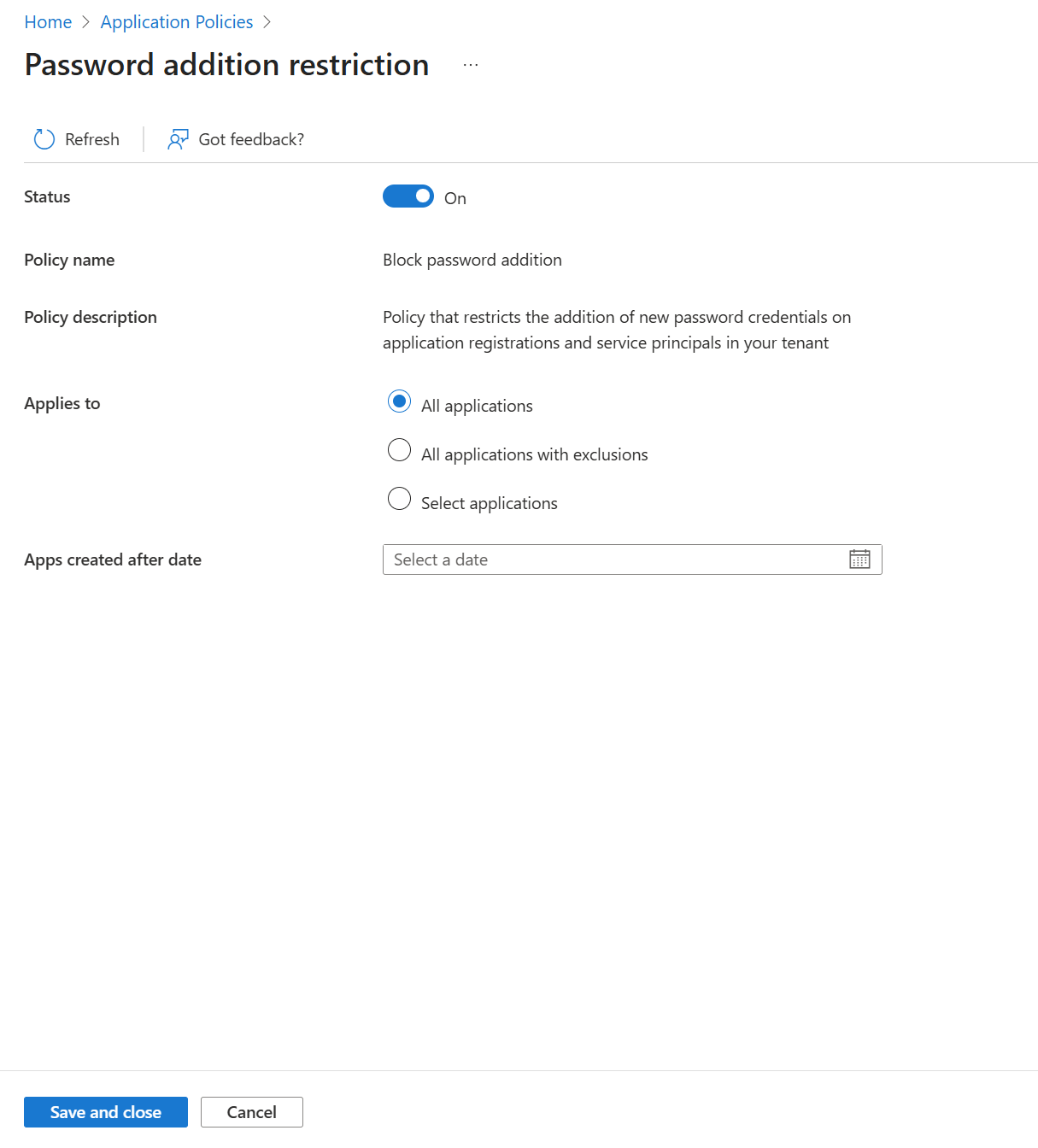
Source: Microsoft Learn, Configure restrictions on how applications can be configured
The important caveat, which many write-ups skip: Microsoft's Graph documentation states that neither the tenant default policy nor app management policies block token issuance for existing applications. An app that already has a secret keeps working; only creating or updating a credential in violation of the policy is blocked. So this policy stops new secrets. It does not clean up the ones you already have. That's what Steps 1, 2 and 5 are for.
Also note:
The admin center screen has an "Apps created after date" setting, and the Graph documentation describes using the creation date to phase rules in. Use it to start with new apps.
Through Microsoft Graph, a restriction can be set to
audit, which Microsoft says evaluates the restriction without enforcing it. That is a safer way to find out what would break.Automation that creates apps and secrets may stop working. Microsoft documents caller-based exceptions (using custom security attributes) for exactly that case, and per-app exceptions.
Blocking custom passwords will block legacy PowerShell modules that add a client-generated secret.
Put a location fence around your apps with Conditional Access
Conditional Access can apply to apps too. Microsoft calls this Conditional Access for workload identities. It can block a service principal's token request when it comes from outside IP ranges you allow, or when ID Protection marks the service principal as risky. That is the control Todyl and Huntress both point to for this campaign. Todyl also says to block the specific IP it observed (it lists one on its page; check there for the current list), not the whole hosting provider's range, since other addresses on the same provider are doing unrelated things.
To create a location-based policy (Microsoft Learn steps):
Sign in to the Microsoft Entra admin center as at least a Conditional Access Administrator.
Go to Entra ID > Conditional Access > Policies and select New policy.
Under Assignments, choose Users or workload identities, then Workload identities, then Select service principals and pick the apps.
Under Target resources, select All resources.
Under Conditions > Locations, include Any location and exclude the named locations where the app legitimately runs. (Create those first under Entra ID > Conditional Access > Named locations.)
Under Grant, choose Block access, which is the only option for workload identities.
Save in Report-only first, then review Entra ID > Monitoring & health > Sign-in logs > Service principal sign-ins and its Conditional Access tab before you turn it on.
Know the limits before you plan around this:
Licensing. Creating or changing these policies requires Microsoft Entra Workload ID Premium. Microsoft's FAQ lists it at $3 per workload identity per month and describes it as a standalone product not included in other plans. Confirm current pricing with your reseller. Existing policies keep working if a license lapses but can't be edited.
Coverage. Policies apply only to single-tenant service principals registered in your tenant. They don't cover Microsoft or third-party SaaS apps, multitenant apps, or managed identities. That's a real gap for the "MSP's multitenant app" part of this story.
Direct assignment. A policy assigned to a group that contains a service principal is not enforced for that service principal. Add each service principal directly.
Stable addresses. A location rule needs the app to call from predictable IPs. A serverless function or an on-premises script on a changing connection may be hard to fence. Plan exceptions, or use the risk-based policy instead.
If you can't license Workload ID Premium, you still have the controls above: fewer secrets, shorter lifetimes, logging and alerting.
Turn on the alarms Microsoft already built
Microsoft Entra ID Protection can detect risk on workload identities. Per Microsoft's documentation, customers without Workload ID Premium still receive all detections, but with limited reporting details. Full risk details and risk-based access controls require Premium. Detections include Suspicious sign-ins (an unfamiliar IP address or ASN, target resource, user agent, hosting versus non-hosting IP or country, or credential type for that service principal), Leaked credentials, Suspicious API traffic and Anomalous service principal activity. The suspicious sign-ins detection learns a baseline first, which Microsoft says takes between 2 and 60 days.
Find them under ID Protection > Risky workload identities. Roles that can view them include Security Reader, Security Operator and Security Administrator. From there you can confirm a service principal as compromised, dismiss the risk, or disable it.
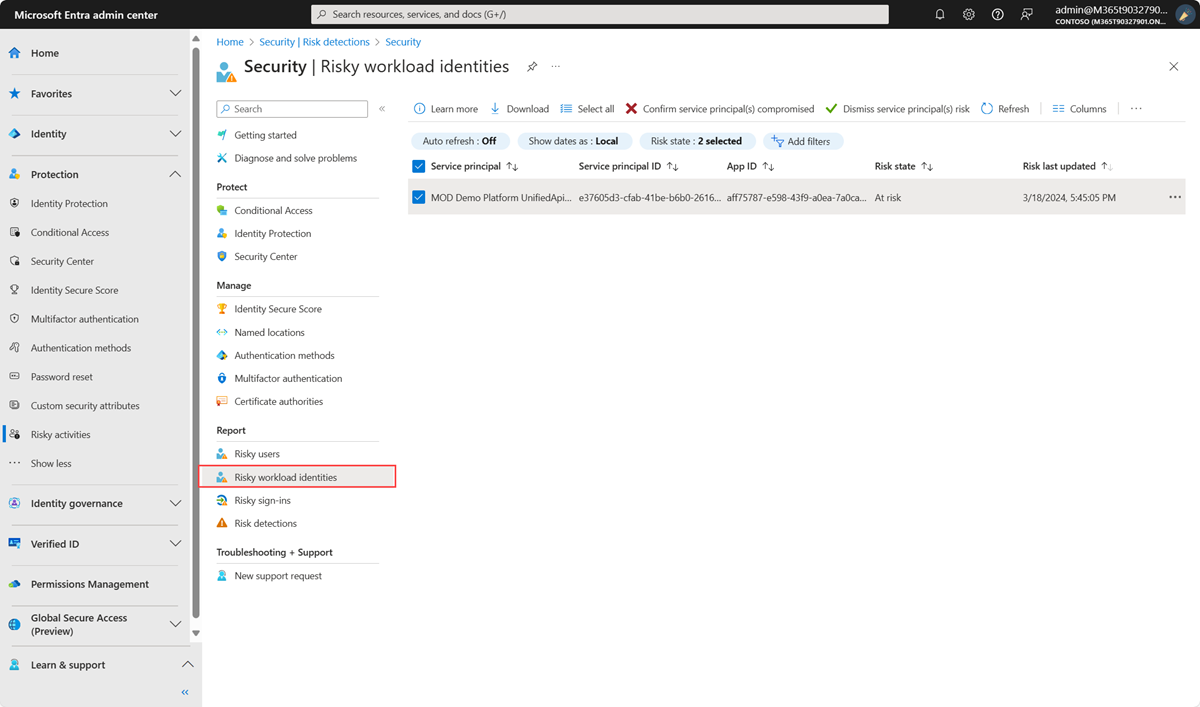
Source: Microsoft Learn, Securing workload identities with Microsoft Entra ID Protection. The portal layout may look slightly different
today.
A detection is a signal, not a verdict. Microsoft notes that sign-ins after an authorized configuration change can trigger the suspicious sign-ins detection, so check with the app owner before you declare an incident.
Step 7: Set up alerts so you hear about it first
You don't need an enterprise SOC to get useful alerts. If you stream logs to Log Analytics or Microsoft Sentinel, create alert rules from the queries above for:
A new secret, certificate or federated credential added to any app (audit log).
Failed service principal sign-ins followed by a success from the same IP.
A service principal signing in from an IP it hasn't used in 30 days.
An app suddenly requesting tokens for Key Vault or Resource Manager.
Without a SIEM, you can still review the Application credential activity report and Risky workload identities monthly and put the app inventory on the calendar the way you do for license renewals.
Finally, shrink what a stolen token can reach. Todyl's advice on this point is general good practice: restrict Key Vault and Storage to selected networks or private endpoints, and use Azure RBAC for Key Vault with minimal roles. See Microsoft's Key Vault network security and RBAC guides. A valid token from an unknown IP address shouldn't be able to read your secrets, and keeping credentials out of documents, wikis, tickets and runbooks matters because the files Todyl says were targeted were exactly that sort of material. For MSPs, Todyl also advises auditing partner apps with Partner Center access and moving to least-privilege, time-bound delegated admin (GDAP).
What I could and couldn't verify
The campaign details above come from the Todyl and Huntress pages as published on November 3, 2026. Both are active investigations and may change.
Huntress's advisory describes activity in "multiple organizations." I did not use a specific tenant count.
Todyl treats a possible link to AI-assisted tooling as low confidence and says it has not tied the activity to a specific actor. I haven't repeated either as fact, and nothing here attributes the campaign to anyone.
The PowerShell cmdlets and KQL column names were checked against Microsoft documentation, not run in a live tenant. Resource names in the logs can differ in your environment.
Pricing and licensing come from Microsoft's FAQ and can change. Confirm with Microsoft or your reseller.
Key takeaways
App sign-ins have no MFA prompt, and user Conditional Access policies don't apply to them. A valid client secret is all an attacker needs.
Per Todyl, the campaign used stolen but still-valid app secrets, mostly at MSPs, and reached their clients through MSP apps. How the secrets were stolen is not yet public.
Look at the Service principal sign-ins tab. The default sign-in log view won't show this activity.
Inventory every app secret, find the unused ones, and remove them. Disable first, delete later.
App management policies stop new secrets and cap lifetimes, but they don't touch existing ones or block existing tokens.
Prefer managed identities, then workload identity federation, then certificates in a vault. Each has a cost, and none replaces monitoring.
Conditional Access for workload identities needs Workload ID Premium and covers only single-tenant apps in your tenant, assigned directly.
If you suspect a compromised app, remove all of its credentials, rotate everything it could read, and review logs for what it touched.
If an MSP runs your tenant, ask the three questions above this week.
Official sources
Campaign reporting (vendor, active investigations):
Todyl: Stolen App Credentials, Real Access (incident write-up, updated Nov 3, 2026)
Huntress Support: Suspicious Entra App Sign-Ins from a Malicious IP
Microsoft Learn:
Configure restrictions on how applications can be configured (app management policies)
Application management policy API overview (Microsoft Graph)
Securing workload identities with Microsoft Entra ID Protection
Standards and general guidance:
About IAMPathway
IAMPathway publishes practical guides on Identity & Access Management: Microsoft Entra ID, governance, identity threats, Application Governance and AI Governance. Browse all topics or read the glossary.