- Nov 1
Conditional Access Policy Plans: How to Clean Up Your Policy Sprawl Without Locking Anyone Out
- IAMPathway
- Microsoft Entra ID
Open your Conditional Access policy list and scroll. Somewhere in there is "MFA for admins (v2)", "Block legacy auth - copy", and a pilot policy someone meant to delete in 2023. Most of them carry their own copy of the same exclusion list: emergency access accounts, a few service accounts, maybe a privileged workstation group.
That duplication is how lockouts happen. Microsoft's documentation says missed exclusions are a common source of unintended lockouts. A new preview feature, Conditional Access policy plans, targets exactly that. Because it's a preview, try it slowly: report-only mode, break-glass accounts protected. Here's what plans are, what migration does and doesn't touch, and a safe walkthrough.
What a policy plan is
A plan groups related Conditional Access rules under shared targeting. You define the common parts once, then add one rule per scenario. According to Microsoft Learn, a plan has three parts:
Plan details: a name, description, optional tags and owners. Owners are for accountability only and don't grant edit permission.
Shared conditions: optional include and exclude settings that apply to every rule. These can cover identities, resources, user actions, authentication context, risk levels, device platforms, network locations and client app types.
Rules: the individual enforcement scenarios. Each rule adds its own assignments, conditions, grant controls and session controls. Every plan needs at least one rule.
Microsoft's example is separate policies for Windows, macOS, iOS and Android that repeat the same user scope and exclusions. With a plan, that becomes one set of shared conditions and four rules.
How shared conditions and exclusions behave
This is the part to understand before you build anything. Per Learn, shared conditions and rule conditions combine additively:
A rule can't narrow the plan's targeting. If the plan targets group A, every rule inherits that scope. Rules can add exclusions of their own.
Exclusions accumulate and can't be removed. If the plan excludes emergency access groups A and B and a rule excludes group C, the effective exclusion is A, B and C. A rule can never override a plan-level exclusion.
"All users" and "All resources" have a catch. "All users" isn't available in shared conditions, and Learn says to pick "All resources" at the rule level. You can still use "All users" inside a rule.
Identity types can't be mixed at the plan level. A plan that targets users can't also target agents or workload identities in its shared conditions. If you need both, leave identity targeting to the rules.
My reading: a plan-level exclusion is powerful and blunt. It's right for break-glass accounts, which you want out of everything. It's wrong for an account that should skip only one scenario. Put that one on the rule.
Each rule is evaluated as its own decision, "in the same way as a standalone policy," and shows up separately in the sign-in logs.
Plans sit beside your old policies, not instead of them
Learn is clear that plans are an addition to the existing model. Existing policies keep working, and the engine evaluates policies and plan rules together. Every applicable policy and every applicable rule must be satisfied for access to be granted. There's no precedence between them.
This drives most of the safety advice below. If a plan rule is stricter than the policy it replaces, turning it on can block people while the old policy is still on. Leave both on forever and you've added policies instead of reducing them.
What you need before you start
Role: Learn says to sign in as a Conditional Access Administrator to create, change, delete or migrate plans.
Licensing: The plan articles don't list a separate license. They point to the Conditional Access license requirements. Those say Conditional Access needs Microsoft Entra ID P1, that Microsoft 365 Business Premium customers can use it too, and that risk-based conditions need Entra ID P2. I couldn't find a plan-specific license statement, so confirm yours on the license requirements before you plan around it.
Preview status: Plans are in preview under Microsoft's supplemental preview terms and "might not have all the capabilities of generally available features." One documented limit: plans that target users with a location condition get one-hour access tokens, without the instant IP enforcement check, for now. Don't build your only network control on a plan rule yet.
Working emergency access accounts. If you don't have two cloud-only break-glass accounts in a dedicated group, set that up first.
Step-by-step: build a new plan safely
Microsoft documents two starting points, a built-in template or a custom plan. The paths below come from the create a plan article.
Step 1: Open Policy plans and choose a starting point
Sign in to the Microsoft Entra admin center as at least a Conditional Access Administrator.
Browse to Entra ID > Conditional Access > Policy plans (Preview).
Select Create policy from template for a template-based plan, or Create policy for a custom plan.
Templates create the plan, its shared conditions and one or more rules in a single flow. Learn notes that every rule a template generates starts in the Off state "to prevent unintended impact."
Step 2: Protect the break-glass accounts at the plan level
On a template-based plan, select Edit plan, then Add Users > Exclude. Add your emergency access group and any service accounts that must skip every rule. On a custom plan, do the same under shared conditions.
Microsoft's guidance is to exclude emergency access accounts from policies that block or restrict sign-in, use a dedicated security group, and test the accounts regularly, for example quarterly. Learn also notes that policies scoped to users don't block calls made by service principals. Use Conditional Access for workload identities for those.
Step 3: Add rules and set each one to Report-only
For each rule:
Name it clearly, such as "Require compliant device - Windows".
Set State to Report-only. Templates start Off, and Learn tells you to change each rule to Report-only.
Add the identities and resources specific to the rule, plus any conditions and grant controls.
Add rule-only exclusions if needed. Remember that you can add these but never remove a plan-level one.
Keep your first plan small: one security objective, two or three rules.
Step 4: Validate in report-only mode
During sign-in, report-only rules are evaluated but not enforced. Results appear on the Report-only tab of the sign-in log details. To check them:
Browse to Entra ID > Monitoring & health > Sign-in logs.
Open sign-ins for your pilot users and check the Conditional Access and Report-only tabs. Each rule appears separately.
Use the policy impact view, which Microsoft describes as a snapshot of impact on interactive sign-ins over the past 24 hours, 7 days or one month. The migration article names it as a validation option.
If you've sent sign-in logs to Log Analytics, the Conditional Access insights and reporting workbook (Entra ID > Conditional Access > Insights and reporting) compares report-only and enforced results over up to 90 days. It needs Entra ID P1 and a Log Analytics workspace.
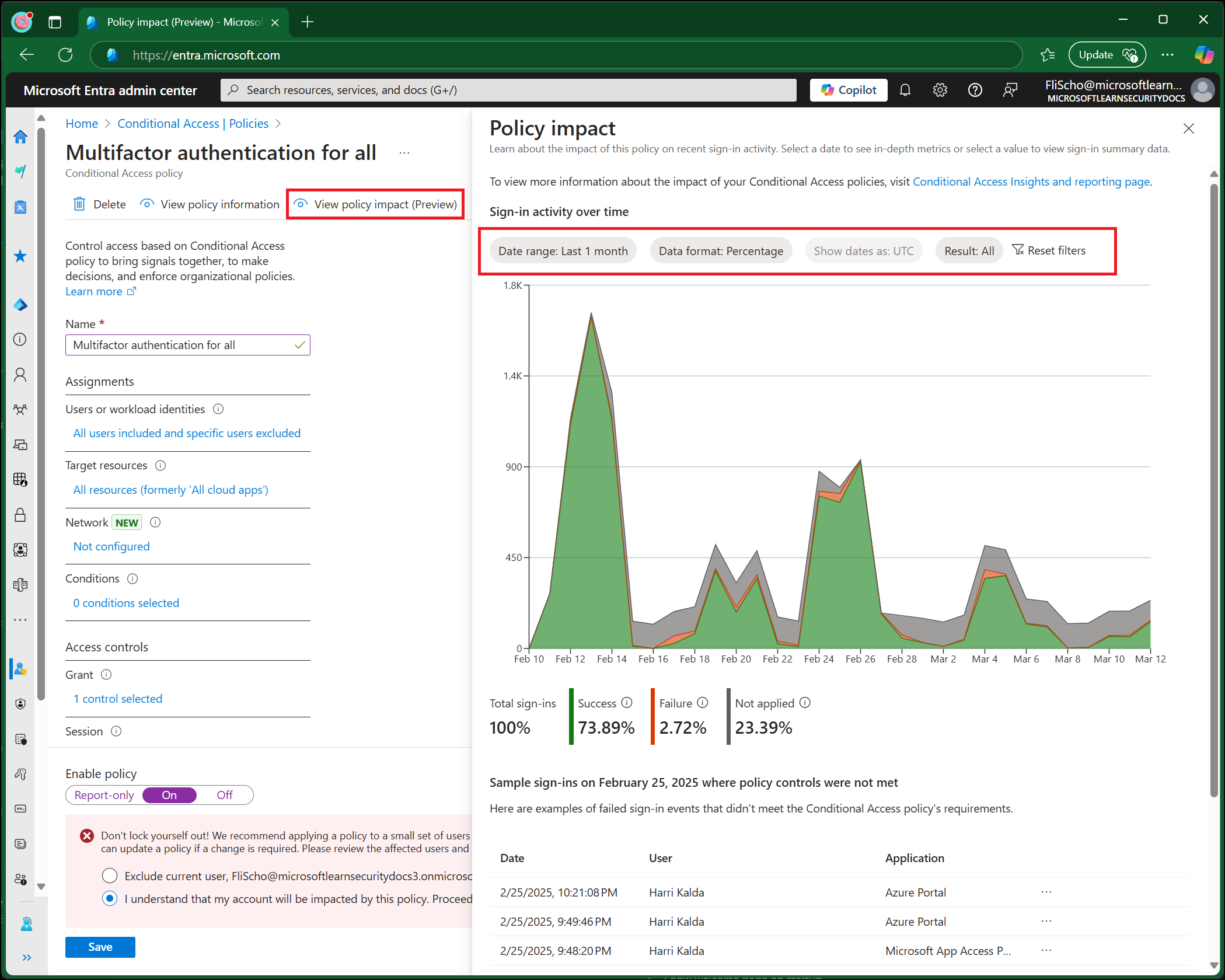
Image: Microsoft Learn, Conditional Access Policy Insights: Monitoring and Evaluation
That screenshot is Microsoft's example from a standard policy page, not a plan screen, so your portal may look a little different.
Three report-only caveats from Learn:
Report-only can't evaluate anything in the User actions scope.
"Report-only: User action required" means the rule would have prompted for something like MFA, and the user wasn't prompted, so the outcome can't be determined.
Report-only rules that require a compliant device can still prompt users on macOS, iOS and Android to pick a device certificate. Microsoft suggests excluding those platforms from such rules.
Step 5: Try the What If tool
Browse to Entra ID > Conditional Access > Policies > What If. Pick a user, the app's App ID and the sign-in conditions, then run it. The tool reports which enabled or report-only policies apply and, for those that don't, the first condition that wasn't satisfied. It doesn't test service dependencies, such as the Exchange Online policy that also affects Teams.
The What If documentation I read doesn't mention plan rules. Use it as a cross-check for your standalone policies, and don't treat a clean result as proof a rule is safe.
Step 6: Turn rules on, one at a time
When the logs match what you expect, open the plan and set a rule's State to On. If you can, target a small pilot group in the rule first, then widen it after a few quiet days.
Step-by-step: migrate existing policies
If you already have dozens of policies, Microsoft built a migration experience. Here's what it does and doesn't do:
It analyzes the policies you select and turns the settings they share into shared conditions.
Each selected policy becomes a rule. Anything unique to a policy, such as identities, resources, grant or session controls, stays in its rule.
It doesn't change your originals. They keep their current state, whether On, Off or Report-only, and keep evaluating independently.
New rules start Off. Learn says this prevents unintended impact.
The walkthrough:
Go to Entra ID > Conditional Access > Policies.
Select Get started on the Migrate to Conditional Access Policy plans (Preview) banner.
Select a small group of related policies. Microsoft suggests grouping by protected resource, by persona or by shared condition, and migrating incrementally.
Select Merge policies into a plan, then review the proposed shared conditions and each rule.
Select Create policy plan, then Edit plan to set the name, description, tags and owners.
Set each rule to Report-only when you're ready, and validate in the sign-in logs. Learn says the plan rules' results "should be equivalent" to the original policies' behavior.
Set each rule to On, then set the original policies to Off, and confirm that sign-in behavior stays consistent.
What Learn doesn't say: how the tool treats an original policy that targets "All users", given that shared conditions can't. Read the plan preview carefully for that case, and don't assume the tool preserved it.
Rollback and safety checklist
Don't delete anything on day one. Learn says to delete original policies only after the validation period, and only if your change-management and retention requirements allow it. Keep them switched Off for a while. That is your rollback.
To undo a plan rule: set its State back to Off or Report-only. If you've already switched the old policy Off, switch it back On first, so you're never without coverage.
Watch for double enforcement. A stricter plan rule plus an enabled original can block users who'd pass either one alone.
Test break-glass accounts after each plan goes On. Sign in with one and confirm it still works.
Mind the direction of report-only toggles. Microsoft warns that changing an existing policy from On to Report-only disables its enforcement. Do that deliberately.
Make changes in a quiet window, and brief the help desk.
Key takeaways
Plans group related rules under shared conditions. Define users, resources and exclusions once, then add one rule per scenario.
Plan-level exclusions can't be removed by a rule. That makes them ideal for break-glass accounts and risky for anything else.
Plans and old policies stack. Every applicable policy and rule must pass, so don't leave both on indefinitely.
Migration doesn't touch your originals. New rules start Off, and you disable the old policies yourself.
It's a preview. Use report-only, a pilot group, the sign-in logs and the policy impact view before enforcing.
You need the Conditional Access Administrator role, and Learn defers licensing to the Conditional Access requirements, which list Entra ID P1.
Sources
Microsoft Learn: What are Conditional Access policy plans? (preview)
Microsoft Learn: Create a Conditional Access policy plan (preview)
Microsoft Learn: Migrate Conditional Access policies to a policy plan (preview)
Microsoft Learn: Microsoft Entra Conditional Access overview and license requirements
Microsoft Learn: Conditional Access policy insights and report-only mode
Microsoft Learn: The Conditional Access What If tool
Microsoft Learn: Conditional Access insights and reporting workbook
Microsoft Learn: Manage emergency access admin accounts
About IAMPathway
IAMPathway publishes practical guides on Identity & Access Management: Microsoft Entra ID, governance, identity threats, Application Governance and AI Governance. Browse all topics or read the glossary.