- Nov 13
Your AI Agent Just Did Something Weird. Here's How to Find It, Check It, and Turn It Off
- IAMPathway Trainer
- Microsoft Entra ID
Someone in finance messages you: "The invoice assistant just emailed a supplier a list of our bank details. Nobody asked it to." Or Defender raises an alert about a prompt injection attempt against an agent you didn't know existed.
Either way, you're now responding to an incident where the suspect isn't a person. The good news is that you already know the playbook. Treat a misbehaving agent like a compromised account: find it, check its risk and its recent activity, cut off its access, clean up what it touched, and set up an automatic response for next time.
This post covers detection and containment with Microsoft Defender XDR, Entra ID Protection's Risky agents report, the Microsoft 365 admin center and Conditional Access for agents. For the basics (agent identities, sponsors, blueprints), see our earlier post, Your AI Agents Are Insiders Now.
One caveat up front: much of this tooling is in preview, and several pieces need Microsoft Agent 365 or Microsoft 365 E7. The licensing section near the end covers that, followed by a no-extra-license checklist for small businesses.
Everything here was checked against Microsoft Learn on November 9, 2026. The queries and PowerShell were checked against Microsoft's published schemas and syntax but have not been tested in a live tenant.
The playbook at a glance
Find it and work out which identity it actually uses.
Check it: risk, alerts, tool calls and sign-ins.
Turn it off with both switches: block the agent and disable its Entra agent identity.
Clean up credentials, permissions, tools and anything it touched.
Automate next time with risk-based Conditional Access and real-time protection.
Step 1: Find the agent, and work out what kind it is
You'll usually find the agent in three places, and each gives you a different ID.
In the Microsoft 365 admin center
Microsoft's agent registry documentation says to sign in to the Microsoft 365 admin center and go to Agents > All agents, with the Registry tab selected. Selecting an agent opens its details pane, where the Block action lives. Note the agent's platform (Copilot Studio, Agent Builder, Foundry and so on), because blocking behaves differently by platform.
In Microsoft Entra
In the Microsoft Entra admin center, go to Entra ID > Agents > Agent identities. Per View and filter agent identities, this list includes agent identity objects and agents that run on a plain service principal. Add the Uses agent identity and Status columns. If "Uses agent identity" says No, it's a classic service principal, and agent-specific controls like Risky agents won't apply. Treat it like any other app, as in our post on attackers logging in as your apps.
In Defender advanced hunting
If you've onboarded to Agent 365, the AgentsInfo table holds the inventory. In the Defender portal, go to Investigation & response > Hunting > Advanced hunting. The table stores multiple snapshots per agent, so Microsoft's AI agent inventory page recommends arg_max to get the latest state. Here's a version that shows what you need during an incident:
// Latest snapshot of each agent that isn't deleted.
// Not tenant-tested. Columns from the AgentsInfo schema.
AgentsInfo
| summarize arg_max(Timestamp, *) by AgentId
| where LifecycleStatus != "Deleted"
| project AgentName, Platform, LifecycleStatus,
    PublishedStatus, EntraAgentId, EntraBlueprintId,
    Owners, SharedWith, LastUpdatedDateTime
| order by LastUpdatedDateTime desc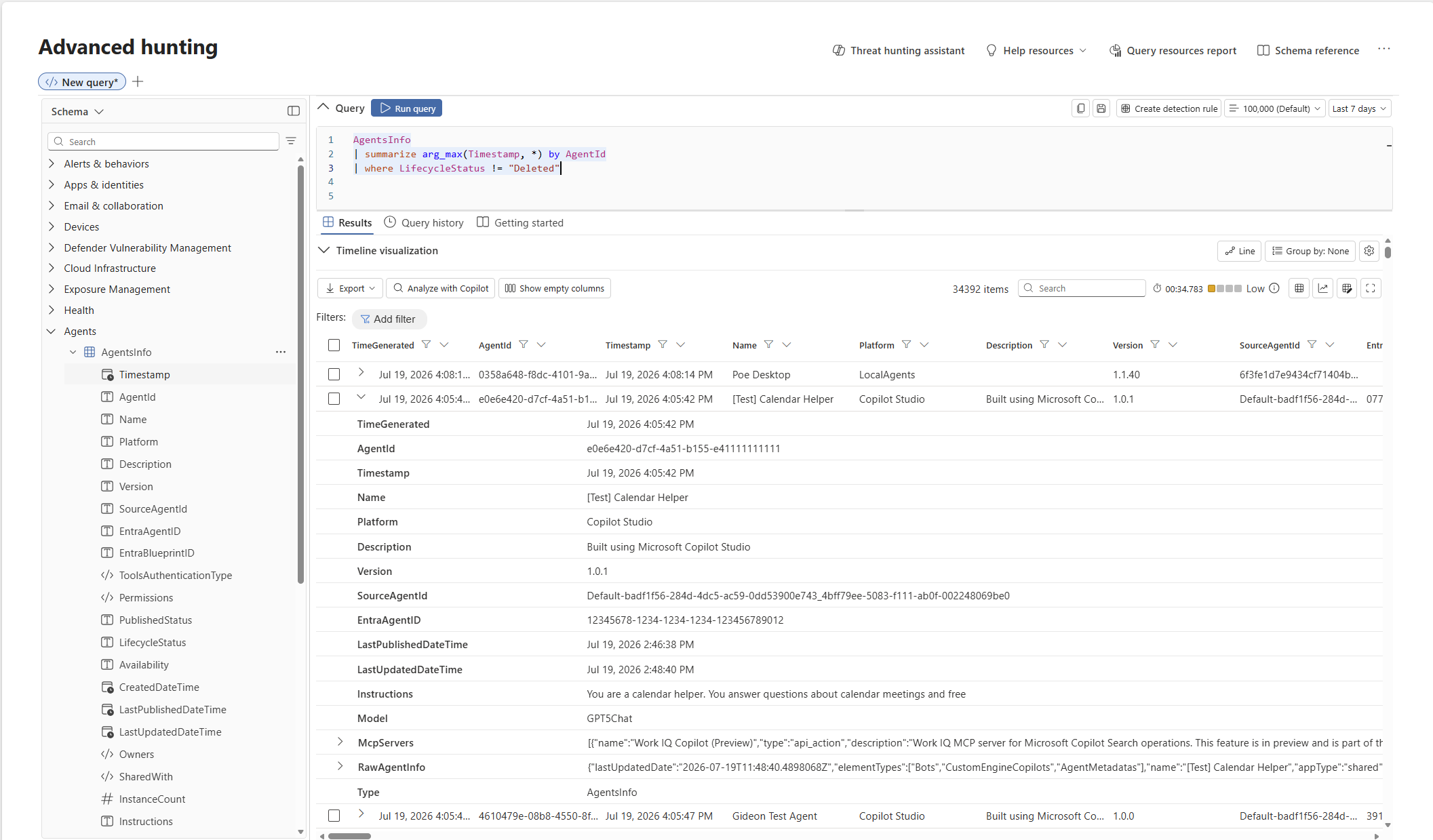
Source: Microsoft Learn, Discover AI agents and assess security posture using Microsoft Defender
One quirk worth knowing: the AgentsInfo schema reference names the display-name column AgentName, but Microsoft's own screenshot above shows a column called Name. If the query errors in your tenant, run AgentsInfo | getschema and use whatever name it returns.
The columns that matter most when something has gone wrong:
Instructionsis the agent's system prompt. Compare it with what the owner says the agent is supposed to do.DeclaredTools,McpServersandConnectedAgentstell you what it can do and what other systems it can reach.EntraAgentIdis, per the schema, the agent's enterprise application object ID in Entra. That's your bridge to the Entra side.
Work out which identity the agent actually used
This step decides who you contain. Microsoft's Conditional Access for agents page describes three access patterns:
On behalf of a user (delegated). The token's subject is the user. The agent acts with that person's permissions.
As itself (app-only). The token's subject is the agent identity. No user is involved.
As its own user account. The agent has an agent user account, which can have its own mailbox and licenses.
ID Protection for agents says that in on-behalf-of flows, risky activity is attributed to the user, not the agent. So if the weird behavior happened inside a user's delegated session, the Risky agents report may stay quiet. The user is your containment target, and our revoke-sessions post covers what actually ends that access.
Step 2: Check its risk and what it actually did
The Risky agents report
In the Entra admin center, open ID Protection and select Risky agents (the ID Protection dashboard also shows a summary with a View risky agents link). Viewing it requires Security Administrator, Security Operator or Security Reader.
The agent's entry shows risk state, level, type, sponsors and the detections behind the score. Detections include sign-in spikes, unfamiliar resource access, failed access attempts, suspicious credential usage, directory reconnaissance, early-life malicious activity, Microsoft Entra threat intelligence, and admin-confirmed compromise. Our Nov 2 post explains each one.
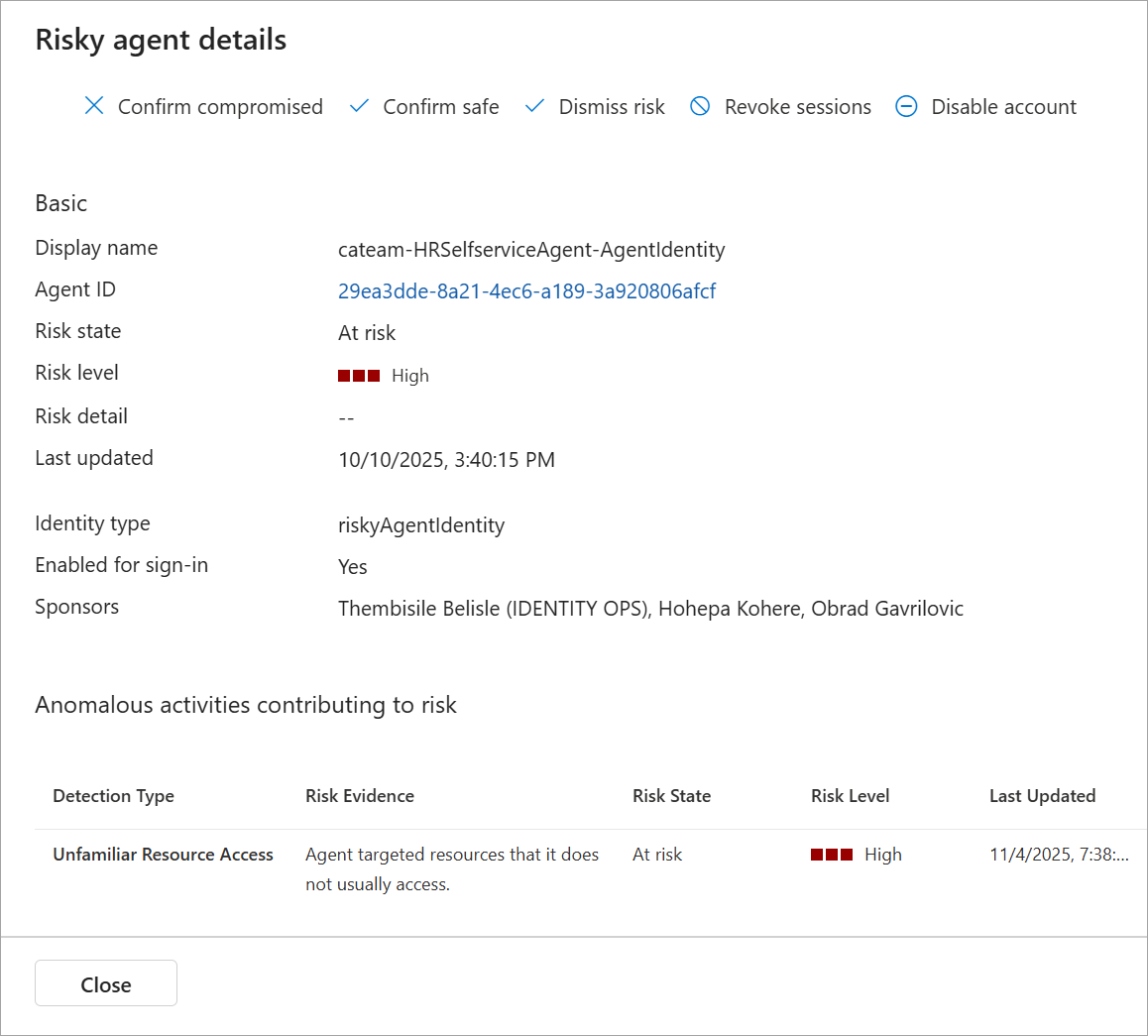
Source: Microsoft Learn, ID Protection for Agents
Three things to keep in mind as you read it:
Detections aren't real time. Microsoft says they're all offline, so a clean report doesn't mean the last hour was clean.
New agents get a grace period. A learning mode suppresses behavioral alerts for agents without enough history, while a separate detection still looks for clearly malicious early-life behavior.
History is 90 days. Export it if you need longer (below).
The Learn page lists four actions from the report: Confirm compromise, Confirm safe, Dismiss risk and Disable. The screenshot on the same page also shows Revoke sessions, which the page text doesn't describe. Don't count on knowing exactly what it does for an app-only agent until Microsoft documents it.
Defender alerts for agents
If you've enabled security for AI agents in Defender, Microsoft's threat detection page (public preview) says Defender raises near-real-time alerts for Agent 365-managed agents. Detections include jailbreak attempts, indirect prompt injection (XPIA), malicious content propagation, secret and credential leakage, evasion techniques, LLM reconnaissance, and suspicious user or IP access. Alerts are correlated into incidents like any other Defender alert.
Easy to miss: the agent must send observability data. Copilot Studio, Foundry and Agent Builder agents do by default; others need the Agent 365 SDK. Only published Foundry agents are covered.
Trace its tool calls in CloudAppEvents
Microsoft's Agent 365 observability concepts page documents how agent activity lands in CloudAppEvents. The ActionType values are InvokeAgent, InferenceCall, ExecuteToolBySDK, ExecuteToolByGateway and ExecuteToolByMCPServer. The details, including AgentId and ConversationId, sit inside RawEventData.
One gotcha: per that page, the AgentId in these events is the agent's app ID (the OAuth client ID), not the Entra object ID that AgentsInfo stores as EntraAgentId. Get the app ID from the alert evidence or the agent's details in Entra rather than assuming the two match.
// Every recorded step one agent took in the last 7 days.
// Not tenant-tested. Replace the placeholder app ID.
let suspectAppId = "00000000-0000-0000-0000-000000000000";
CloudAppEvents
| where Timestamp > ago(7d)
| where ActionType in ("InvokeAgent", "InferenceCall",
    "ExecuteToolBySDK", "ExecuteToolByGateway",
    "ExecuteToolByMCPServer")
| extend RD = parse_json(tostring(RawEventData))
| where tostring(RD.AgentId) == suspectAppId
| extend ConversationId = tostring(RD.ConversationId)
| project Timestamp, ActionType, AccountDisplayName,
    ConversationId, IPAddress, RD
| order by Timestamp asc
Expect gaps. Compass Security's Nov 3 guide to monitoring agents in Defender XDR reports that these events showed who invoked an agent and that it was updated, but not the conversation text or exactly what changed.
Check what real-time protection blocked
Defender records real-time protection audit and block events as behaviors in the BehaviorInfo table (itself in preview). The table reference doesn't list agent-specific ActionType values, so check what your tenant records first:
// Which behavior types does this tenant record?
// Not tenant-tested.
BehaviorInfo
| where Timestamp > ago(30d)
| summarize Events = count() by ActionType, ServiceSource
| order by Events desc
Compass reports seeing BehaviorAIAgentsRealTimeBlock and BehaviorPromptShieldJailbreakBlock; treat those as observed values, not a documented list.
Check the agent's sign-ins
Per Microsoft Entra Agent ID logs, go to Entra ID > Monitoring & health > Sign-in logs (Reports Reader or higher) and filter on Is Agent: Yes or Agent type. Agent sign-ins can appear in any of the four sign-in log types, so check the service principal and user tabs.
If you send Entra logs to Log Analytics or Sentinel, the AADServicePrincipalSignInLogs table has an Agent column. The schema lists it as a string ("details of agentic sign-in"), so parse it first:
// App-only sign-ins made by agent identities.
// Not tenant-tested. Agent is a JSON string per schema.
AADServicePrincipalSignInLogs
| where TimeGenerated > ago(7d)
| extend AgentInfo = parse_json(Agent)
| where tostring(AgentInfo.agentType) == "AgentIdentity"
| project TimeGenerated, ServicePrincipalName,
    ServicePrincipalId, AppId, ResourceDisplayName,
    IPAddress, ResultType
| order by TimeGenerated desc
The AgentIdentity value comes from Microsoft's Graph example; confirm it against raw rows before alerting on it.
Keep agent risk history longer than 90 days
Microsoft's export page lists two agent categories under Entra ID > Monitoring & health > Diagnostic settings: RiskyAgents and AgentRiskEvents. In Log Analytics you query them as AADRiskyAgents and AADAgentRiskEvents. Data appears only from when you turn export on, so do it now.
This query also shows the detection lag between activity and flagging:
// Medium and high agent risk detections, with detection lag.
// Not tenant-tested. Columns from AADAgentRiskEvents.
AADAgentRiskEvents
| where TimeGenerated > ago(30d)
| where RiskLevel in ("medium", "high")
| extend LagHours = datetime_diff(
    "hour", DetectedDateTime, ActivityDateTime)
| project DetectedDateTime, ActivityDateTime, LagHours,
    AgentDisplayName, AgentId, IdentityType,
    RiskEventType, RiskLevel, RiskState
| order by DetectedDateTime desc
If you prefer PowerShell, the beta Graph API exposes riskyAgents. Listing them needs IdentityRiskyAgent.Read.All:
# Not tenant-tested. Beta API; subject to change.
Connect-MgGraph -Scopes "IdentityRiskyAgent.Read.All"

# High-risk agents only
$uri = "https://graph.microsoft.com/beta/" +
    "identityProtection/riskyAgents" +
    "?`$filter=riskLevel eq 'high'"

$result = Invoke-MgGraphRequest -Method GET -Uri $uri

# Show the fields you need for triage
$result.value |
    Select-Object agentDisplayName, id,
        riskLevel, riskState, isEnabled,
        riskLastModifiedDateTime
Microsoft says /beta APIs aren't supported for production use, so keep this to investigation.
A real-world style example (illustrative)
This scenario is illustrative, not a reported incident. A small accounting firm has a Copilot Studio agent that reads a shared invoices mailbox and drafts replies. A supplier email contains hidden instructions telling the agent to send the firm's remittance details to an outside address.
With real-time protection blocking, the send can be stopped and logged in
BehaviorInfo.With it only auditing, you'd expect an alert, and
CloudAppEventswould show the tool call.If the agent ran on behalf of an employee, the risk lands on that employee, not the agent.
If it ran as itself, the pattern might surface later as an offline agent risk detection.
Same incident, four places to look. That's why the first question is "which identity did it use?"
Step 3: Turn it off. There are two switches, and they do different things
"Block the agent" in the Microsoft 365 admin center and "disable the agent identity" in Entra are separate controls in different admin centers.
Switch 1: Block the agent in the Microsoft 365 admin center
Per Governance and lifecycle actions for agents:
Sign in to the Microsoft 365 admin center.
Go to Agents > All agents and select the agent.
In the details pane, select Block (just under the agent's name).
In the Block agent pane, select Block agent, then Save.
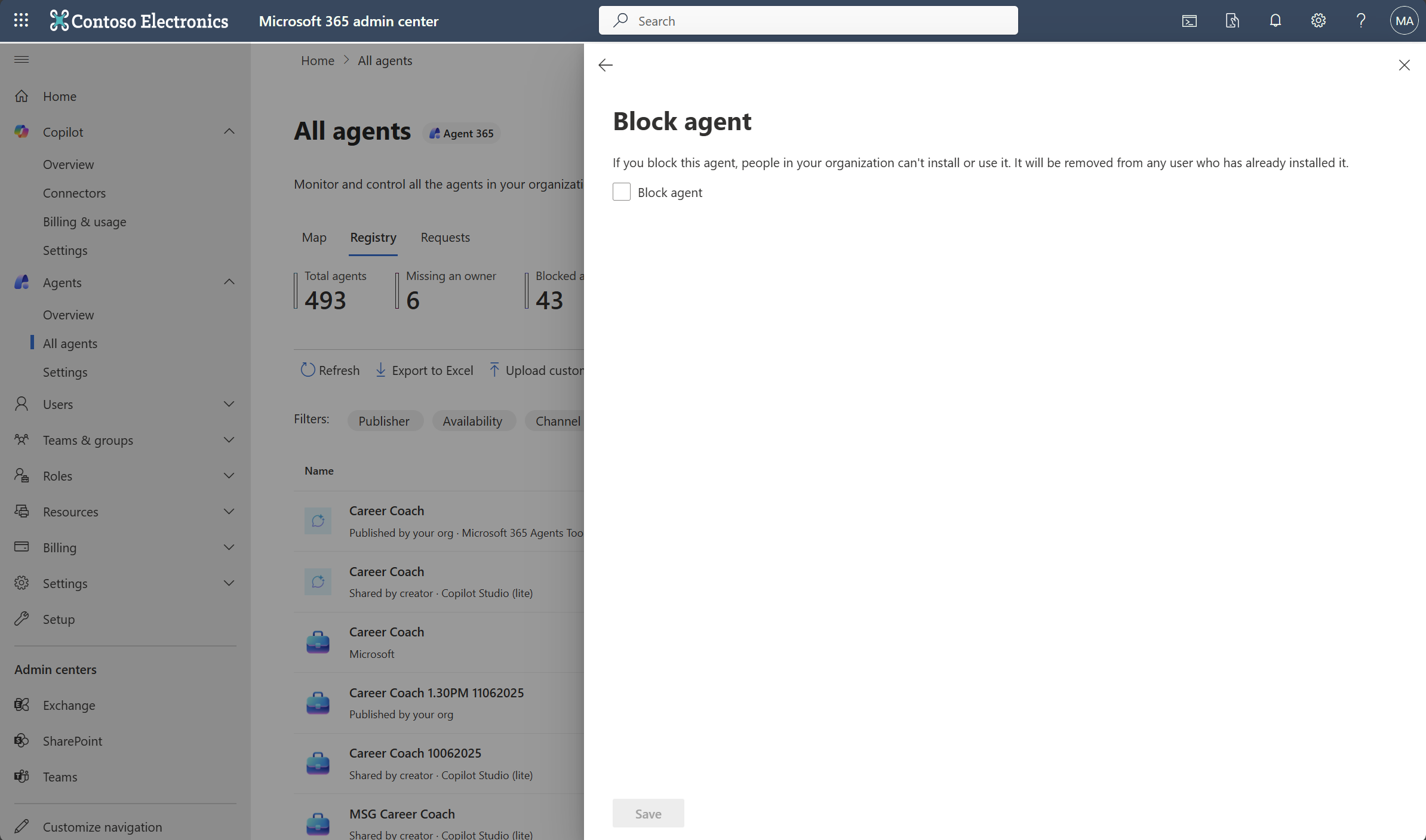
Source: Microsoft Learn, Governance and Lifecycle actions for agents available in Microsoft 365 admin center
What it does: People in your organization can't install or use the agent, and it's removed from anyone who already installed it. For Copilot Studio and Agent Builder agents, that applies in Microsoft Copilot and other hosts such as Outlook and Teams.
What it doesn't do:
For SharePoint or Microsoft Foundry agents, Microsoft says blocking only affects availability in Microsoft Copilot Chat. Foundry agents have a separate Stop action that deallocates the Azure deployment (Azure AI Owner role required).
Microsoft describes blocking in terms of user availability. It doesn't say blocking disables the Entra identity or stops the agent getting tokens on its own schedule. Assume it doesn't, and use Switch 2 as well.
If the agent's environment uses Power Platform IP firewall in active enforcement mode, Microsoft says admin-center actions can fail, and points to the Power Platform API instead.
Switch 2: Disable the agent identity in Entra
Per Disable agent identities in your tenant:
Sign in to the Microsoft Entra admin center as at least an Agent ID Administrator (owners can also manage their own agents, and sponsors can disable them).
Go to Entra ID > Agents > Agent identities.
Select the agent identity, then select Disable.
The Disable action on the Risky agents report does the same job from the ID Protection side. Microsoft describes it as preventing all sign-ins for that agent across Microsoft Entra ID and connected apps.
If the problem is the template (for example, stolen blueprint credentials), disable the blueprint under Entra ID > Agents > Agent blueprints. Microsoft says that blocks existing agent identities created from it and prevents new ones.
What it does: The agent identity can't authenticate or receive new tokens, and its object and metadata stay in your tenant for investigation. Re-enabling restores access.
What it doesn't do:
It doesn't recall access tokens already issued. Microsoft describes disabling as blocking sign-in and token issuance. As our revoke-sessions post explains, an access token generally stays valid until it expires. Continuous Access Evaluation for workload identities can reject tokens when a service principal is disabled, but only for Microsoft Graph and opted-in single-tenant apps, and Microsoft doesn't say whether agent identities are covered. Plan on "until the token expires."
It doesn't cover the agent's user account. That's a separate identity; Microsoft says agent-identity policies don't apply to it. Disable it too.
It doesn't cover delegated sessions. If the agent acted on behalf of a user, the user's tokens are what matter. Contain the user.
It doesn't touch API keys, which bypass Entra entirely. Rotate them at the issuing service.
It can break things. Microsoft warns dependent agents and some Microsoft product experiences can fail. Fine for one rogue agent; think hard before disabling a widely used blueprint.
Confirm compromise, too
Disabling stops the agent. Confirm compromise records why. In the Risky agents report it sets risk to High, adds an admin-confirmed detection, and triggers any Conditional Access policy that blocks on high agent risk. It's also available through the beta Graph confirmCompromised action with IdentityRiskyAgent.ReadWrite.All.
Local agents on a device
For coding and desktop agents on an endpoint, the containment unit is the device: isolate it in Defender. Defender for Endpoint's AI agent runtime protection (preview) can audit or block prompt-injection-driven actions by supported local agents. During preview, Microsoft says test devices should take Beta Channel platform and engine updates, and recommends starting in audit mode.
Containment order that works
Preserve evidence first. Export the agent's
AgentsInforecord, alert evidence and relevantCloudAppEventsrows. Blocking and deleting change what you can see later.Disable the Entra agent identity (or the blueprint) to stop new tokens.
Block the agent in the Microsoft 365 admin center so users can't keep invoking it.
Contain any user whose delegated session was involved.
Confirm compromise so risk-based policies and reporting reflect reality.
Wait out token lifetimes and keep watching sign-in and activity logs for anything still working.
Step 4: Clean up what the agent touched
Microsoft's incident sequence for agents is detect, respond, investigate, recover. For a true compromise, it says to rotate credentials before re-enabling, or retire the agent identity. In practice:
Credentials. Agent identity credentials are managed through the blueprint. Remove any credential you didn't expect, especially if the "suspicious credential usage" detection fired. Our app-secrets post covers finding and removing app credentials.
Permissions and tools. Review the agent's granted permissions, Entra roles, MCP servers and connected agents. Remove anything it didn't need. A tool added recently is a prime suspect.
Changes to the agent. Compare its current
Instructionsand tools with an earlierAgentsInfosnapshot.What it sent or changed. Check sent mail, new forwarding rules, shared links and files it created. This is the same "what else is still open?" list from the revoke-sessions post.
Decide: fix or retire. An agent with no clear owner and a vague purpose is cheaper to delete than to fix. Microsoft 365 admin center deletion is a soft delete with a 30-day recovery window.
Step 5: Make the next response automatic
Risk-based Conditional Access for agents
Our Nov 2 post has the full click path. In short, per Secure autonomous agents with Conditional Access: target All agent identities, include All resources, set Conditions > Agent risk (Preview) to High, grant Block, and start in Report-only.
What to expect from it:
It's only as fast as the risk signal. Because agent detections are offline, the automatic block may lag the bad behavior. Confirm compromise is the fast path.
Block is the only control. Agents can't do MFA, so there's no "step up."
It covers agent identities only. Agent user accounts need their own policy, and delegated (on-behalf-of) sessions are governed by the user's policies.
Defender real-time protection in block mode
In the Defender portal, go to Settings > Security for AI > Policies & rules > Real-time protection. Microsoft's built-in Default rule audits all agents. To block, select Create rule, choose the scope and detection types (secret exfiltration, malicious content propagation, evasion techniques, unsafe email domain), and create it.
The tradeoff Microsoft documents: when a blocking rule covers an agent, near-real-time alerts aren't generated for that agent. Blocks are recorded as behaviors in BehaviorInfo instead. If your team only watches the incident queue, build a custom detection on those behaviors before you switch to block, or you'll stop seeing activity you used to see.
Also note Prompt evidence collection (same Settings area), which is on by default. Microsoft says it redacts sensitive data, but conversations can still be sensitive, so decide who can read alert evidence.
The licensing reality check
Here's what Microsoft's pages say as of November 9, 2026. They don't all agree, so confirm with your licensing partner.
Agent 365 and E7 are real products. Microsoft's E7 page says E7 includes Microsoft 365 E5, Microsoft 365 Copilot, Agent 365 and Microsoft Entra Suite. The Agent 365 service description says Agent 365 is also sold standalone for eligible plans. Microsoft lists Agent 365 at $15 and E7 at $99 per user per month, paid yearly (list prices at the time of writing).
Agent 365 is licensed per user, not per agent. Microsoft's licensing FAQ says small and midsize businesses need Microsoft 365 Business Premium, plus Defender Suite for SMB and Purview Suite for SMB to unlock Agent 365 functionality, "although these are not formal prerequisites."
Conditional Access for agents: Microsoft 365 E7, or Agent 365 with at least Entra ID P1 or Microsoft 365 E3. The autonomous-agents page adds Entra ID P2 or Microsoft 365 E5 for risk-based agent policies. The disable-agent-identities page mentions only P1 for its Conditional Access policies.
ID Protection for agents (Risky agents): The manage-agent-identities page says it requires Entra ID P2 during preview. The ID Protection page says it will "soon" require an Agent 365 license.
Defender threat detection for agents: Covers Agent 365-managed agents and is in preview. Microsoft's observability documentation says agent telemetry is rejected unless at least one user in the tenant has an E7 or Agent 365 license assigned.
Local agent runtime protection: Defender for Endpoint Plan 2, Microsoft 365 E5, Agent 365, or Microsoft 365 E7.
A no-extra-license checklist for small businesses
None of these steps need an extra license. One hedge: Microsoft documents the Microsoft 365 admin center's agent pages as part of the Agent 365 experience, so check what your tenant displays.
Keep a simple agent inventory. Once a month, list agents from Entra ID > Agents > Agent identities (no admin role needed to view) and whatever your Microsoft 365 admin center shows under Agents. For each, record its purpose, owner, sponsor, whether it uses an agent identity, and what data or tools it can reach.
Give every agent a named owner and a backup. If nobody will claim an agent, block or delete it.
Write down your two switches. For each important agent, note where it would be blocked (Microsoft 365 admin center) and where its identity would be disabled (Entra), plus who has the roles to do both. Practice once on a test agent.
Know your log retention. Microsoft's export page lists sign-in and audit log retention of 7 days on Entra ID Free and 30 days on P1 or P2. If that's too short, diagnostic settings can export to Log Analytics or a storage account, which needs an Azure subscription and costs money for ingestion and storage.
Check sign-in logs for agents. Filter on Is Agent: Yes after any report of odd behavior.
Limit who can create agents. Microsoft's disable-agent-identities page lists the levers: who holds the Agent ID Administrator and Agent ID Developer roles, user consent settings, Copilot Studio trials and licenses, and Teams app settings. Each has side effects, so change them deliberately.
Keep agents off secrets and API keys. API-key access bypasses Entra controls entirely.
Plan for the user. Most small-business agents act on behalf of a person. Your existing user incident response (revoke sessions and everything after it) is your most important agent control.
Key takeaways
First ask which identity it used. In on-behalf-of flows, risk lands on the user, and the user is what you contain.
Use both switches. Blocking in the Microsoft 365 admin center removes the agent from users. Disabling the Entra agent identity stops new tokens. Neither recalls access tokens already issued.
Check blueprints, agent user accounts and API keys. Each one sits outside a single "disable" click.
Agent risk detections are offline. Confirm compromise yourself when you know; don't wait for the score.
Export agent risk data early. The tables are
AADRiskyAgentsandAADAgentRiskEvents, and they only fill from the day you turn export on.Much of this is preview and needs Agent 365 or E7. Without them, inventory, ownership and a practiced runbook still go a long way.
Official sources
Microsoft Learn: Manage agent identities in your organization
Microsoft Learn: View and filter agent identities in your tenant
Microsoft Learn: Conditional Access for Agents in Microsoft Entra
Microsoft Learn: Secure autonomous agents with Conditional Access
Microsoft Learn: Continuous access evaluation for workload identities
Microsoft Learn: Export and use Microsoft Entra ID Protection data
Microsoft Learn: AADAgentRiskEvents table and AADRiskyAgents table
Microsoft Learn: List riskyAgents (Graph beta) and riskyAgent: confirmCompromised
Microsoft Learn: Governance and Lifecycle actions for agents in Microsoft 365 admin center
Microsoft Learn: Understand agent details in Microsoft 365 admin center
Microsoft Learn: Agent 365 observability data model and concepts
Microsoft Learn: Enable security for AI agents using Microsoft Defender
Microsoft Learn: Discover AI agents and assess security posture using Microsoft Defender
Microsoft Learn: Detect and investigate threats to AI agents using Microsoft Defender (Preview)
Microsoft Learn: Protect AI agents in real time using Microsoft Defender
Microsoft Learn: Set up AI agent runtime protection with Microsoft Defender for Endpoint (Preview)
Also referenced: Compass Security, Security Monitoring of AI Agents in Microsoft Defender XDR (November 3, 2026).
About IAMPathway
IAMPathway publishes practical guides on Identity & Access Management: Microsoft Entra ID, governance, identity threats, Application Governance and AI Governance. Browse all topics or read the glossary.