- Nov 13
Your Break-Glass Alert Only Fires Once: Fix Emergency Access Monitoring in Entra ID
- IAMPathway Trainer
- Microsoft Entra ID
Almost every Microsoft Entra tenant is told to keep two emergency access accounts, the "break-glass" accounts that hold permanent Global Administrator, skip most Conditional Access policies by design, and sit in a safe until the day everything else breaks. Because those accounts are deliberately exempt from the controls that protect everyone else, the one control that really guards them is monitoring: an alert that tells a human, right away, every time one of them is used.
Most of us built that alert from Microsoft's own guide, and its sample queries have an easy-to-miss gap. They query only the SigninLogs table, which holds interactive sign-ins. Once someone signs in to a break-glass account, the rest of the session (token refreshes, single sign-on into other portals, a second app picking up the session) is written to a different table, AADNonInteractiveUserSignInLogs. The alert fires once for the first sign-in and then goes quiet, even though a Global Administrator session may still be running.
An open pull request to Microsoft's Entra docs proposes a fix: query both tables, and export the non-interactive log category. Below: why the gap exists, what the change does, and how to roll it out with an alert that keeps firing, a safe test and a runbook.
One framing note before we start. The KQL change below comes from an open, unmerged pull request, not from current Microsoft guidance. As of November 13, 2026, the Learn page still shows SigninLogs-only queries. The logic checks out against Microsoft's own table documentation, but treat it as a proposed fix you validate in your own tenant.
What emergency access accounts are, and why "alert on every use" matters
Microsoft's Manage emergency access accounts in Microsoft Entra ID page lays out the design: at least two cloud-only accounts on the *.onmicrosoft.com domain; phishing-resistant authentication (passkeys/FIDO2, or certificate-based authentication) that differs from your normal admin accounts; the Global Administrator assignment set to permanent active in PIM; exclusion from Conditional Access policies that block or restrict sign-in; credentials in separate, secure, fireproof locations; alerts on all sign-in and audit log activity; and validation at least every 90 days.
Put together, these accounts have the highest privilege in the tenant, they never go through PIM activation, and they are deliberately carved out of the Conditional Access policies you rely on for everyone else. Microsoft's security operations guide for privileged accounts is blunt about the consequence: because break-glass accounts should only be used in an emergency, "your monitoring should discover no account activity," and you should "send a high-priority alert every time an emergency access account is used or changed."
For these accounts, the alert largely is the control. NIST makes the same point in general terms: SP 800-53 Rev. 5 treats emergency accounts as a special case under account management (AC-2) and expects atypical account use to be monitored and reported. An alert that fires once and then goes silent quietly weakens the one thing standing between a stolen break-glass credential and a long, unwatched Global Administrator session.
The gap: interactive versus non-interactive sign-ins
Entra ID splits user sign-ins into two logs, and each one lands in its own table in Log Analytics:
Interactive sign-ins go to
SigninLogs. The user provides an authentication factor: a passkey, a password, an MFA response.Non-interactive sign-ins go to
AADNonInteractiveUserSignInLogs. Microsoft's non-interactive sign-ins article defines these as sign-ins "done on behalf of a user" by a client app or OS component, which "don't require the user to provide an authentication factor." Its examples include a client app using an OAuth 2.0 refresh token to get an access token, redeeming an authorization code, and single sign-on into another app.
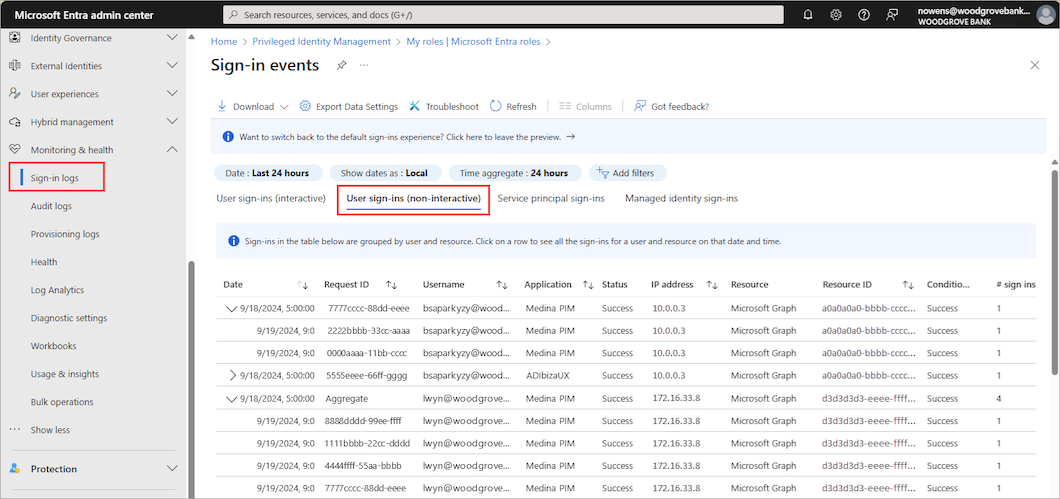
Image: the non-interactive user sign-ins view in the Entra admin center. Source: Microsoft Learn, What are non-interactive user sign-ins in
Walk through a real break-glass session. Someone signs in to the Entra admin center with the key from the safe: one interactive row in SigninLogs, and your alert fires. Then they open the Azure portal and the Exchange admin center and stay for two hours, fixing a federation outage or, in the bad version, adding a backdoor app credential and a new admin. The background token refreshes and SSO into the next portal are non-interactive sign-ins, and none of them land in SigninLogs. The sample alert finds nothing new after the first window, the on-call engineer closes one alert as "probably testing," and the session keeps going.
A second wrinkle matters for break-glass specifically. The same article notes that "as of April 11, 2025, all new sign-ins that obtain a refresh token with FIDO2 keys are now logged in the non-interactive sign-in logs." Microsoft's guide recommends passkeys (FIDO2) as the first-choice method for emergency access accounts. Microsoft doesn't spell out exactly which parts of a passkey sign-in land in which table, so let your test drill show you. Either way, a FIDO2-protected break-glass account is exactly where you can't ignore the non-interactive log.
One triage caution from the same article: Microsoft notes that for non-interactive sign-ins performed by confidential clients, the IP address shown is "the original IP used for the original token issuance," not the source of the refresh request.
For hunting in this table, see our earlier post on why a clean SigninLogs result proves so little. Here the focus is narrower: the alert on your two most powerful accounts.
The proposed fix in the open pull request
The open pull request to Microsoft's Entra docs (MicrosoftDocs/entra-docs #2162), titled "Emergency access accounts: include non-interactive sign-ins in alert queries," makes three changes to the emergency access page:
It changes all three sample queries from
SigninLogstounion SigninLogs, AADNonInteractiveUserSignInLogs.It adds a note explaining that "after the initial interactive sign-in, an active session continues to generate non-interactive sign-ins, such as token refreshes," so including them keeps alerts coming "for as long as the emergency access account's session is in use."
It updates the prerequisite to include both the SignInLogs and NonInteractiveUserSignInLogs categories in the diagnostic setting.
That third change is the one people skip. A union with a table that receives no data is a query that looks fixed and isn't. If your Entra diagnostic setting only exports SignInLogs, which is common because the non-interactive log is the noisy, expensive one, then AADNonInteractiveUserSignInLogs is empty in your workspace and the "fixed" alert behaves exactly like the old one.
The PR is open and unmerged as of this writing, and Microsoft may accept, reword or replace it. Nothing below depends on that: every table and column it uses is in Microsoft's published schema.
Does the union actually work? Checking the schemas
A union only behaves well if the columns you filter and project exist in both tables with compatible types. Checked against Microsoft's table references for SigninLogs and AADNonInteractiveUserSignInLogs, all six columns in the documented query (TimeGenerated, UserId, UserPrincipalName, IPAddress, ResultType, ResultDescription) exist in both, and the five besides TimeGenerated are string in both. So the proposed query is valid. AppDisplayName, ResourceDisplayName, SessionId and UserAgent are also string in both, and the standard Type column holds the table name, so you can see which log a row came from.
Two gotchas to keep in mind if you extend the query:
Some columns differ in type.
LocationDetails,DeviceDetailandStatusaredynamicinSigninLogsbutstringinAADNonInteractiveUserSignInLogs. A union keeps both, as suffixed columns such asDeviceDetail_dynamicandDeviceDetail_string; normalize withparse_json()if you need them, or just stick to string columns.ResultTypeis documented differently. TheSigninLogsreference describes it as an error code where 0 means success. The non-interactive reference describes it as "Success or Failure." I couldn't confirm from documentation alone that the values match, so check your data before filtering on it. For this alert, don't filter on it at all: failed sign-ins on an emergency account deserve a page too.
What about union isfuzzy=true? Per the union operator reference, isfuzzy=true lets the query run even if one of the tables can't be resolved, returning only a warning. That's handy for hunting across workspaces. For this alert it works against you: a missing non-interactive table is exactly the silent failure you're trying to eliminate. Leave isfuzzy off, and catch the "table exists but is empty" case with the health check in step 1 below.
Tradeoffs to decide before you turn it on
Cost of ingesting non-interactive sign-ins
In most tenants the non-interactive log is far larger than the interactive one, because every Teams client, Outlook profile and Entra-joined device refreshes tokens all day. Sentinel doesn't change that: the Sentinel billing page notes that raw Microsoft Entra ID logs are a paid data type, unlike Entra ID Protection alerts.
Practical options:
Measure first with the
Usagequery in step 1, after a week of data.Use a cheaper table plan with care. Microsoft's table feature support matrix lists
AADNonInteractiveUserSignInLogsas supporting the Basic and Auxiliary plans and DCR workspace transformations. But the table plans article warns that switching a table to Auxiliary means "alerts stop working for that table." Basic has its own query restrictions and per-query charges; Microsoft documents simple log search alerts as supporting Basic logs, but I couldn't confirm that a multi-table union alert works against a Basic table. If you go that route, test it. The safe default for this alert is the Analytics plan.Filter at ingestion, not at export. The Entra diagnostic setting is all-or-nothing per category. A workspace transformation could drop everything except break-glass rows, but that throws away the table's hunting value. Most teams should keep the full log.
Alert noise versus alert silence
With the union, a two-hour session alerts in every window for two hours. That's the point, but your runbook should say "acknowledge and keep watching," not "close the duplicate."
Stateful alerts can recreate the original bug
Azure Monitor log search alerts can be stateful or stateless. Stateless alerts "fire each time the condition is met, even if fired previously." Stateful alerts "will not fire again or trigger any more actions until the conditions are resolved." In the alert rule wizard, the Automatically resolve alerts option is what makes a log alert stateful.
If auto-resolve is on and the break-glass session generates rows in every window, the condition never resolves, so you get one notification for the whole session. The union fixes the data; the alert state quietly reintroduces "fires once." For this rule, leave Automatically resolve alerts unchecked so every evaluation that finds activity notifies. If that's too loud, use Mute actions for a short period (for example 15 to 30 minutes) rather than stateful mode, so a session that keeps going keeps generating reminders.
Frequency, lookback and ingestion delay
Entra logs aren't real time. Microsoft's log latency article warns of up to three days before logs first appear in a newly configured workspace. After that, delay is usually minutes; measure yours with the latency query in step 1.
For Azure Monitor, the log alert rule documentation lets you set evaluation frequency anywhere from one minute to 24 hours. One-minute frequency has limits, including that the table must already contain data. A reasonable starting point for break-glass is a 5-minute frequency with a lookback window at least as long, and a little overlap if your measured ingestion delay is high. Duplicate notifications are cheap; a missed one is not.
Object ID, not UPN
Microsoft's samples include a UPN-based query, but use object IDs (UserId) for the alert. Anyone holding Global Administrator can rename the account, and a UPN-based rule would stop matching exactly when you need it. The object ID never changes. Project the UPN for readability; match on UserId.
Azure Monitor alerts or Microsoft Sentinel
Azure Monitor log search alerts are the lowest-friction option if all you have is a Log Analytics workspace. Notifications go through action groups (email, SMS, push, voice, webhooks).
Microsoft Sentinel adds incidents, entity mapping, automation rules and playbooks. Its near-real-time (NRT) rules run every minute, query on ingestion time rather than
TimeGenerated(which sidesteps the ingestion-delay problem), and can reference more than one table, so the union works. They're capped at 50 per customer; break-glass deserves one. If you run Sentinel, use an NRT rule and skip the duplicate Azure Monitor alert.
Licensing and roles: you need an Azure subscription and, per Microsoft's Log Analytics analysis article, Microsoft Entra ID P1 or P2. The diagnostic setting needs at least Security Administrator; the alert rule needs at least Monitoring Contributor.
Step-by-step: make the break-glass alert cover the whole session
Step 1: Export both sign-in categories and confirm data arrives
Follow Integrate Microsoft Entra logs with Azure Monitor logs:
Sign in to the Microsoft Entra admin center as at least a Security Administrator.
Browse to Entra ID > Monitoring & health > Diagnostic settings.
Select Edit setting on the setting that already sends to your Log Analytics workspace, or + Add diagnostic setting if there isn't one.
Make sure both SignInLogs and NonInteractiveUserSignInLogs are checked. Check AuditLogs while you're there; you'll need it in step 2.
Under Destination details, confirm Send to Log Analytics workspace points at the workspace your alerts run against.
Select Save.
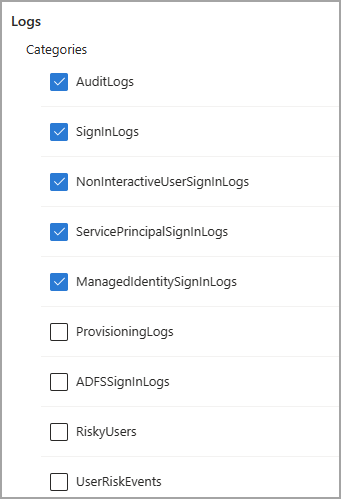
Image: log categories in the Entra diagnostic setting; NonInteractiveUserSignInLogs is a separate checkbox from SignInLogs. Source:
Microsoft Learn, Configure Microsoft Entra diagnostic settings for activity logs
Common trap: tenants often have several diagnostic settings (storage, SIEM, Log Analytics). The category must be on the one that targets your alert's workspace. Once data flows, run a health check:
// Is the non-interactive table actually receiving data?
AADNonInteractiveUserSignInLogs
| where TimeGenerated > ago(1d)
| summarize Rows = count(), Latest = max(TimeGenerated)
Measure ingestion delay so you can size the alert window:
// Typical delay between event time and ingestion
union SigninLogs, AADNonInteractiveUserSignInLogs
| where TimeGenerated > ago(1d)
| extend DelayMin = (ingestion_time() - TimeGenerated) / 1m
| summarize AvgMin = avg(DelayMin),
    P95Min = percentile(DelayMin, 95) by Type
And check what it costs you (the Quantity column in Usage is in MB):
// Ingestion volume per sign-in table, last 30 days
Usage
| where TimeGenerated > ago(30d)
| where DataType in ("SigninLogs",
    "AADNonInteractiveUserSignInLogs")
| summarize GB = sum(Quantity) / 1024 by DataType
Turn the health check into its own low-severity alert ("zero rows in 24 hours") to catch someone unticking the category six months from now.
Step 2: Collect the object IDs and look back before you look forward
Get each account's Object ID from Entra ID > Users. Then, before building anything, run the new query over your workspace's full retention to see whether these accounts were used in ways your old SigninLogs-only alert never showed you.
// Every sign-in by emergency access accounts, both tables
let BreakGlass = dynamic([
    "00aa00aa-bb11-cc22-dd33-44ee44ee44ee",
    "11bb11bb-cc22-dd33-ee44-55ff55ff55ff"
]);
union SigninLogs, AADNonInteractiveUserSignInLogs
| where UserId in (BreakGlass)
| project TimeGenerated, Type, UserPrincipalName, UserId,
    IPAddress, AppDisplayName, ResourceDisplayName,
    ResultType, ResultDescription
| order by TimeGenerated desc
Anything you can't tie to a documented drill or incident is a finding, not a curiosity.
While you're here, write the companion audit query Microsoft's privileged-accounts guidance calls for: changes to the accounts (password, roles, authentication methods) and actions taken by them.
// Changes to, or actions by, emergency access accounts
let BreakGlass = dynamic([
    "00aa00aa-bb11-cc22-dd33-44ee44ee44ee",
    "11bb11bb-cc22-dd33-ee44-55ff55ff55ff"
]);
AuditLogs
| where TargetResources has_any (BreakGlass)
    or InitiatedBy has_any (BreakGlass)
| project TimeGenerated, OperationName, Result,
    InitiatedBy, TargetResources
Step 3: Create the alert rule with the proposed query
Following the emergency access guide's Azure Monitor steps, with the changes above:
Sign in to the Azure portal as at least a Monitoring Contributor. Open Monitor > Alerts > + Create > Alert rule.
Scope: select your Log Analytics workspace.
Condition: choose Custom log search and paste the alert query below.
Measurement: measure Table rows, aggregation Count, granularity 5 minutes.
Alert logic: threshold type Static, operator Greater than, threshold 0, frequency 5 minutes.
Actions: pick an action group that reaches more than one human by more than one channel (for example email plus SMS or voice).
Details: severity 0 - Critical. Under advanced options, leave Automatically resolve alerts unchecked (stateless), and optionally set Mute actions for 15 to 30 minutes. Select a managed identity for the query and give it Reader on the workspace; the alert documentation explains that without one, the rule inherits the permissions of whoever last edited it.
Review + create.
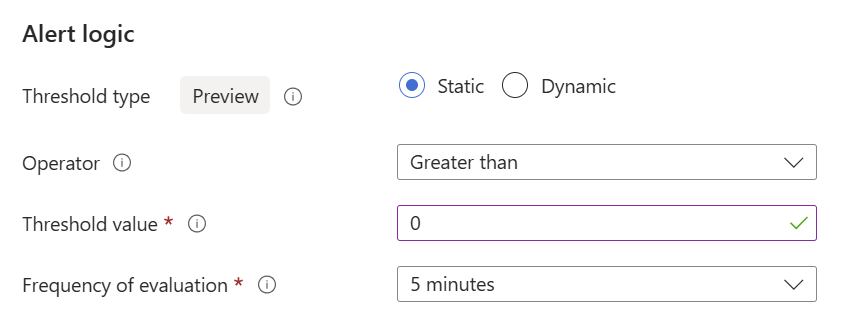
Image: the alert logic section of an Azure Monitor log search alert rule, as shown in Microsoft's emergency access guide. Source: Microsoft Learn, Manage emergency access accounts in Microsoft Entra ID
The alert query, adapted from the pull request's proposal to use a list of object IDs and a few more context columns:
// Emergency access accounts: interactive and non-interactive
// Proposed in an open Entra docs PR; not yet Microsoft text
let BreakGlass = dynamic([
    "00aa00aa-bb11-cc22-dd33-44ee44ee44ee",
    "11bb11bb-cc22-dd33-ee44-55ff55ff55ff"
]);
union SigninLogs, AADNonInteractiveUserSignInLogs
| where UserId in (BreakGlass)
| project TimeGenerated, Type, UserPrincipalName, UserId,
    IPAddress, AppDisplayName, ResourceDisplayName,
    ResultType, ResultDescription
Then create a second rule from the audit query in step 2, with the same severity and action group.
If you use Sentinel, put the same query in an NRT analytics rule instead. Map the Account entity to UserId (as the Entra object ID) and the IP entity to IPAddress, and set incident grouping so a long session collects into one incident without suppressing new alerts.
Step 4: Test it safely
Microsoft's guide asks you to run drills that "confirm that monitoring and alerting rules are triggered in case an account is misused." This is how you prove the fix:
Announce the drill. Tell your security-monitoring team in writing: which account, which workstation, and the time window.
Retrieve the credential under your normal custody process, two-person if that's your rule, and use the designated secure workstation.
Sign in to the Entra admin center and confirm the first alert arrives. Note the delay.
Keep the session open for at least an hour and move between a couple of admin portals with read-only actions. Don't change anything.
Confirm alerts keep arriving for the duration. Then run the step 2 sign-in query and check
Type: you should see rows fromAADNonInteractiveUserSignInLogs. If every row isSigninLogs, either your session produced no non-interactive activity (stay longer, open another portal) or the category isn't reaching the workspace (recheck step 1).Sign out, return the credential and record the drill: time, alert latency, how many alerts, who acknowledged.
Fold this into the validation Microsoft already recommends at least every 90 days; it tests the account, its Conditional Access exclusions and the passkey at the same time.
Step 5: Write the runbook before you need it
An alert without a runbook just creates a stressful phone call. Microsoft's guide calls for a post-mortem on every use. Here is a practical shape for the live response:
Confirm or deny within minutes. The on-call person checks the drill calendar and the incident channel, and calls the custodians on the authorized list. "Someone was probably testing" is not an answer.
If it's authorized, open an incident record and keep watching. With the stateless rule, alerts keep coming while the session is live; that's your cue to check in with whoever is using the account. Confirm it's closed when the emergency ends.
-
If it isn't authorized, contain it:
Revoke the account's sessions and refresh tokens, then rotate its credential. That means removing the passkey or certificate, and the password if it has one. Our post on why revoking sessions doesn't always end an attacker's access covers what survives a revoke and how to check.
Do this from the second emergency account or a normal admin path.
Run the audit query from step 2 for the session window. Look for new admins, role assignments, app credentials, federation or domain changes, and Conditional Access edits, and reverse them.
Preserve the logs. Export them if your retention is short.
After any use, run the post-mortem. Was the use a drill, a real emergency or misuse? Did the actions taken match the authorized purpose? Re-issue credentials and re-check the safes as needed.
Key takeaways
Microsoft's emergency access guide tells you to alert on every use of a break-glass account, but its current sample queries only check
SigninLogs, which records interactive sign-ins.After the first sign-in, the rest of a session (token refreshes, SSO into other portals) is logged as non-interactive sign-ins in
AADNonInteractiveUserSignInLogs, so the documented alert fires once and goes quiet.An open, unmerged pull request to Microsoft's Entra docs proposes
union SigninLogs, AADNonInteractiveUserSignInLogsand adding the NonInteractiveUserSignInLogs diagnostic category. It's a proposal, not current Microsoft text, but every column it uses exists in both tables.The union does nothing unless NonInteractiveUserSignInLogs is exported to the same workspace. Check every diagnostic setting, and alert if the table goes empty.
Leave Automatically resolve alerts off. A stateful rule fires once for a continuous session and recreates the original problem.
Match on object ID (
UserId), not UPN. Don't filter out failures. Keep the alert table on the Analytics plan.Prove it with a drill: keep a test session open for an hour and confirm that alerts keep arriving and that non-interactive rows show up.
Pair the sign-in alert with an audit-log alert on changes to and by the accounts, and have a written runbook ready.
Official sources
Microsoft Learn: Manage emergency access accounts in Microsoft Entra ID
MicrosoftDocs/entra-docs pull request #2162 (open, not merged as of November 13, 2026)
Microsoft Learn: What are non-interactive user sign-ins in Microsoft Entra?
Microsoft Learn: Configure Microsoft Entra diagnostic settings for activity logs
Microsoft Learn: Integrate Microsoft Entra logs with Azure Monitor logs
Microsoft Learn: Analyze Microsoft Entra activity logs with Log Analytics
Azure Monitor reference: AADNonInteractiveUserSignInLogs table
Microsoft Learn: Azure Monitor alerts overview (stateful and stateless)
Microsoft Learn: Near-real-time (NRT) analytics rules in Microsoft Sentinel
Microsoft Learn: Security operations for privileged accounts
NIST SP 800-53 Rev. 5: Security and Privacy Controls for Information Systems and Organizations
About IAMPathway
IAMPathway publishes practical guides on Identity & Access Management: Microsoft Entra ID, governance, identity threats, Application Governance and AI Governance. Browse all topics or read the glossary.