- Nov 13
Your Sign-In Hunt Missed the Privilege Grab: PIM Activations Live in Audit Logs
- IAMPathway Trainer
- Microsoft Entra ID
An administrator activates Global Administrator at 3 a.m. The account changes authentication methods, adds an application credential and creates a new admin. The next morning, an analyst reviews sign-in logs and sees a familiar successful login. Nothing looks especially strange. The role activation itself is nowhere in that query, because activation is a directory change, not a sign-in event.
That composite scenario is a visibility problem, not proof of evil. A system administrator can have a legitimate overnight change window. But if the investigation never asks “who became more powerful?”, it can close the case without seeing the moment that mattered.
The Microsoft Entra operation to find is Add member to role completed (PIM activation). In the portal it appears in Entra ID > Monitoring & health > Audit logs. When exported to Log Analytics or Microsoft Sentinel, it lands in the AuditLogs table, not SigninLogs. The request, approval, completion, deactivation and surrounding sign-ins each tell a different part of the story.
This is a sequel to yesterday's guide to a different sign-in hunting blind spot. Here we stay on privilege: build a role-activation hunt, tie it to authentication, alert on risky elevation and catch permanent assignments that bypass activation entirely. The KQL below follows Microsoft's documented schema and operation names, but was not executed in a tenant. Test the target parsing and time logic against your own records before creating alerts.
Who activated what? Start in the right log
Sign-in logs answer questions like these:
Which identity authenticated?
Which application and IP address were involved?
Did Conditional Access and authentication requirements succeed?
Audit logs answer different questions:
Who changed a user, group, application or role assignment?
What was the target, and did the operation succeed?
Which service wrote the change?
A successful authentication does not prove that a role changed. A completed role activation does not tell you, by itself, whether the preceding sign-in was normal. You need both.
Microsoft's audit activity reference lists the activation events under the PIM service, with the RoleManagement audit category for Entra roles. Useful operations include:
Add member to role requested (PIM activation)Add member to role approval requested (PIM activation)Add member to role request approved (PIM activation)Add member to role request denied (PIM activation)Add member to role completed (PIM activation)Remove member from role completed (PIM deactivate)Remove member from role (PIM activation expired)
For a quick unexported investigation, open Entra ID > Monitoring & health > Audit logs, set Service to Privileged Identity Management, choose the date range and add an Activity filter. Microsoft's PIM-specific view is ID Governance > Privileged Identity Management > Microsoft Entra roles > Resource audit. The PIM view shows 30 days of assignment, activation and policy-change history; My audit shows your own activity.
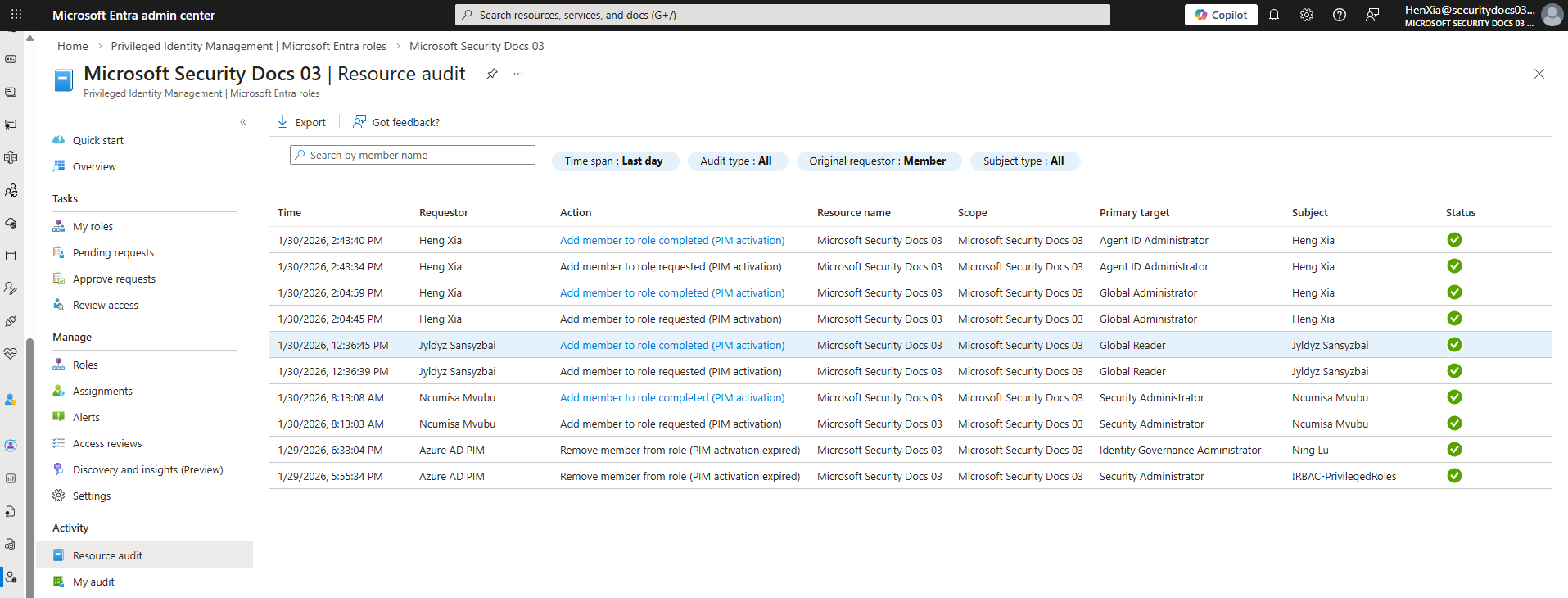
Source: Microsoft Learn, View audit log report for Microsoft Entra roles in Microsoft Entra PIM
Open an event rather than trusting its one-line summary. InitiatedBy describes the user or app initiating the operation; TargetResources identifies affected resources, commonly including the principal and role. The completion event can name the requester as its actor, while an approval event names the approver. Read the Targets, Modified properties and Additional details panes as well. Audit activity names and payloads can change, so examine a recent known activation before hard-coding a parser.
Eligible is not active—and PIM is not the only route
The distinction matters when interpreting evidence:
An eligible assignment gives no role permissions until the user activates it.
A PIM activation creates a time-bound active assignment.
An active assignment can also be assigned directly, with or without an end date. Its permissions are available without the user performing an activation.
A permanent eligible assignment sounds contradictory, but it means the eligibility remains available indefinitely; each activation is still temporary.
Approval, authentication and maximum-duration settings are per role, not global defaults that magically cover every privileged role. Microsoft's current role-settings page allows an activation maximum from one to 24 hours. The Graph PIM overview has older wording saying eight hours; use the current per-role value shown in your tenant rather than assuming either cap.
PIM's “Roles are being assigned outside of Privileged Identity Management” alert is high severity for a reason: direct assignments evade the activation controls on which a PIM-only detection strategy depends. A robust hunt therefore covers activation and assignment operations such as Add member to role outside of PIM (permanent), Add member to role in PIM completed (permanent) and Core Directory's Add member to role. Do not collapse them into one generic alert: their workflows, payloads and legitimacy differ.
Step-by-step: find and investigate privilege elevation
Step 1: Confirm that AuditLogs actually arrives
In the Entra admin center, open Entra ID > Monitoring & health > Diagnostic settings. Edit the setting for your Log Analytics workspace, or choose + Add diagnostic setting, select AuditLogs, choose the destination and save. At least Security Administrator is required to manage the Entra diagnostic setting. Sentinel rule creation additionally needs workspace write access, normally Microsoft Sentinel Contributor.
In workspace Logs, start with a freshness check:
AuditLogs
| summarize
    Events = count(),
    NewestRecord = max(TimeGenerated)
| project Events, NewestRecord
Then confirm that PIM rows exist, if the tenant uses PIM:
AuditLogs
| where TimeGenerated > ago(7d)
| where LoggedByService ==
    "Privileged Identity Management"
| summarize Events = count() by OperationName
| order by Events desc
An empty second result can mean there were no PIM events, ingestion is missing, or the wrong workspace is selected. Check a controlled test activation against the portal before declaring the telemetry healthy.
Do not wait for an incident. Entra retains audit logs for seven days with Free and 30 days with P1 or P2. Export is not retroactive. AuditLogs is not supported as a Basic Log Analytics table; Microsoft's table reference supports Analytics and Auxiliary/Lake. The Auxiliary tier is unsuitable for scheduled detection and interactive performance, so keep the live hunting copy in Analytics and use longer-term archive or lake retention as your budget requires. NIST SP 800-53 Rev. 5's AC-6(9) calls for logging privileged-function use; AU-6 and AU-6(3) support reviewing records and correlating repositories. A stopped connector defeats all three.
Step 2: Build an activation hunt with inspectable targets
Run this in Logs, then adjust the lookback. Exploding the target array keeps the role and principal visible without pretending every tenant has exactly the same array order:
AuditLogs
| where TimeGenerated > ago(7d)
| where OperationName ==
    "Add member to role completed (PIM activation)"
| where Result == "success"
| extend Actor = tostring(
    InitiatedBy.user.userPrincipalName)
| mv-expand Target = TargetResources
| extend
    TargetName = tostring(Target.displayName),
    TargetType = tostring(Target.type),
    TargetId = tostring(Target.id)
| project
    TimeGenerated,
    Actor,
    TargetName,
    TargetType,
    TargetId,
    Result,
    CorrelationId,
    AdditionalDetails
| order by TimeGenerated desc
If Actor is empty on an event, inspect the raw InitiatedBy and Targets rather than substituting a guess. Use the rows where TargetType is Role to name the privilege, and the user target to identify the activated account. Preserve the raw details in your case notes.
For a compact daily review, summarize targets instead:
AuditLogs
| where TimeGenerated > ago(1d)
| where OperationName ==
    "Add member to role completed (PIM activation)"
| extend Actor = tostring(
    InitiatedBy.user.userPrincipalName)
| mv-expand Target = TargetResources
| extend
    Name = tostring(Target.displayName),
    Kind = tostring(Target.type)
| summarize
    Roles = make_set_if(Name, Kind == "Role"),
    Principals = make_set_if(Name, Kind == "User")
    by TimeGenerated, Actor, CorrelationId
| order by TimeGenerated desc
The arrays are useful for review, but verify them against the exploded query. Different target types or blank display names require raw-event inspection.
Step 3: Reconstruct one activation request correctly
It is tempting to search one CorrelationId and stop. Microsoft specifically warns that scheduled and approval-gated activations can create new correlation IDs. Use the roleAssignmentRequestId in Additional details to link the request, approval, completion and expiration.
Copy that value from the completion event into this query, adapted from Microsoft's correlation approach:
let RequestId = "PASTE-REQUEST-ID-HERE";
let RelatedIds = AuditLogs
  | where AdditionalDetails has RequestId
  | summarize make_set(CorrelationId);
AuditLogs
| where AdditionalDetails has RequestId
  or CorrelationId in (RelatedIds)
| project
    TimeGenerated,
    OperationName,
    Result,
    LoggedByService,
    InitiatedBy,
    TargetResources,
    AdditionalDetails,
    CorrelationId
| order by TimeGenerated asc
Now ask:
Was the request expected and tied to a real change or ticket?
Who approved, and was that person independent of the requester?
Did approval occur before completion?
What was the activation's scheduled start and expiry?
Was the justification meaningful, or merely “admin work”?
Did deactivation occur manually, on expiry, or not within the expected window?
PIM approvers have 24 hours to decide, and cannot approve their own requests. Those controls reduce risk; they do not replace checking the completed activation. An approved request can still be malicious if the approver was fooled or compromised.
Step 4: Correlate with the sign-in before activation
Start with the account named in the activation targets. Set Principal and ActivatedAt to the exact values from the event, converted to UTC. This query looks back two hours and forward 15 minutes:
let Principal = "admin@contoso.com";
let ActivatedAt = datetime(2026-11-06T08:00:00Z);
SigninLogs
| where TimeGenerated between (
    datetime_add("hour", -2, ActivatedAt)
    ..
    datetime_add("minute", 15, ActivatedAt))
| where UserPrincipalName =~ Principal
| project
    TimeGenerated,
    ResultType,
    ResultDescription,
    IPAddress,
    AppDisplayName,
    ResourceDisplayName,
    AuthenticationRequirement,
    AuthenticationDetails,
    ConditionalAccessStatus,
    CorrelationId
| order by TimeGenerated desc
Look for the strongest plausible session preceding activation: successful authentication, unusual location or device, new application, failed attempts followed by success, and authentication-method changes nearby. AuthenticationRequirement and AuthenticationDetails provide more useful evidence than assuming a generic “MFA passed” claim. No sign-in directly linked to the audit event does not prove no compromise; portal activation follows an authenticated session, and correlation across systems is not a guaranteed single-ID join.
Broaden into other audit changes during the active window. Review role-setting changes, new role assignments, authentication-method additions, consent and app credential changes. For users, service workloads such as Exchange and Graph provide the activity record; the activation is only the start of the timeline.
Step 5: Alert on the activation, not just the hour
Off-hours is a weak signal by itself. An MSP may cover three time zones; an attacker can elevate at noon. Better detection layers are:
Activation of Global Administrator, Privileged Role Administrator or Privileged Authentication Administrator.
An account's first activation of a role, or first in a much longer period than its normal routine.
Activation outside the account's observed working pattern.
Activation without the expected approval trail where approval is required.
Activation followed by sensitive audit changes.
Any direct permanent assignment to a highly privileged role.
This starter query detects completed activations for named high-impact roles. The exact role names must match your tenant's target display names:
let SensitiveRoles = dynamic([
  "Global Administrator",
  "Privileged Role Administrator",
  "Privileged Authentication Administrator"
]);
AuditLogs
| where TimeGenerated > ago(15m)
| where OperationName ==
    "Add member to role completed (PIM activation)"
| where Result == "success"
| extend Actor = tostring(
    InitiatedBy.user.userPrincipalName)
| mv-expand Target = TargetResources
| where tostring(Target.type) == "Role"
| extend RoleName = tostring(Target.displayName)
| where RoleName in (SensitiveRoles)
| project
    TimeGenerated,
    Actor,
    RoleName,
    CorrelationId,
    AdditionalDetails
In the Defender portal, go to Microsoft Sentinel > Configuration > Analytics > + Create > Scheduled query rule. Test the query in Logs first and retain TimeGenerated. Set both Run query every and Lookup data from the last to the intended window. Use an alert threshold greater than zero, and group events per run initially to avoid an incident storm. Map the account to Actor only after confirming it is reliably populated; expose RoleName and the request ID as custom details. Run Microsoft's Test with current data simulation and test a known benign activation before enabling response automation.
There is a scheduling tradeoff. A five-minute query with a five-minute lookback is faster but costs more rule executions. A longer lookback covers late-arriving records but can duplicate alerts as events reappear in overlapping windows. Tune grouping and suppression against your actual latency rather than assuming audit delivery is instantaneous.
For direct bypasses, create a separate, lower-frequency review starting with the exact PIM activity:
let PermanentOps = dynamic([
  "Add member to role outside of PIM (permanent)",
  "Add member to role in PIM completed (permanent)",
  "Add member to role"
]);
AuditLogs
| where TimeGenerated > ago(1d)
| where OperationName in~ (PermanentOps)
| project
    TimeGenerated,
    OperationName,
    LoggedByService,
    Result,
    InitiatedBy,
    TargetResources
| order by TimeGenerated desc
Triaging with the PIM alert and Core Directory records together prevents a permanent-assignment change being mistaken for a normal activation. Exclude documented emergency accounts only from the unexpected-assignment rule, never from auditing.
Step 6: Harden PIM without locking yourself out
Open ID Governance > Privileged Identity Management > Microsoft Entra roles > Roles, select a role, then Role settings > Edit. Review the highly privileged roles first.
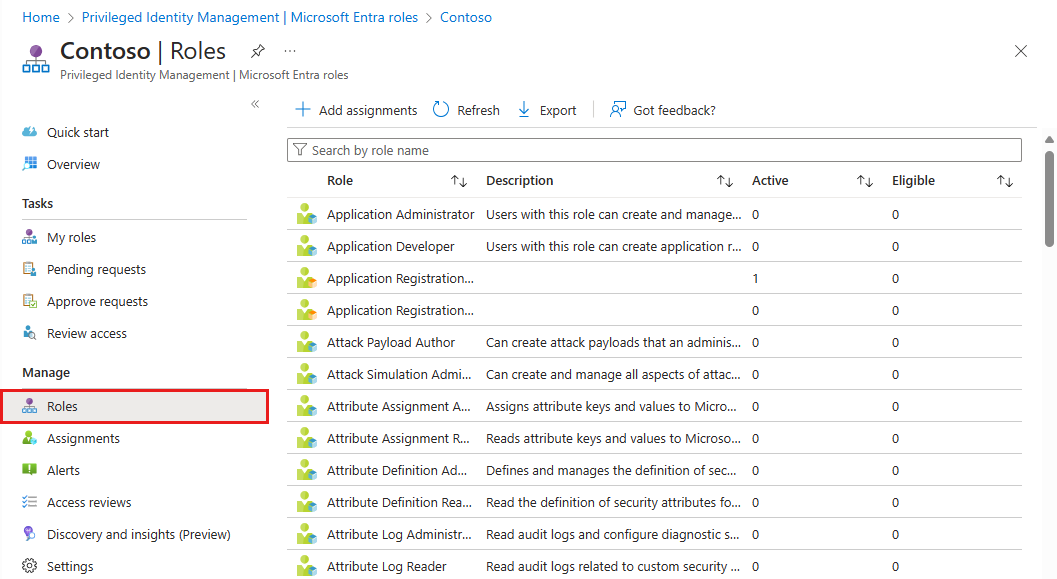
Source: Microsoft Learn, Configure Microsoft Entra role settings in PIM
Prioritize these controls:
Approval: require it for the highest-impact roles and name at least two approvers, as Microsoft recommends. Choose people who can evaluate the request, not a mailbox nobody reads.
Authentication: require MFA, or preferably a Conditional Access authentication context with an appropriate Authentication Strength. If activation must force reauthentication every time, configure the authentication-context policy with sign-in frequency Every time. Even then, Microsoft documents a ten-minute window in which another eligible role activation may not prompt again.
Use after activation: activation controls alone do not follow the privileged session to another device. Microsoft recommends a second Conditional Access policy targeting the directory role, or policies scoped directly to eligible users. This is an easy architectural gap to miss.
Justification and tickets: require a business justification, and ticket information where useful. Microsoft says ticket fields are informational; there is no automatic verification against your ticketing system.
Duration: request only the time needed for the task. Shorter windows reduce standing access but can generate repeated activation friction. Tune per role rather than minimizing every duration indiscriminately.
Permanent assignments: disallow permanent active assignments where practical. Keep permanent eligibility under periodic access reviews, and limit who can assign either type.
Notifications: enable completion notifications to accountable recipients. Notifications are not an authorization control and mail can be delayed; keep the scheduled detection too.
PIM alerts: review Microsoft Entra roles > Alerts > Setting, including roles assigned outside PIM and frequent activations. A PIM alert visible only on a dashboard is not a response process.
Do not create a lockout while tightening approval. If every Global Administrator and Privileged Role Administrator is merely eligible, approval is mandatory, and no eligible active approver remains, nobody can approve the recovery activation. Maintain at least two cloud-only emergency accounts, with phishing-resistant credentials and permanent active Global Administrator membership as Microsoft directs. Exclude them from Conditional Access policies that would block emergency access, secure and separately store their credentials, alert on every use and validate them at least every 90 days. Their permanent assignment is an intentional exception to investigate, not noise to ignore.
If you use Microsoft Graph PowerShell to validate your model, read current assignment instances instead of relying on display labels:
# Read-only; requires an appropriate PIM read permission.
Connect-MgGraph -Scopes "RoleManagement.Read.Directory"

# Replace this ID with the principal's object ID.
$PrincipalId = "00000000-0000-0000-0000-000000000000"

Get-MgRoleManagementDirectoryRoleEligibilityScheduleInstance `
  -Filter "principalId eq '$PrincipalId'" `
  -ExpandProperty "RoleDefinition"

Get-MgRoleManagementDirectoryRoleAssignmentScheduleInstance `
  -Filter "principalId eq '$PrincipalId'" `
  -ExpandProperty "RoleDefinition"
The eligibility result shows what the principal can activate; the assignment result shows what is active. PIM's Graph roleAssignmentScheduleRequests API supports selfActivate for activation and adminAssign for administrators creating permanent or time-bound assignments. Use those PIM schedule APIs rather than directly manipulating legacy role-membership APIs, so the policy and audit workflow remains intact.
A weekly review that a small team can sustain
A small business or MSP does not need to turn every activation into an emergency. Start with three repeatable checks:
Coverage: verify AuditLogs freshness and connector health across every tenant you manage. A query returning no records needs a distinction between no activity and no ingestion.
Exceptions: review sensitive-role activations, direct assignments, PIM policy changes and any use of emergency accounts. Match each to an authorized person and change record.
Access reduction: review eligible and active assignments. Remove roles no longer needed, replace broad roles with least-privilege alternatives and test one known activation to keep the detection honest.
During an incident, reverse the order: preserve the logs, reconstruct the activation request, correlate authentication, and enumerate what changed while the role was active. Removing one suspicious activation is insufficient if the user obtained another role, a second account, an app's credentials or a persistence mechanism.
Key takeaways
PIM's completed Entra role activation is
Add member to role completed (PIM activation), in AuditLogs, notSigninLogs.Sign-in and audit evidence answer different questions; incident timelines need both.
Do not rely on
CorrelationIdacross an entire activation cycle. Use Microsoft'sroleAssignmentRequestIdapproach.Alert on high-impact roles, unusual behavior and direct permanent assignments—not “3 a.m.” alone.
AuditLogs ingestion and retention require deliberate setup. Enabling export today cannot recover yesterday's expired activity.
Approval, strong authentication, shorter activation and notifications help, but are configured per role and have operational tradeoffs.
Keep emergency accounts permanently active and tightly monitored so strict PIM approval cannot lock the organization out.
Official sources
Microsoft Learn: View audit log report for Microsoft Entra roles in PIM
Microsoft Learn: Microsoft Entra audit log activity reference
Microsoft Learn: Integrate Microsoft Entra logs with Azure Monitor logs
Microsoft Learn: Configure Microsoft Entra role settings in PIM
Microsoft Learn: Security alerts for Microsoft Entra roles in PIM
Microsoft Learn: Manage role assignments with PIM APIs in Microsoft Graph
Microsoft Learn: Create scheduled analytics rules in Sentinel
About IAMPathway
IAMPathway publishes practical guides on Identity & Access Management: Microsoft Entra ID, governance, identity threats, Application Governance and AI Governance. Browse all topics or read the glossary.