- Nov 13
Microsoft's Entra Security Checklist, Sorted by License: The Free Checks Every Small Tenant Should Do First
- IAMPathway Trainer
- Microsoft Entra ID
Most security checklists for Microsoft Entra come from consultants, vendors, or forum threads. This one comes from Microsoft. The Microsoft Learn page Configure Microsoft Entra for increased security (currently marked Preview) groups Microsoft's Entra security recommendations into themes based on the Secure Future Initiative (SFI), Microsoft's company-wide security program.
What makes it useful for a small business is a single column: every check lists the minimum license it needs. Many of the highest-value checks need no extra license at all. This post sorts the checklist by license, picks ten free or P1 checks that matter most for small tenants, gives you a safe order to roll them out, and ends with the checklist's new AI section.
What the checklist is (and isn't)
The page organizes checks into seven themes:
Protect identities and secrets
Protect tenants and isolate production systems
Protect networks
Protect engineering systems
Monitor and detect cyberthreats
Accelerate response and remediation
AI
Each check links to a detail page that explains the risk and gives a remediation action. Microsoft says this first release focuses on workforce tenants (your employees and internal apps). It recommends implementing all of the controls "where licenses are available," and says more controls will be added over time. It also notes that some organizations will adapt the recommendations to their own business needs.
How many checks are there? You may see "nearly 100" quoted. When we counted on October 27, 2026, the page listed 154 checks. Microsoft is still adding to it, so expect the number to change.
The checklist, sorted by license
Here's how those 154 checks break down by the minimum license listed on the page:
No extra license ("None (included with Microsoft Entra ID)" or "Microsoft Entra ID Free"): 37 checks
Microsoft Entra ID P1: 57 checks
Microsoft Entra ID P2 (or Microsoft Entra ID Governance): 19 checks
Global Secure Access products (Microsoft Entra Internet Access, Private Access, or Entra Suite): 40 checks
Microsoft Entra Workload ID: 1 check
A few notes on reading the license column:
Two of the "no extra license" checks add a note that P1 is recommended for Conditional Access, and a third notes P2 or ID Governance if you use PIM. All three are free to check, but some fixes need the higher license.
Most of the networking theme (40 checks) depends on Global Secure Access products. Most small tenants can set that theme aside for now.
You don't have to check by hand
The page points to the Zero Trust Assessment, which automates testing for these configuration items and more. Microsoft describes it as open source, with its code on GitHub. Per the getting-started guide, you need PowerShell 7. You install the ZeroTrustAssessment module and run Invoke-ZtAssessment. The first run needs a Global Administrator to consent to the permissions it uses, and later runs can use Global Reader (the guide lists other reader and admin roles too). Run it before you start, so you have a baseline, and again when you finish.
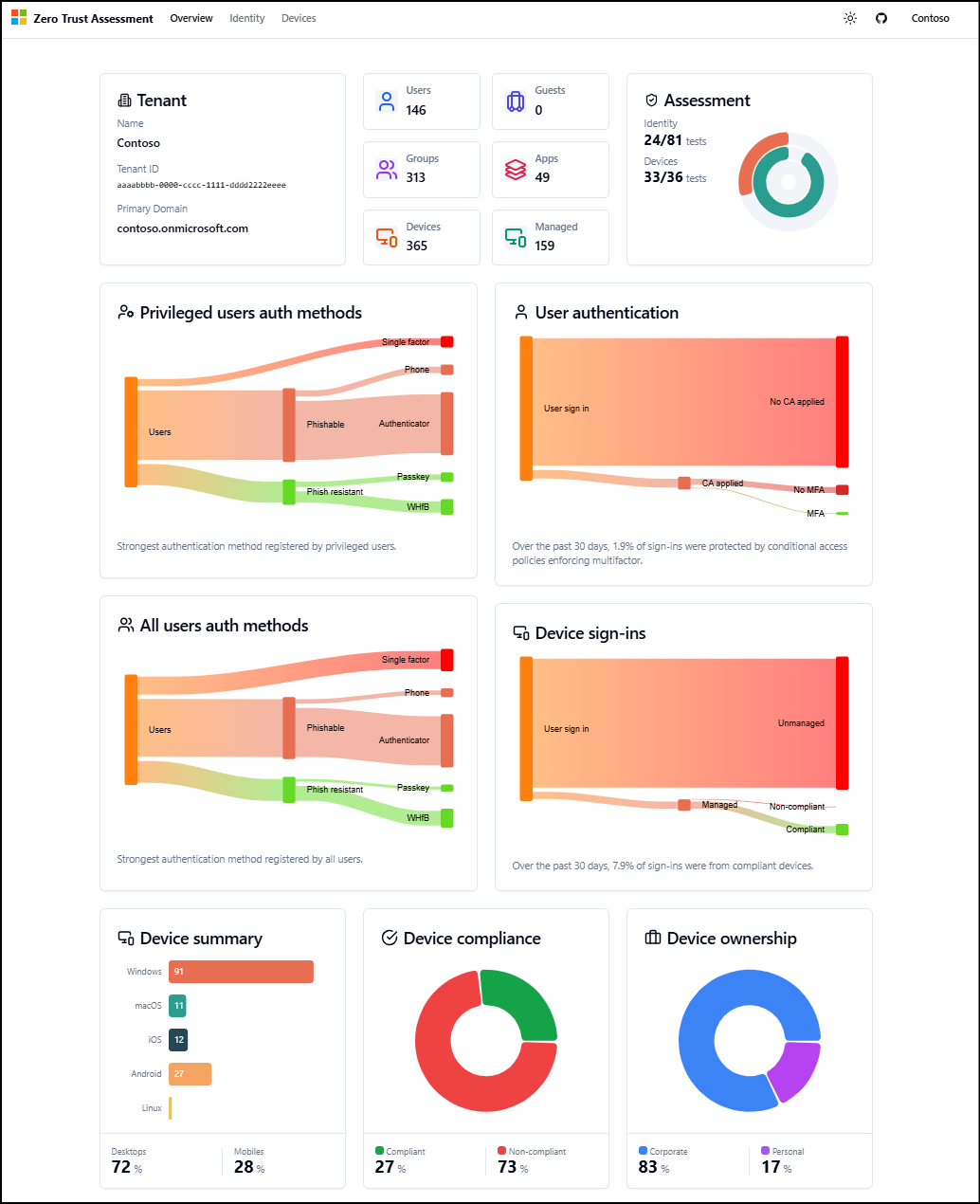
Image: Microsoft Learn, What is the Zero Trust Assessment?
Ten checks to do first in a small tenant
Small tenants usually face the same threats: phishing, consent phishing, password spraying, and too many admins. These ten checks address them directly. The first eight need no extra license. The last two need P1. Portal paths come from Microsoft Learn. Microsoft's own docs don't always agree on menu names, so expect small differences in your portal.
1. Restrict user consent (no extra license)
Why: Unrestricted consent lets attackers trick users into approving malicious apps that get legitimate OAuth tokens to mail, files, and more. How: In the Microsoft Entra admin center, go to Enterprise apps > Consent and permissions > User consent settings. Choose either Do not allow user consent or consent only for apps from verified publishers. Microsoft's user consent guide recommends the verified-publisher option at a minimum.
2. Turn on the admin consent workflow (no extra license)
Why: If users get blocked with no way to ask, they work around you. The workflow gives them a logged, auditable request path. How: Go to Entra ID > Enterprise apps > Consent and permissions > Admin consent settings. Set Users can request admin consent to apps they are unable to consent to to Yes, then choose reviewers. Turning it on requires a Global Administrator.
3. Get rid of client secrets on apps (no extra license)
Why: Secrets end up in config files and scripts. A leaked secret gives an attacker the app's permissions. How: List your app registrations that have secrets. Then move them to managed identities or other stronger credentials, starting with apps that have Microsoft Graph permissions.
4. Keep privileged accounts cloud-only (no extra license)
Why: If an admin account is synced from on-premises Active Directory, a compromise on-premises can carry into the cloud. How: For each highly privileged role, check whether any member is a synced user (Microsoft points to the onPremisesSyncEnabled and onPremisesImmutableId properties). Create cloud-only admin accounts for those people and remove their synced accounts from the roles.
5. Cut down your Global Administrators (no extra license)
Why: Every Global Admin is a high-value target. Microsoft's role best practices recommend fewer than five Global Administrators. How: Under Roles & admins, open Global Administrator and review the members. Move day-to-day admins to narrower roles, such as User Administrator.
6. Limit who can create tenants (no extra license)
Why: By default, whoever creates a new tenant becomes its Global Administrator. That tenant is outside your governance and visibility. How: In Entra ID > Users > User settings, set Restrict non-admin users from creating tenants to Yes. Assign the Tenant Creator role to anyone who genuinely needs it. Tenant creation shows up in the audit log as Create Company.
7. Stop guests from inviting guests (no extra license)
Why: If a partner's account is compromised, an attacker who can invite more guests can multiply their footholds. How: Go to Entra ID > External Identities > External collaboration settings. Under Guest invite settings, choose a more restrictive option, such as Only users assigned to specific admin roles can invite guest users. If some staff still need to invite guests, give them the Guest Inviter role.
8. Turn on passkeys (no extra license)
Why: Passkeys are phishing-resistant. Microsoft says they're available in all Entra ID editions, including Free. How: As at least an Authentication Policy Administrator, go to Entra ID > Security > Authentication methods > Policies > Passkey (FIDO2). Enable passkeys for a pilot group first, starting with your admins. Note that if you opt in to passkey profiles, Microsoft says you can't opt out.
9. Set up emergency access accounts (P1 in the checklist)
Why: If a policy mistake or outage locks out every admin, you need a way back in. Microsoft recommends two or more cloud-only emergency access accounts with the Global Administrator role. How: Create them on the *.onmicrosoft.com domain, not synced or federated. Protect them with phishing-resistant methods that differ from your normal admin accounts. Exclude them (ideally through a dedicated group) from Conditional Access policies that block or restrict sign-in. Alert on every sign-in.
10. Block legacy authentication (P1)
Why: Legacy protocols such as basic authentication for SMTP and IMAP can't do MFA, which makes them a favorite for password attacks. How: As a Conditional Access Administrator, go to Entra ID > Conditional Access > Policies > New policy. Target All users, excluding your emergency access accounts, and All resources. Under Conditions > Client apps, select only Exchange ActiveSync clients and Other clients, and set Grant to Block access. Start in Report-only mode, review the impact, then switch the policy On.
No P1? Use security defaults
The checklist also includes enabling security defaults for free tenants. Security defaults require all users to register for MFA, make administrators use MFA, and block legacy authentication, at no extra cost. You'll find the setting under Entra ID > Overview > Properties > Manage security defaults. Microsoft says organizations that replace security defaults with Conditional Access must disable security defaults, so choose one approach or the other. The same page also recommends two cloud-only emergency access accounts, with or without P1.
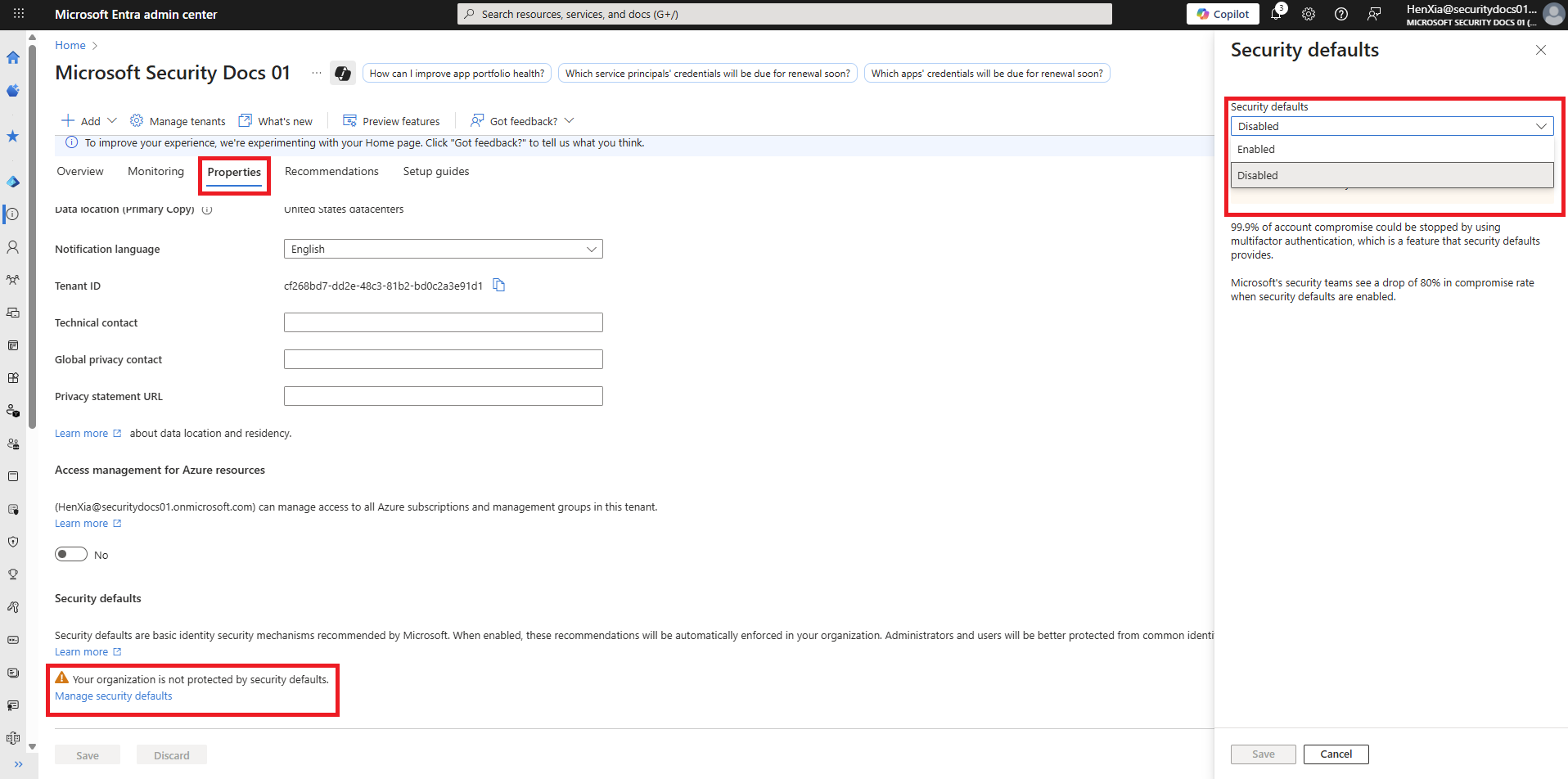
Image: Microsoft Learn, Security defaults in Microsoft Entra ID
A rollout order that won't lock you out
Order matters. Create emergency access accounts before you build Conditional Access policies, and put new policies in report-only mode first. A practical sequence for a small tenant:
Baseline: Run the Zero Trust Assessment.
Free app and consent checks: Restrict user consent, turn on the admin consent workflow, and plan to move apps off client secrets.
Free admin and tenant checks: Keep privileged accounts cloud-only, get below five Global Administrators, restrict tenant creation and guest invites, and turn on passkeys, starting with admins.
If you don't have P1: Turn on security defaults, and still create emergency access accounts.
If you have P1: Create emergency access accounts first. Then build the block-legacy-authentication policy in report-only mode, exclude the emergency accounts, review the impact, and switch it on.
Re-run the assessment, then move on to the AI checks below.
The AI section: what's next
The newest theme covers AI agents. Microsoft's AI recommendations note that agents request tokens for mail, files, and APIs on every interaction, often without the MFA, device, or location signals that Conditional Access relies on for people. The section lists seven checks:
Require Microsoft Entra ID authentication to interact with agents (P1)
Conditional Access policies cover both agent identities and agents' user accounts (P1). Conditional Access treats these as separate principal types, so one policy can't cover both.
Risk-based Conditional Access blocks risky agent identities (P2)
Custom security attributes for agent identities are present (no extra license)
Identity governance for agent identity sponsors is configured (P1)
Agent identities and blueprint principals have assigned technical owners and no disabled agents remain in the directory (no extra license)
AI administrative roles have assigned principals (no extra license)
For a small tenant, start with the three that need no extra license. Make sure every agent and blueprint principal has an owner, clean up disabled agents, and confirm someone is actually assigned to the AI admin roles. If you haven't yet decided who can create agents in your tenant, read our earlier post on the Entra agent blueprint default change on November 4.
Key takeaways
Microsoft's Entra security checklist is built around SFI themes, is still in preview, and listed 154 checks when we counted. The number will change.
37 checks need no extra license. Restricting consent, turning on the admin consent workflow, removing app secrets, keeping admins cloud-only, cutting Global Admins, limiting tenant creation, restricting guest invites, and turning on passkeys all cost nothing.
With P1, start with emergency access accounts, then block legacy authentication in report-only mode first.
No P1? Turn on security defaults.
Use the Zero Trust Assessment to test your tenant before and after.
The AI section is your next step. Start with owners, clean-up, and AI admin role coverage.
Sources
Microsoft Learn: Configure Microsoft Entra for increased security
Microsoft Learn: Zero Trust recommendations: Protect identities and secrets
Microsoft Learn: Zero Trust recommendations: Protect tenants and isolate production systems
Microsoft Learn: Zero Trust recommendations: Protect engineering systems
Microsoft Learn: Zero Trust recommendations: AI
Microsoft Learn: What is the Zero Trust Assessment? and Get started
Microsoft: Secure Future Initiative
Microsoft Learn: Configure how users consent to applications
Microsoft Learn: Configure the admin consent workflow
Microsoft Learn: Migrate applications away from secrets
Microsoft Learn: Best practices for Microsoft Entra roles
Microsoft Learn: Default user permissions
Microsoft Learn: Configure external collaboration settings
Microsoft Learn: How to enable passkeys (FIDO2) in Microsoft Entra ID
Microsoft Learn: Manage emergency access accounts
Microsoft Learn: Block legacy authentication with Conditional Access
Microsoft Learn: Security defaults in Microsoft Entra ID
About IAMPathway
IAMPathway publishes practical guides on Identity & Access Management: Microsoft Entra ID, governance, identity threats, Application Governance and AI Governance. Browse all topics or read the glossary.