- Nov 13
Your Users Signed In. Now What? How Zero Trust Keeps Checking After the Login
- IAMPathway Trainer
- Microsoft Entra ID
Most admins think of Conditional Access as a gate: the user passes MFA on a compliant device and walks in. But the gate only opens once. After that, the user holds tokens, and a token doesn't care who is holding it.
A Microsoft Entra blog post published October 27, Why identity needs network insight to make Zero Trust work, puts the problem plainly: users sign in successfully, "and then what?" Sessions can be hijacked, device health can degrade, and traffic to non-federated SaaS and AI apps can slip past identity controls.
The post is also partly a pitch for Microsoft's network security products. So this article goes in a different order: first what you can do with licenses you probably already have, then where Global Secure Access fits as an optional next step, with licensing stated plainly.
Why the login isn't the end of the story
NIST SP 800-207, the Zero Trust Architecture standard, says access is granted per session and that authentication and authorization are dynamic. In practice, the sign-in is a snapshot, and the session outlasts it.
Microsoft's post names three gaps:
Risk changes mid-session. An account is disabled, a user's risk goes up, a token is stolen, or a device's health changes after the sign-in check passed.
Blind spots in traffic. Connections to SaaS and AI apps that aren't federated with Entra never hit your Conditional Access policies at all.
Static policies. Location and network context often go unchecked after the first decision.
Why it matters: the Conditional Access session controls page says that if an attacker steals a token, they can impersonate the victim until it expires or is revoked. Token theft is rare, Microsoft says, but the impact can be significant. Also note that Conditional Access policies are enforced after first-factor authentication. It's a decision engine, not a perimeter.
Continuous access evaluation: the session gets a vote
By default, an access token is valid for one hour. When it expires, the client goes back to Entra, and that refresh is the moment your policies get re-checked. Microsoft's continuous access evaluation (CAE) documentation explains why shortening token lifetimes isn't the answer: it hurt user experience and reliability without removing the risk.
CAE adds a two-way conversation between Entra and the app (the "resource provider"). Entra can tell the app "stop honoring tokens for this user," and the app can tell Entra when something such as the network location changes. CAE is built on the OpenID Continuous Access Evaluation Profile.
Critical events that CAE evaluates, in any tenant and without needing a Conditional Access policy:
The user account is deleted or disabled
The user's password is changed or reset
MFA is enabled for the user
An administrator explicitly revokes all refresh tokens
Microsoft Entra ID Protection detects high user risk
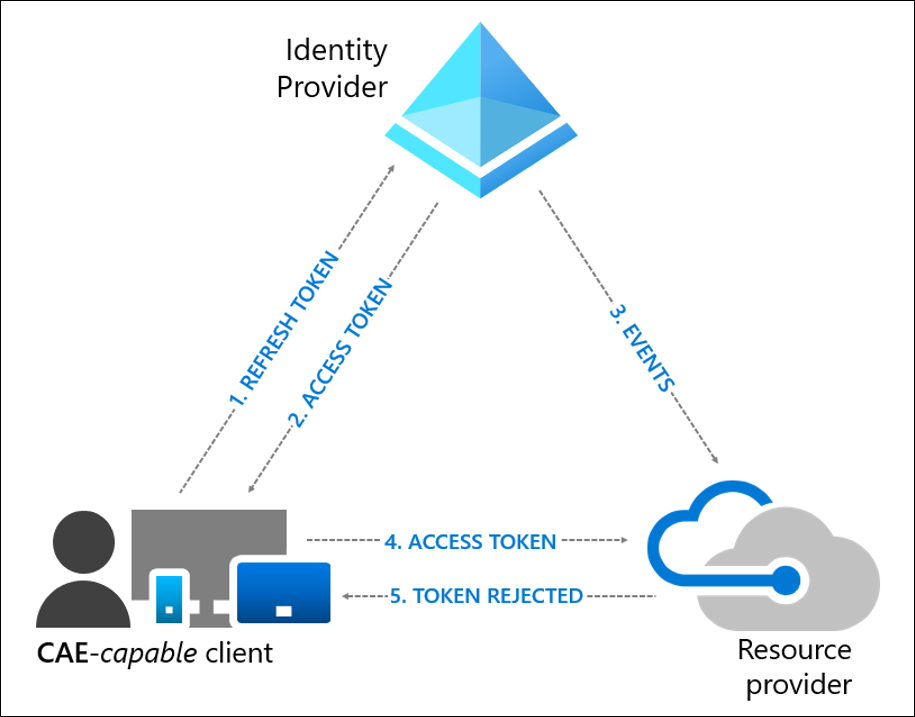
Image: Microsoft Learn, Continuous access evaluation in Microsoft Entra
What CAE does and doesn't promise
Microsoft's post says sessions can be revoked "instantly." The documentation is more careful:
Critical event response is "near real time," but Microsoft says latency of up to 15 minutes might be observed. Only IP-location policy enforcement is described as instant.
CAE currently focuses on Exchange Online, SharePoint Online and Teams, plus Microsoft Graph for Conditional Access policy evaluation. Not every client and app combination is supported (for example, Office web apps aren't). Check the support tables on the CAE page.
Guest accounts aren't supported for CAE revocation events or instant IP-based enforcement.
Policy and group-membership changes can take up to a day to reach resource providers (about two hours in some cases). To apply them now, select Revoke sessions on the user's profile.
In CAE sessions, access tokens can live up to 28 hours. That's by design: events, not a short timer, drive revocation.
The good news: CAE is on by default. Microsoft's Learn pages say it's auto-enabled as part of Conditional Access, and the way to turn it off is a session control (Customize continuous access evaluation > Disable) that only works on policies targeting All resources with no conditions. So the first task isn't "enable CAE"; it's checking that nobody disabled it.
What you can do today with what you already have
Everything in steps 1 to 5 uses Microsoft Entra ID P1 (included in Microsoft 365 Business Premium) unless noted. Microsoft's Conditional Access license note says risk-based policies need Entra ID Protection, a P2 feature.
Step 1: See where your policies end
In the Microsoft Entra admin center, as at least a Security Reader, go to Entra ID > Conditional Access. The Overview page shows how many policies are on versus report-only, and the Coverage tab shows which apps had no Conditional Access coverage over the past seven days. Any app on that list is a session you aren't evaluating at all.
Step 2: Make device health part of the decision
Microsoft's first "get started" item is to include device compliance in your policies. Per the device compliance guide:
Create a compliance policy in Microsoft Intune first. Microsoft warns that without one, the Conditional Access policy won't work as intended.
Go to Entra ID > Conditional Access > Policies > New policy.
Under Users, include All users and exclude your emergency access accounts.
Under Target resources, select All resources.
Under Grant, select Require device to be marked as compliant.
Set Enable policy to Report-only, review the impact, then turn it on.
Not ready for all users? Microsoft suggests starting with administrators.
A caution on "device posture changes mid-session": the CAE critical event list above doesn't include a device falling out of compliance. I couldn't find documentation promising an instant cut-off for that case, so treat compliance as something that's re-checked when tokens are refreshed, not in real time.
Step 3: Set session lifetimes on purpose
Sign-in frequency decides how long a user stays signed in before being asked again. Using the adaptive session lifetime guide: create a policy, then under Access controls > Session, select Sign-in frequency and choose Periodic reauthentication (hours or days) or Every time. CAE doesn't replace this: Microsoft notes sign-in frequency is honored with or without CAE.
Use "every time" sparingly. Microsoft's token-theft guidance recommends it for sensitive actions (an authentication context, such as PIM role activation) and risky sign-ins (P2 for the risk signal), not as a blanket setting. Over-prompting can lead users to approve MFA requests they didn't start. If "Remember MFA on trusted devices" is on, disable it before using sign-in frequency.
Step 4: Use CAE's location enforcement, and consider strict mode
If your users sign in from known office or VPN addresses, an IP-based location policy gets real-time enforcement through CAE: if a token is replayed from outside the allowed range, the app rejects it and sends the client back to Entra.
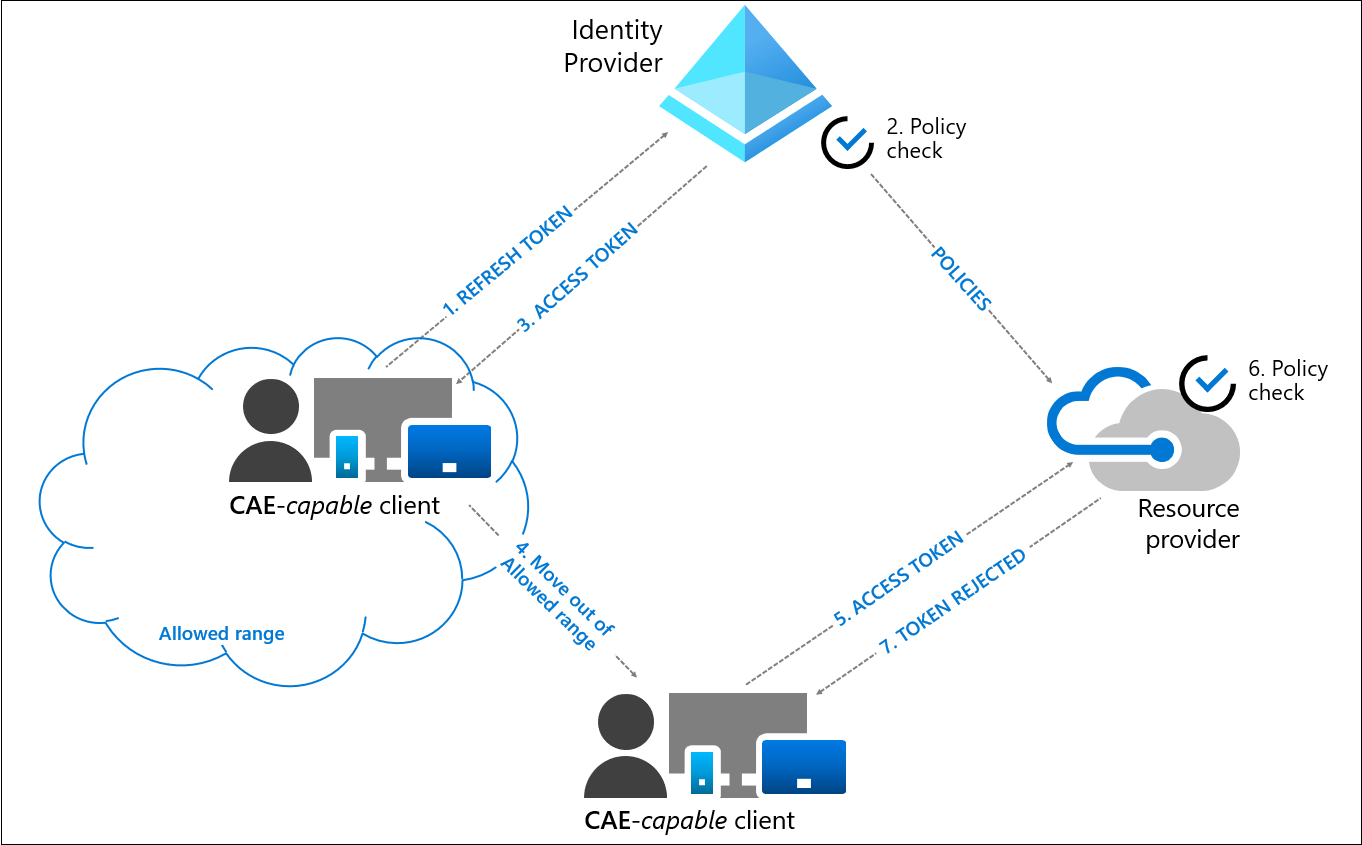
Image: Microsoft Learn, Continuous access evaluation in Microsoft Entra
Two catches from the CAE page: CAE only understands IP-based named locations (not country/region locations or MFA trusted IPs), so include every IPv4 and IPv6 range that Entra and the apps can see. And above 5,000 IP ranges in total, real-time location enforcement stops and Entra issues one-hour tokens.
By default, CAE uses standard location enforcement. It allows a one-hour token when Entra sees an allowed IP even though the app saw a different one. That protects people on split-tunnel VPNs from lockouts. Strictly enforce location policies removes that exception: the app blocks the request as soon as it sees an IP outside your list. Microsoft's CAE overview labels this option Public Preview, so check the current status before relying on it.
If you want to try it, follow the strict enforcement guide:
Build and test an IP-based location policy with a small group first.
In the policy, go to Session > Customize continuous access evaluation and select Strictly enforce location policies.
Watch Entra ID > Monitoring & health > Sign-in logs. Add the IP address (seen by resource) column and filter out blanks. A value there means the app saw a different IP than Entra did.
Add any legitimate egress IPs to your named locations, then widen the rollout.
Microsoft says to skip strict mode if traffic uses shared or unpredictable egress IPs. It also warns that strict enforcement blocks access for non-Microsoft 365 apps whose traffic goes through Global Secure Access, even from a trusted location, because source IP restoration isn't supported for those apps.
Step 5: Bind tokens to devices where it's supported
Token protection is the most direct answer to token replay: Entra accepts only sign-in session tokens cryptographically bound to the device, so a stolen token won't work from another machine. It needs Entra ID P1 (per Microsoft's Windows deployment guide). In the policy, it's under Session > Require token protection for sign-in sessions.
Know the limits before you start:
Windows native apps are generally available. The page lists Exchange Online, SharePoint Online, Teams, Azure Virtual Desktop and Windows 365 as protected resources. Browser-based support is limited to selected web apps that access Azure Resource Manager, and is in preview.
Some apps and devices (for example, Autopilot self-deploying devices) are unsupported, and users can be blocked.
Pilot with a small group, run in report-only first, and review interactive and non-interactive sign-in logs long enough to cover normal usage.
Where Global Secure Access fits (and what it costs)
Everything above protects Microsoft-integrated sessions. The third gap in Microsoft's post is the traffic that doesn't go through Entra at all. That's the job of Global Secure Access: Microsoft Entra Internet Access (an identity-aware secure web gateway for internet and SaaS) and Microsoft Entra Private Access (a zero trust alternative to a VPN for private apps). Microsoft's description of Internet Access includes applying Conditional Access to internet destinations "even if not federated with Microsoft Entra ID."
Licensing, per Microsoft's overview page:
Internet Access and Private Access are each included in the Microsoft Entra Suite and also sold standalone.
Users of either product also need Entra ID P1 or P2.
Internet Access for Microsoft services is included in P1 or P2. The feature table lists the compliant network check, source IP restoration and universal tenant restrictions under that tier. Web content filtering, FQDN filtering, TLS inspection and similar features need the Internet Access license.
The feature most relevant to token theft is the compliant network check (setup guide). Users connect through the Global Secure Access client, and a Conditional Access policy can require that. If a stolen refresh token is replayed from a device that isn't on your compliant network, Entra denies it. CAE-aware apps can also reject replayed access tokens. To set it up:
As a user holding both the Global Secure Access Administrator and Conditional Access Administrator roles, go to Global Secure Access > Settings > Session management > Adaptive access.
Turn on Enable Conditional Access Signaling for Microsoft Entra ID.
Under Entra ID > Conditional Access > Named locations, confirm the All Compliant Network locations location exists.
Create a policy for All resources that blocks access from Any location except All Compliant Network locations. Exclude emergency accounts. Microsoft's sample sets the policy to On; test it on a pilot group or in report-only mode first.
Don't disable the signaling later while policies depend on it, or you could block users. For a small tenant without the client deployed, this is a project, not a toggle. Finish steps 1 to 5 first and treat Global Secure Access as a second phase.
Key takeaways
Sign-in is a snapshot. Tokens outlive the check, so you need session-level controls.
CAE is on by default. Verify nobody disabled it, and know its limits: up to 15 minutes of delay, mostly Exchange, SharePoint, Teams and Graph, no guests.
Don't count on instant device-compliance cut-offs. CAE's documented critical events don't include them.
Use IP-based named locations for CAE location enforcement, and pilot strict mode (preview) only with dedicated, known egress IPs.
Token protection (P1) is the strongest anti-replay control, but only for supported apps. Start in report-only mode.
Sign-in frequency "every time" is for sensitive actions and risky sign-ins, not everyone.
Global Secure Access is optional and separately licensed. Read the license table before you buy.
Sources
Microsoft Entra blog: Why identity needs network insight to make Zero Trust work
Microsoft Learn: Continuous access evaluation in Microsoft Entra
Microsoft Learn: Continuous access evaluation strict location enforcement
Microsoft Learn: Conditional Access session controls
Microsoft Learn: Configure adaptive session lifetime policies
Microsoft Learn: How Token Protection enhances Conditional Access policies and Token Protection deployment guide - Windows
Microsoft Learn: Protecting tokens in Microsoft Entra ID
Microsoft Learn: Require device compliance with Conditional Access
Microsoft Learn: Microsoft Entra Conditional Access overview
Microsoft Learn: What is Global Secure Access? and Enable compliant network check with Conditional Access
About IAMPathway
IAMPathway publishes practical guides on Identity & Access Management: Microsoft Entra ID, governance, identity threats, Application Governance and AI Governance. Browse all topics or read the glossary.