- Nov 2
Stop Giving Apps Application.ReadWrite.All Just to Renew a Secret
- IAMPathway
- Microsoft Entra ID
A client secret is about to expire. The app that uses it runs a nightly job, and nobody wants a 2 a.m. outage. So someone has a bright idea: let the app renew its own secret. To do that, the app needs permission to change app registrations, and the fastest permission to find is Application.ReadWrite.All.
That shortcut is where the trouble starts. Microsoft's own permissions reference warns that permissions able to manage credentials, such as Application.ReadWrite.All, "allow an application to act as other entities, and use the privileges they were granted." An app that can add a credential to any app can pick a more powerful app and sign in as it. You wanted to renew one secret and handed over the keys to the tenant.
Here's what Microsoft's documentation says about the better options.
What the docs say: certificates and secrets are treated differently
Microsoft Graph has two ways for an application to add its own credentials, and the permission notes differ.
Certificates: addKey and removeKey. The addKey and removeKey pages are designed so an application can automate rolling its expiring keys. Both carry this note: "An application doesn't need any specific permission to roll its own keys." The catch is a proof of possession. The request must include a short-lived self-signed JWT, signed with the private key of one of the app's existing valid certificates.
Secrets: addPassword. The addPassword page has no such note. For an application caller, it lists Application.ReadWrite.OwnedBy as the least privileged permission, with Application.ReadWrite.All and Directory.ReadWrite.All as higher-privileged options. removePassword lists the same.
Two caveats. First, the pages don't say outright that a secret can't be self-rotated without a permission. They simply don't grant the exemption that addKey does, so plan on needing OwnedBy. I haven't tested this in a live tenant, so test it in yours. Second, the exemption only helps an app that already has a valid certificate. Learn says an app with no valid certificate, because none was added or all have expired, can't use addKey and must use the normal update application call instead. Let the last certificate expire and self-rotation is gone.
What the proof-of-possession token looks like
Learn ships a C# sample for building the token, so you don't need to write it by hand. Its claims are:
aud:00000002-0000-0000-c000-000000000000iss: the identifier of the app making the requestnbf: not before timeexp:nbfplus 10 minutes
One wrinkle: the addKey page says iss is the application ID, while the sample code passes the object ID. Follow the sample, and test the result. The call itself looks like this, straight from the addKey page:
POST https://graph.microsoft.com/v1.0/applications/{id}/addKey
Content-type: application/json

{
    "keyCredential": {
        "type": "AsymmetricX509Cert",
        "usage": "Verify",
        "key": "MIIDYDCCAki..."
    },
    "passwordCredential": null,
    "proof": "eyJ0eXAiOiJ..."
}
Send only the public part of the certificate. Learn warns that adding a private key to your app "risks compromising the application." After the new certificate works, remove the old one with removeKey, which also needs a proof token and returns 204 No Content.
What OwnedBy really allows
If you must rotate secrets in code, Application.ReadWrite.OwnedBy is far better than the "All" version. Per the permissions reference, it's described as "Manage apps that this app creates or owns": the app can create other applications and fully manage them, including updating application secrets and deleting them. It "cannot update any apps that it is not an owner of."
It isn't free of risk:
It needs admin consent. The reference lists it as an application permission only, with admin consent required.
It can still list everything. Learn says it allows calls to
GET /applicationsandGET /servicePrincipalsthat list all apps and service principals in the tenant. That's allowed by design, but it's still tenant-wide read access.It can create apps. If the app only renews its own secret, ask whether it should be able to create apps at all. I found no narrower secret-specific permission in Learn, so this is a trade-off to accept knowingly.
Ownership is the boundary. Keep the list of apps the caller owns to the one app it should manage.
The add owner page says an application's owners can be users, "the associated service principal, or another service principal." So an app can own its own registration. Setting it up takes POST /applications/{id}/owners/$ref with the service principal's object ID. Learn also notes that OwnedBy alone isn't enough to add another owner, because the caller also needs Application.ReadWrite.All. Do that step once, as an administrator, rather than leaving the app holding the broad permission. For delegated use, Learn lists Hybrid Identity Administrator, Cloud Application Administrator or Application Administrator.
Step 1: Find the apps that hold Application.ReadWrite.All
Start with an inventory. Application permissions granted to apps are app role assignments on the Microsoft Graph service principal, and the appRoleAssignedTo API lists every client that holds one. This Microsoft Graph PowerShell sketch lists the holders of the two permissions Learn names as the higher-privileged options. I haven't run it against your tenant, so read the output with care:
Connect-MgGraph -Scopes "Application.Read.All"

# Microsoft Graph's service principal (appId from the permissions reference)
$graph = Get-MgServicePrincipal -Filter "appId eq '00000003-0000-0000-c000-000000000000'"

# Look up the role IDs by name instead of hard-coding them
$risky = $graph.AppRoles | Where-Object {
    $_.Value -in "Application.ReadWrite.All","Directory.ReadWrite.All"
}

Get-MgServicePrincipalAppRoleAssignedTo -ServicePrincipalId $graph.Id -All |
    Where-Object { $_.AppRoleId -in $risky.Id -and $_.PrincipalType -eq "ServicePrincipal" } |
    Select-Object PrincipalDisplayName, PrincipalId, AppRoleId, CreatedDateTime
For each app on the list, you need three answers: who owns it, why it needs the permission, and whether the answer is "to renew its own secret." You can review one app's permissions in the portal at Entra ID > Enterprise apps > All applications > (the app) > Permissions, on the Admin consent tab. Learn lists Cloud Application Administrator or Application Administrator for that page.
Step 2: Cut it down to what the app needs
For each app that only wanted to renew its own credential:
Certificates in use? Remove Application.ReadWrite.All and let the app use addKey with its proof token. No permission is needed.
Secrets in use, and rotation must stay in code? Make the app an owner of itself (one-time admin step above), grant OwnedBy, then revoke the "All" permission. In the portal you can revoke an admin-granted permission from the same Permissions > Admin consent tab with Revoke permission.
Rotation done by a person or a pipeline? Revoke it entirely and let that process use its own identity.
Remove the broad permission only after the replacement works. Learn notes that revoking a granted permission doesn't stop an app from requesting it again, so also remove it from the app's requested API permissions.
Step 3: Move to a managed identity
The best way to stop worrying about rotation is to have no credential to rotate. Learn's security best practices for app registrations say to "use a managed identity as a credential whenever possible," calling it "the most secure option" with no ongoing credential management. It also says to consider a managed identity instead of an app registration if all of these are true: the service runs in Azure, doesn't sign in users, isn't a web API, and doesn't run in multiple tenants. Managed identities can reach resources outside Azure, including Microsoft Graph, and they're available at no extra cost.
If you do need an app registration, a managed identity can still replace its secret. Learn's guide on configuring an app to trust a managed identity puts it under a federated credential:
Sign in to the Microsoft Entra admin center with a role that can update app credentials: Application Administrator, Application Developer or Cloud Application Administrator.
Go to Entra ID > App registrations, select the app, then Certificates & secrets.
Open the Federated credentials tab and select Add credential.
For the scenario, choose Managed Identity, select the managed identity, and keep the audience
api://AzureADTokenExchange.
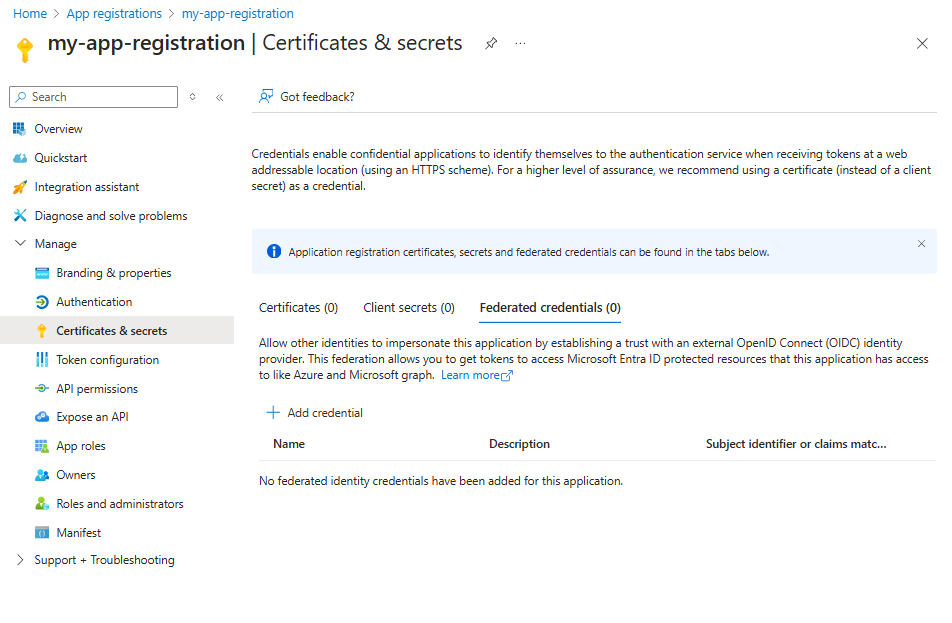
Image: Microsoft Learn, Configure an application to trust a managed identity
Per Learn, only user-assigned managed identities can be used this way, the managed identity must be in the same tenant as the app registration, and an app can have a maximum of 20 federated credentials. A typo in the issuer, subject or audience still creates the credential, and you only find out when the token exchange fails. Test before deleting the old secret.
Step 4: If it has to be a certificate, do it properly
When there's no managed identity option, Learn's guidance is to use certificate credentials and "don't use password credentials, also known as secrets." For the certificate itself:
Keep it in a secure key vault such as Azure Key Vault.
Prefer a certificate from a trusted certificate authority. Self-signed is still preferred over passwords.
Roll credentials often, don't share them across apps, and don't commit them to code repositories.
Then you get the addKey benefit above: the app rolls its own certificate with no extra permission.
Step 5: Lock the door with an app management policy
Once you've cleaned up, make it hard to slide back. Learn's app management policies let you block new secrets or limit their lifetime. In the admin center, go to Entra ID > Enterprise apps > Application policies. The available restrictions include Block password addition, Restrict max password lifetime and Restrict max certificate lifetime. To configure them you need the Security Administrator role plus Cloud Application Administrator or Application Administrator, or Global Administrator alone.
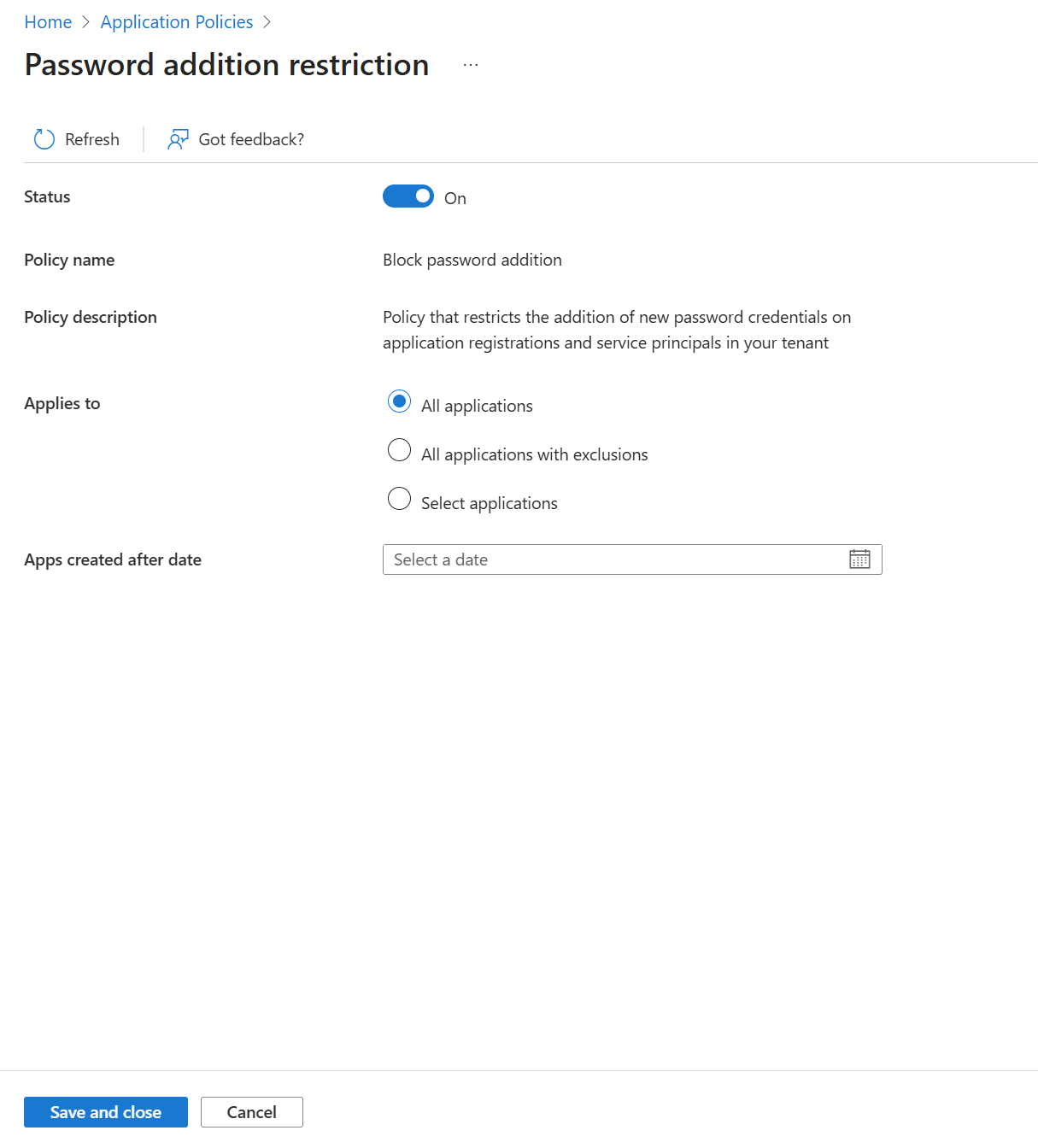
Image: Microsoft Learn, Configure restrictions on how applications can be configured
A few details that matter for rollout:
Stage it. The policy has an Apps created after date field, and the Graph overview describes using an app's creation date to enforce the policy on new apps first, then older ones.
It doesn't break running apps. Per the Graph docs, these policies don't block token issuance for existing applications. Only the create or update operation that violates the policy is blocked. I'd expect a self-rotating app's
addPasswordcall to fail once new passwords are blocked, so move that app to certificates or a managed identity first.Exceptions exist. The admin center offers All applications with exclusions and, for callers, Excluded callers. Use them sparingly.
Step 6: Watch credential changes in the audit log
Learn's security operations guidance for applications rates credentials added to an existing application as high risk and says to alert on additions outside normal business hours or workflows, of a type your environment doesn't use, or added to a non-SAML service principal.
Go to Entra ID > Monitoring & health > Audit logs (Reports Reader or higher) and search the ApplicationManagement category for activities from the audit activity reference:
Update application - Certificates and secrets management
Add service principal credentials and Remove service principal credentials
Add owner to application and Add owner to service principal
Add app role assignment to service principal, which is where a new Application.ReadWrite.All grant shows up
Learn notes that application and service principal updates are logged as two entries, so expect pairs. My advice: record which apps rotate their own certificates and when, so an unexpected change stands out. Also check your retention. Per Learn, audit logs are kept for seven days on Entra ID Free and 30 days on P1 and P2, so a monthly review only works with a longer-term export.
Key takeaways
Application.ReadWrite.All is a tenant-wide credential permission. It lets one app change any app, including adding credentials to a more powerful one.
Certificates can self-rotate with no extra permission. Microsoft's addKey and removeKey pages say so, as long as the app has a valid certificate to sign the proof token.
Secrets are different. The addPassword page lists Application.ReadWrite.OwnedBy as the least privileged application permission and has no exemption. Test it, and don't assume.
OwnedBy is far narrower, but not tiny. It limits the app to apps it owns, but it can create apps and can list all apps in the tenant.
Pick in this order: managed identity, then certificate, then (only if forced) a secret with OwnedBy and a short lifetime.
Audit, then enforce. Inventory the broad permission, remove it, add an app management policy, and alert on credential additions.
Sources
Microsoft Learn: application: addKey, application: removeKey and Generate proof-of-possession tokens for key rolling
Microsoft Learn: application: addPassword and application: removePassword
Microsoft Learn: Add owner to an application
Microsoft Learn: Microsoft Graph permissions reference
Microsoft Learn: List appRoleAssignedTo for a service principal
Microsoft Learn: Security best practices for application properties
Microsoft Learn: Managed identities for Azure resources
Microsoft Learn: Configure an application to trust a managed identity
Microsoft Learn: Configure app management policies and application management policy API overview
Microsoft Learn: Microsoft Entra security operations for applications
Microsoft Learn: Audit activity reference, How to access activity logs and data retention
About IAMPathway
IAMPathway publishes practical guides on Identity & Access Management: Microsoft Entra ID, governance, identity threats, Application Governance and AI Governance. Browse all topics or read the glossary.