- Nov 1
The App You Forgot You Approved: What the ConnectWise Breach Teaches About Vendor Apps in Microsoft 365
Think about the last backup, email security or MSP tool someone connected to your Microsoft 365 tenant. Someone clicked Accept, the tool started working, and nobody looked at it again.
In October, that habit met a real attack. A credential belonging to ConnectWise Cloud Backup, formerly SkyKick, was used to sign in to customer tenants as the vendor's app. No user, no device, no MFA prompt. Here's what the vendors and researchers have confirmed, and a checklist you can run in your own tenant this weekend.
What happened, and how sure we are
This section uses only what ConnectWise, Huntress, Sophos and Microsoft have published. Their numbers differ, and the investigation isn't finished.
Confirmed by more than one source
On October 15, someone authenticated as the ConnectWise Cloud Backup app (app ID
506e08f9-6e9a-4da4-942b-a099a03644ae) in customer tenants and obtained Microsoft Graph tokens, from a single hosting-provider IP address. Huntress and Sophos both describe it. Sophos says tenants were hit in ascending tenant-ID order, which points to a script.The sign-ins needed no password and no MFA, because the attacker used the app's own identity (Sophos).
ConnectWise disabled seven of its application identities on October 17 and revoked the associated credentials. It says it found the problem on October 14.
Reported by one source
In one customer tenant, Huntress saw a second ConnectWise app give itself Global Administrator, then add new secrets to two other apps. Microsoft separately reports follow-on activity in "multiple customer environments," including credential changes and attempts to change privileges. Huntress notes that Graph directory reads leave no audit record.
Microsoft assesses that a China-state-aligned actor it tracks as Storm-0940 was responsible and used an AI penetration-testing framework. ConnectWise says it "appears" to be that group. I'm treating this as Microsoft's assessment, not settled fact.
Not established
How the credential was stolen. ConnectWise says the exposure mechanism is still under investigation, and Sophos says it is unclear.
How many customers were hurt. Huntress confirmed unauthorized sign-ins in 162 tenants as of October 16. Later it reported sign-in activity from the attacker's IP in almost 1,000 tenants, with over 300 succeeding. Microsoft says the actor attempted sign-ins to more than 2,250 tenants. Those are different measures, so don't add them up.
What data was taken. Microsoft says a successful sign-in "does not necessarily indicate that customer data was accessed or exfiltrated." ConnectWise says it has no indication its stored backup archives were compromised, and its FAQ says it had not identified confirmed downstream customer compromise.
One detail should make you wince. Sophos says the sweep included tenants with no active backup subscription, which suggests the attacker worked from the full list of tenants that had ever consented. A forgotten consent is still a live door.
Why one vendor credential reaches every tenant
Learn describes a multitenant app as one application object in the vendor's home tenant, plus a service principal in every tenant where it's used. The service principal defines what the app can do in your tenant.
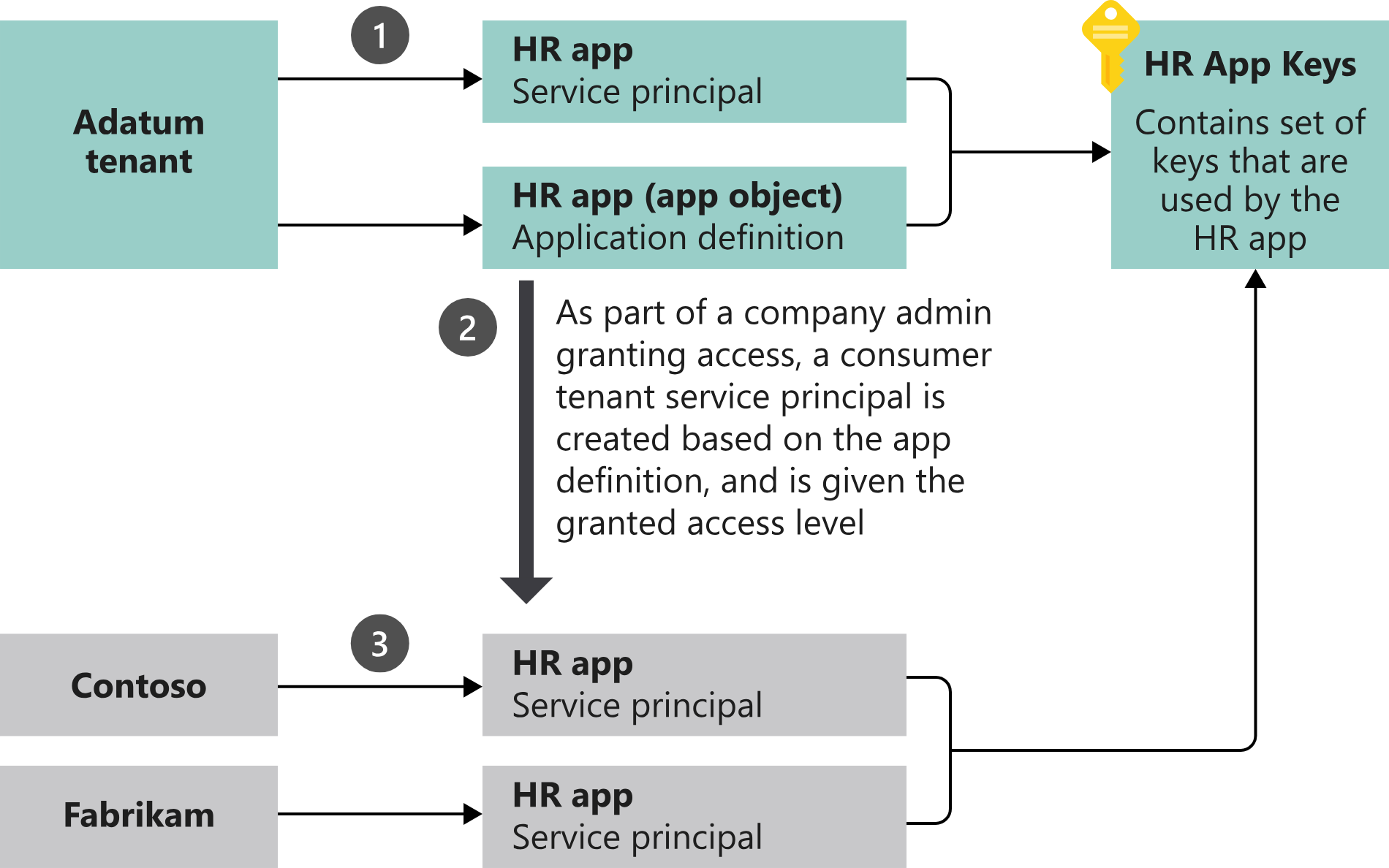
Image: Microsoft Learn, Apps & service principals in Microsoft Entra ID
Microsoft's diagram shows the catch: one set of app keys serves every tenant. Huntress says the credential in this incident lived in the vendor's own tenant, so nothing a customer did could have prevented it. Sophos puts the consequence plainly: an attacker with the credential can request the same tokens in every tenant that granted consent.
What the attacker gets is whatever you consented to. Huntress says a backup tool's permissions are broad because backup and restore both read and write data. Vendor apps deserve the scrutiny you give admin accounts.
Two limits. Conditional Access for workload identities covers only single-tenant service principals registered in your tenant. Learn says Microsoft and third-party SaaS apps, including multitenant apps, aren't covered. You can't put a policy on a vendor's app. And it needs Workload Identities Premium licenses. So your levers are visibility, permissions, and the off switch.
Your weekend checklist
You'll need at least Cloud Application Administrator for the changes and Reports Reader for logs. Sign in at the Microsoft Entra admin center.
1. Inventory the vendor apps
Go to Entra ID > Enterprise apps > All applications.
Search by application ID, not name. ConnectWise's guide lists the seven IDs and notes older installs may show "SkyKick Cloud Manager" names.
List every backup, security and MSP app, who owns it, and why it's there. Learn's playbook says every enterprise app should have an owner. Question anything nobody can explain.
2. Read what each app is allowed to do
Open the app and select Permissions.
The Admin consent tab shows permissions granted for the whole organization. User consent shows what individuals granted.
Look for write access to directory data, mail, files, and anything that assigns roles or manages other apps.
To remove a grant, choose ... on a permission in Admin consent and select Revoke permission. Learn notes you can't revoke User consent entries in the portal; use Graph or PowerShell.
Revoking doesn't stop an app asking again. To restrict who can consent, see Entra ID > Enterprise apps > Consent and permissions > User consent settings (path from Learn's playbook).
3. Find apps holding directory roles
Role assignments can link a service principal to a role, and the incident involved an app making itself Global Administrator. Go to Entra ID > Roles & admins, open each high-privilege role and select Assignments. ConnectWise's guide prioritizes Global Administrator, Privileged Role Administrator, Privileged Authentication Administrator, Application Administrator, Cloud Application Administrator, Exchange Administrator and SharePoint Administrator. Remove any assignment you didn't make on purpose.
4. Look at service principal sign-ins
Go to Entra ID > Monitoring & health > Sign-in logs and open the Service principal sign-ins tab. The default user tab doesn't show app sign-ins. Filter by application ID and look at the IP address column. ConnectWise says the app's normal traffic came from Azure private IPv6 space, so a public hosting IP stands out.
Retention is short: seven days on Entra ID Free, 30 on P1 or P2. Export now. Microsoft Graph activity logs, which show what a token did, aren't retained at all unless you send them to a storage account or analytics tool, and they need P1 or P2.
5. Check the audit log for credential and role changes
In Entra ID > Monitoring & health > Audit logs, search for these activities from Learn's reference:
Add service principal credentials and Update application – Certificates and secrets management
Add member to role
Add app role assignment to service principal
Consent to application
Check who initiated each entry and what changed. Apps adding secrets to other apps, or putting themselves in a role, are what Huntress saw. Review back to at least October 13.
6. Review credentials on your own apps
Huntress's key warning: disabling an app does not remove credentials already planted on other apps. Open Entra ID > App registrations > All applications, pick each app and review Certificates & secrets (the path in ConnectWise's guide). Remove anything you don't recognize. Vendor registrations may not appear here, and service principal credentials may need a Graph query.
7. Know the off switch
To pause a vendor app without losing its consent:
Go to Entra ID > Enterprise apps > All applications and open the app.
Select Properties.
Set Enabled for users to sign-in? to No, then Save.
Learn says this sets the service principal's accountEnabled to false for your tenant and prevents tokens being issued for the app. Don't delete first. Microsoft's guidance is to preserve configuration and evidence, and Huntress warns that deleting removes the consent, so restoring service means consenting again. Disabling a backup app pauses backups, so decide in advance who makes the call.
ConnectWise says its restored service uses a new app, "ConnectWise Cloud Backup for M365," and that partners must re-authorize each tenant. It tells partners not to re-enable the old apps unless told to. My advice: treat that new consent screen as a fresh decision and read the permissions.
Turn on app management policies
App management policies, per Learn, control how app owners and administrators can configure applications and service principals in your organization. Useful restrictions include Block password addition (no new secrets), Restrict max password lifetime and Restrict max certificate lifetime.
Sign in as Security Administrator plus Cloud Application Administrator or Application Administrator, or as Global Administrator.
Go to Entra ID > Enterprise apps > Application policies.
Select Block password addition, set Status to On, and choose All applications. Use All applications with exclusions for automation that still needs secrets.
Select Save.
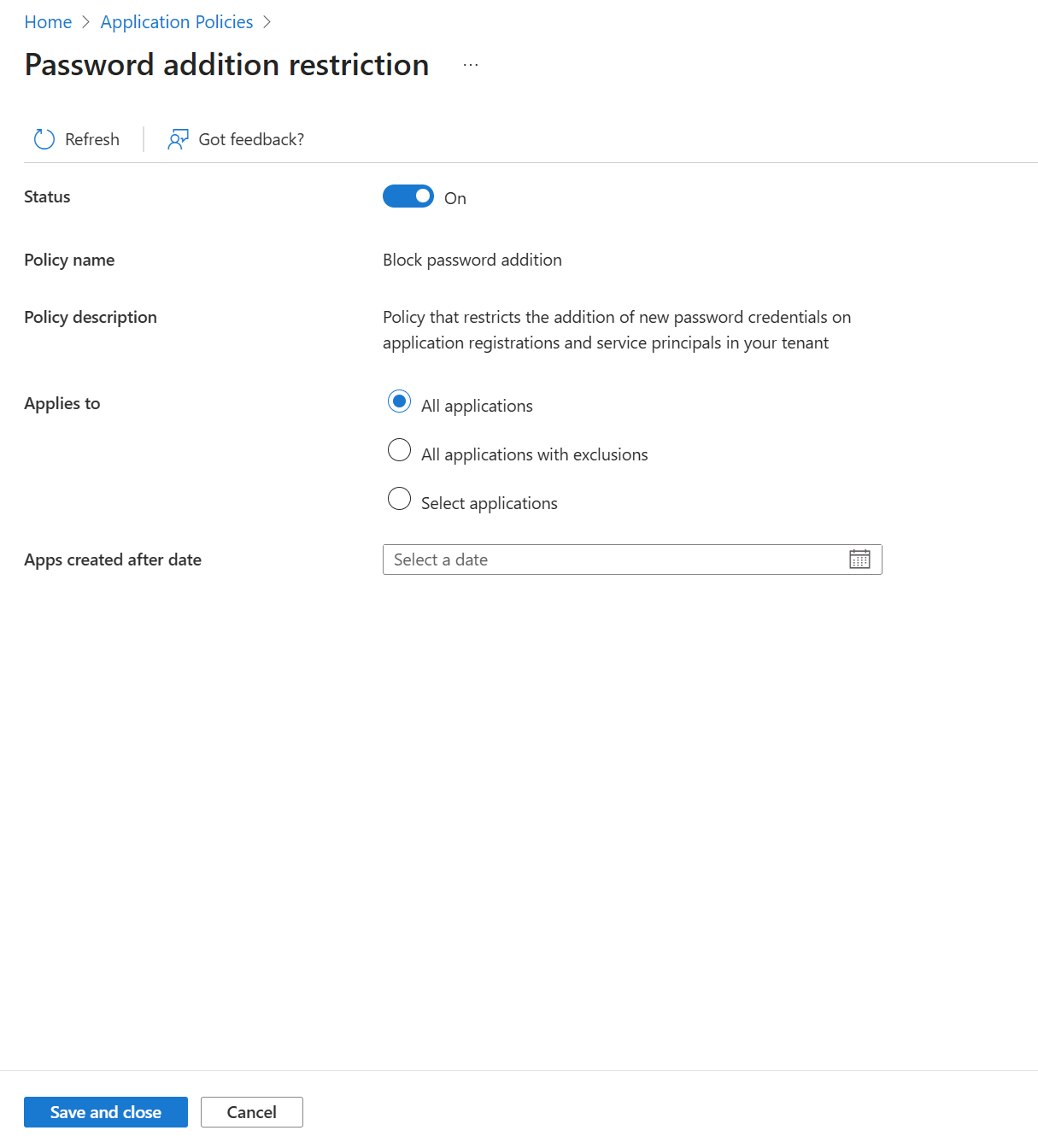
Image: Microsoft Learn, Configure restrictions on how applications can be configured
My reading: this would have made it harder to plant a new secret on one of your own apps, and it shortens the life of credentials you do allow. It doesn't touch a credential the vendor holds in the vendor's own tenant. An attacker who becomes Global Administrator could also change the policy, so keep the number of privileged accounts and apps small. Test exclusions first, because blocking secrets can break automation.
Also limit who holds Application Administrator and Cloud Application Administrator, since either can add credentials to apps. That's Huntress's recommendation too.
Where Workload ID and the instance lock fit
Conditional Access for workload identities is worth it for your own single-tenant apps and automation, if you own Workload Identities Premium. Under Entra ID > Conditional Access > Policies > New policy, choose Users or workload identities > Workload identities and block requests from outside your known IP ranges. Start in report-only mode. It won't cover the vendor's app. Huntress also says to review any policy that excludes a vendor app, such as from a location block.
App instance property lock is for people who build apps. Learn says it locks sensitive properties of an app's service principal, such as credentials used for verification, and that since June 2026 it's on by default for new apps. Builders find it under Entra ID > App registrations > the app > Authentication > App instance property lock > Configure. Huntress says it enabled the lock on all its own apps after the incident. As a customer, you can only ask whether the vendor uses it.
Questions for your vendor or MSP
Do you use one app for all customers or one per customer? The Entra.News episode notes argue one-per-customer limits the damage of a leak.
Do you use client secrets or certificates, and how often do they rotate? The same notes recommend managed identity or federation, or short-lived certificates, over long-lived secrets.
Is app instance property lock on?
What permissions does the app really need, and how fast will you tell us if its credential is exposed?
Key takeaways
App sign-ins skip people controls. Per Huntress and Sophos, the attacker used the app's own identity, so no password or MFA applied.
A multitenant app means one credential for every consenting tenant, including customers who stopped using the product.
Check apps, permissions, roles and credentials. Do it in this order: Enterprise apps, Permissions, Roles & admins, Service principal sign-ins, Audit logs.
Disable, don't delete. Then check your other apps for planted secrets, because disabling doesn't remove them.
Turn on app management policies and keep few people in app admin roles.
Export logs now. Entra keeps sign-in and audit data 7 or 30 days.
You can't control the vendor's credential. You can control what it can reach.
Sources
ConnectWise: Trust Center advisory, Cloud Backup (formerly SkyKick) service interruption and its technical investigation and remediation guide
Huntress: ConnectWise (SkyKick) vendor credentials abused in M365 attacks
Sophos X-Ops: ConnectWise Cloud Backup application abused in cross-tenant token sweep
Microsoft Security Blog: AI-driven, large-scale nation-state campaign using ARTEX enables supply chain compromise
Entra.News: Entra multi-tenant app mistakes every SaaS builder and admin should know, with Kelvin Tegelaar (I used the published show notes, not the full audio)
Microsoft Learn: Apps & service principals in Microsoft Entra ID
Microsoft Learn: Review permissions granted to enterprise applications
Microsoft Learn: Disable user sign-in for an application
Microsoft Learn: Configure app management policies
Microsoft Learn: Configure app instance property lock
Microsoft Learn: Conditional Access for workload identities
Microsoft Learn: Sign-in logs in Microsoft Entra ID, audit log activity reference and data retention
Microsoft Learn: List Microsoft Entra role assignments
Microsoft Learn: Compromised and malicious applications investigation
About IAMPathway
IAMPathway publishes practical guides on Identity & Access Management: Microsoft Entra ID, governance, identity threats, Application Governance and AI Governance. Browse all topics or read the glossary.